Skip to main content Skip to main navigation Skip to footer

Moodle Question Types of the Activity "Test"

As a lecturer, you will learn about different question types in the "Test" activity in Moodle. The question types are mainly used for written exams. However, they can also be used for formative assessment and exercises. Click on the images and videos under the question types to get a first impression of the function.

Table of contents Question types

Standard question types

  • MC: Multiple choice
  • WF: True/False

Text-based question types

  • KA: Short answer
  • FT: Free text

Matching question types for words and word groups

  • AO: Arrangements (order of text strips, images or other media)
  • ZODL: Assignment (drop-down list)
  • KAZO: Random course response assignment (like assignment with drop-down list)

Matching and labelling question types for cloze texts

  • LTA: Cloze text selection (drop-down list)
  • ET: Extended cloze text (drop-down list or drag-and-drop)
  • LTC: Cloze text (short text gaps, multiple choice, drop-down, numerical fields)
  • WM: Mark words
  • DDT: Drag and drop on text

Matching question types for images and text

  • DDB: Drag and drop onto an image
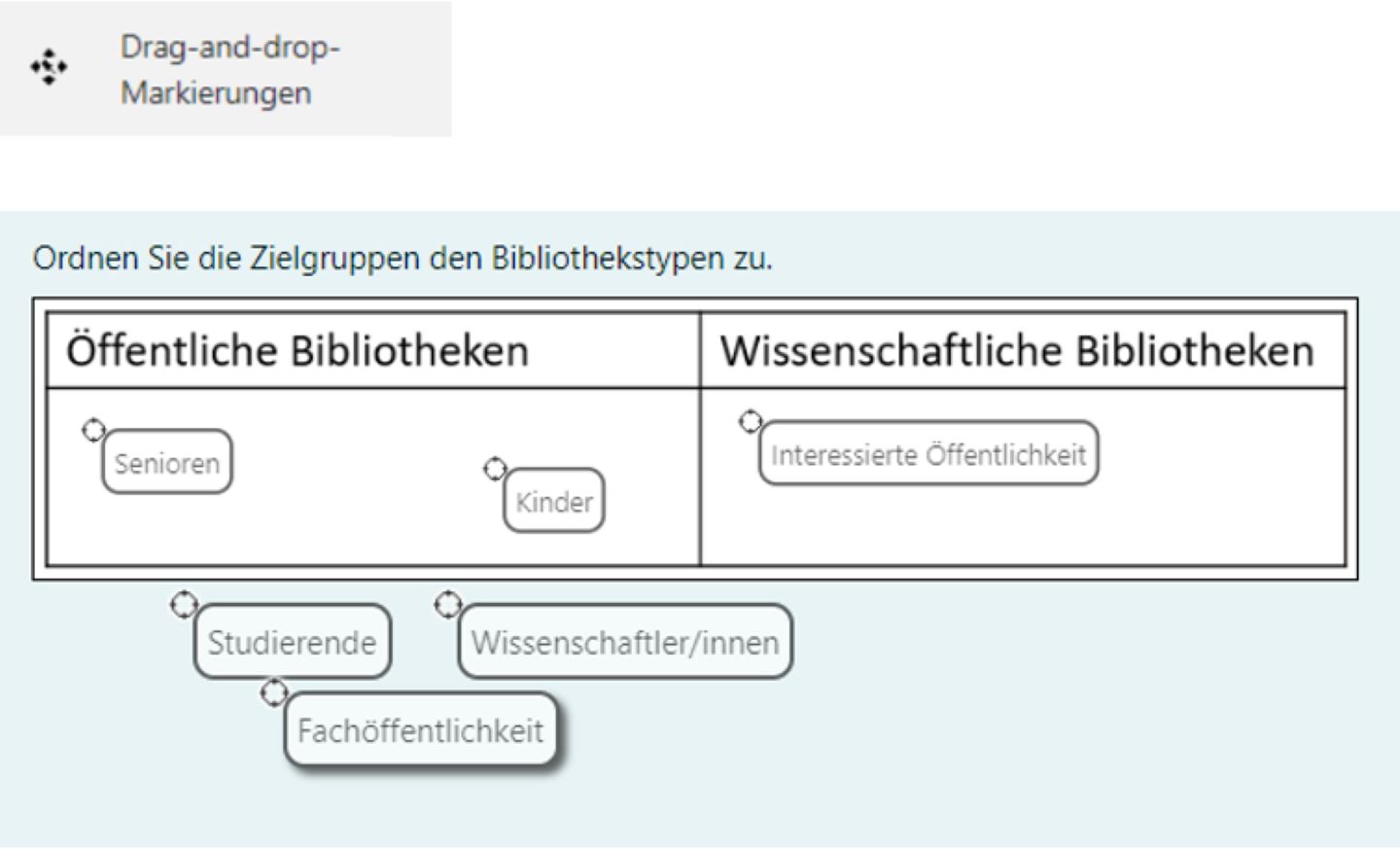
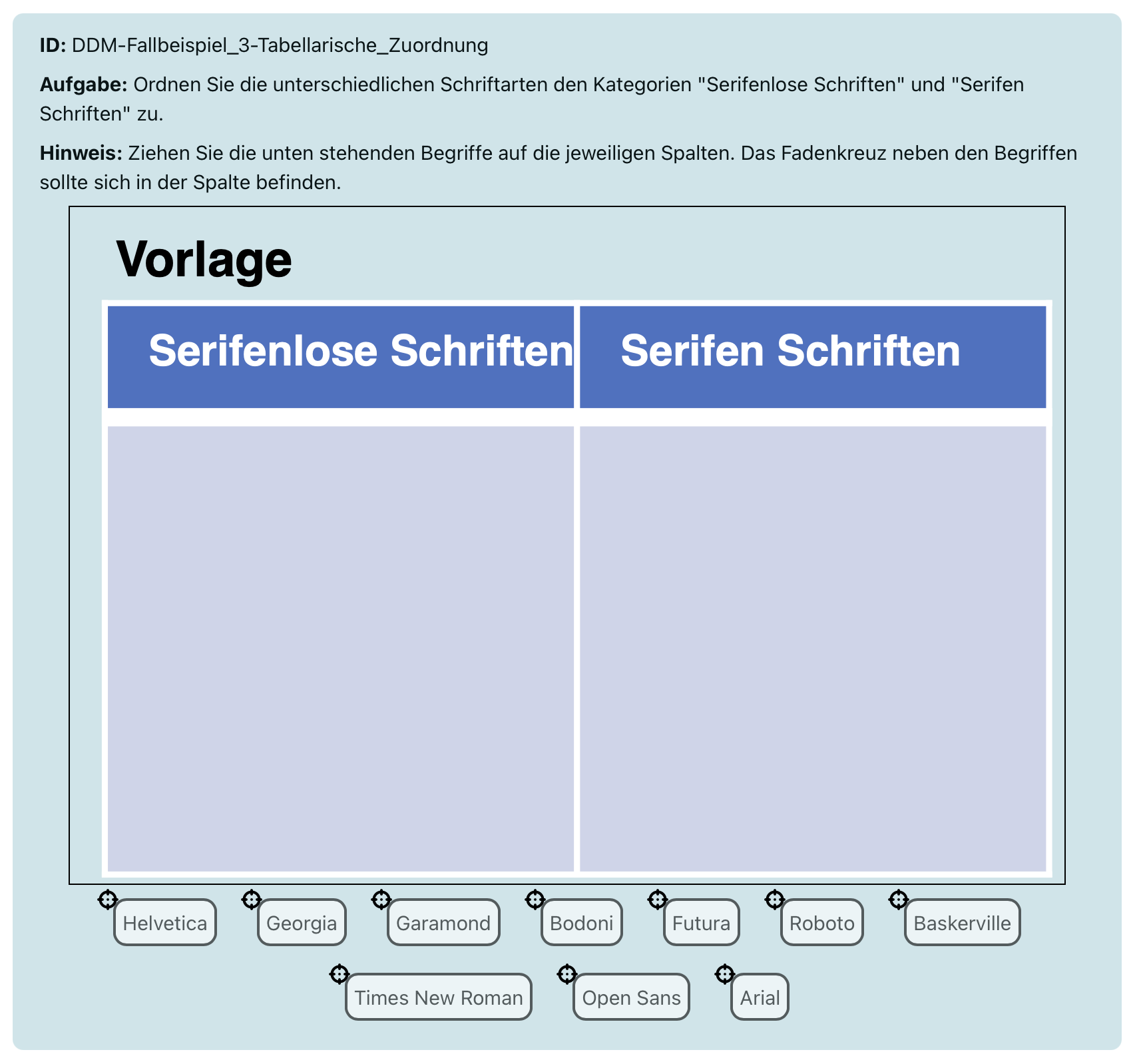
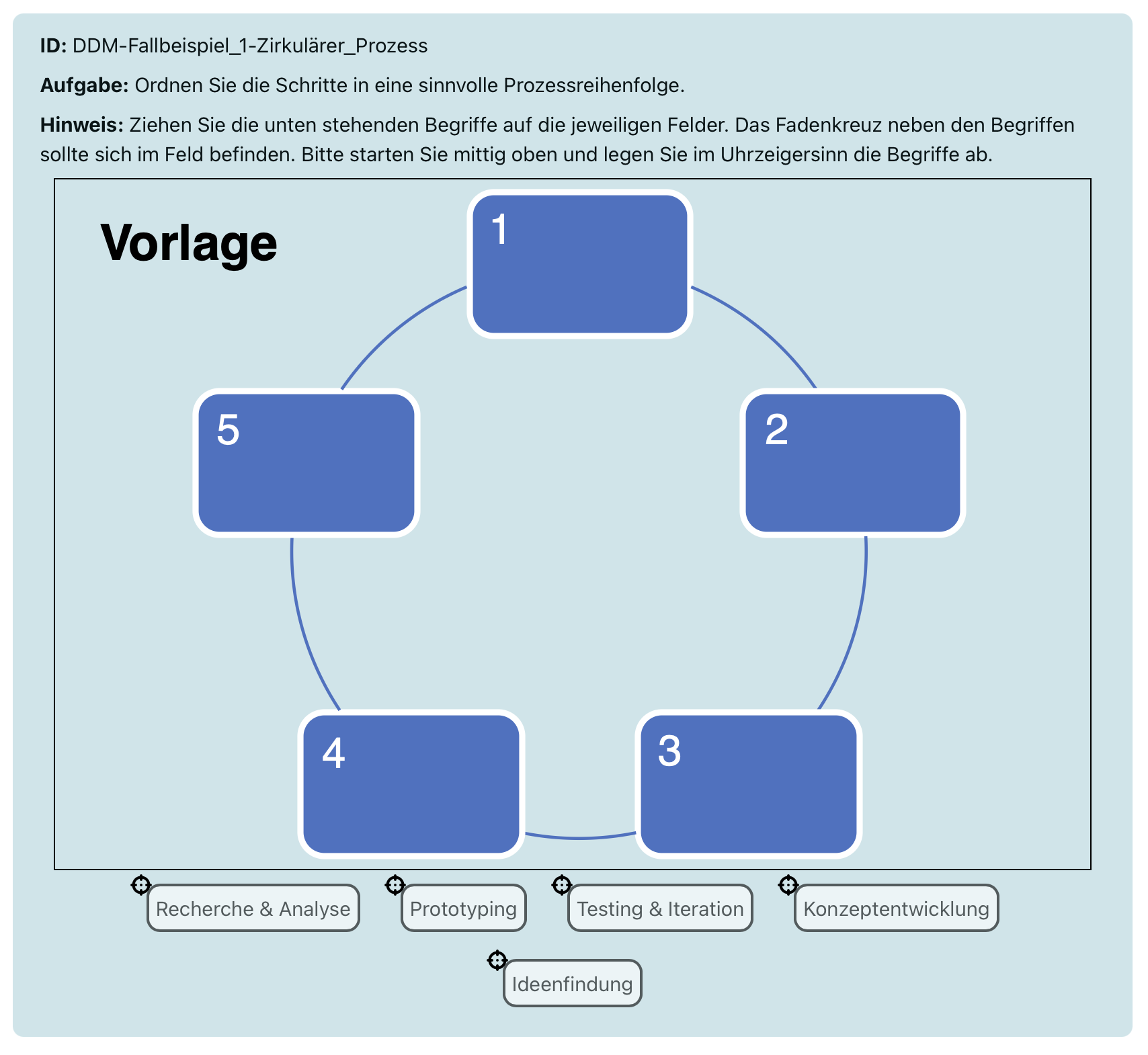
  • DDM: Drag and drop markings

Types of mathematical questions

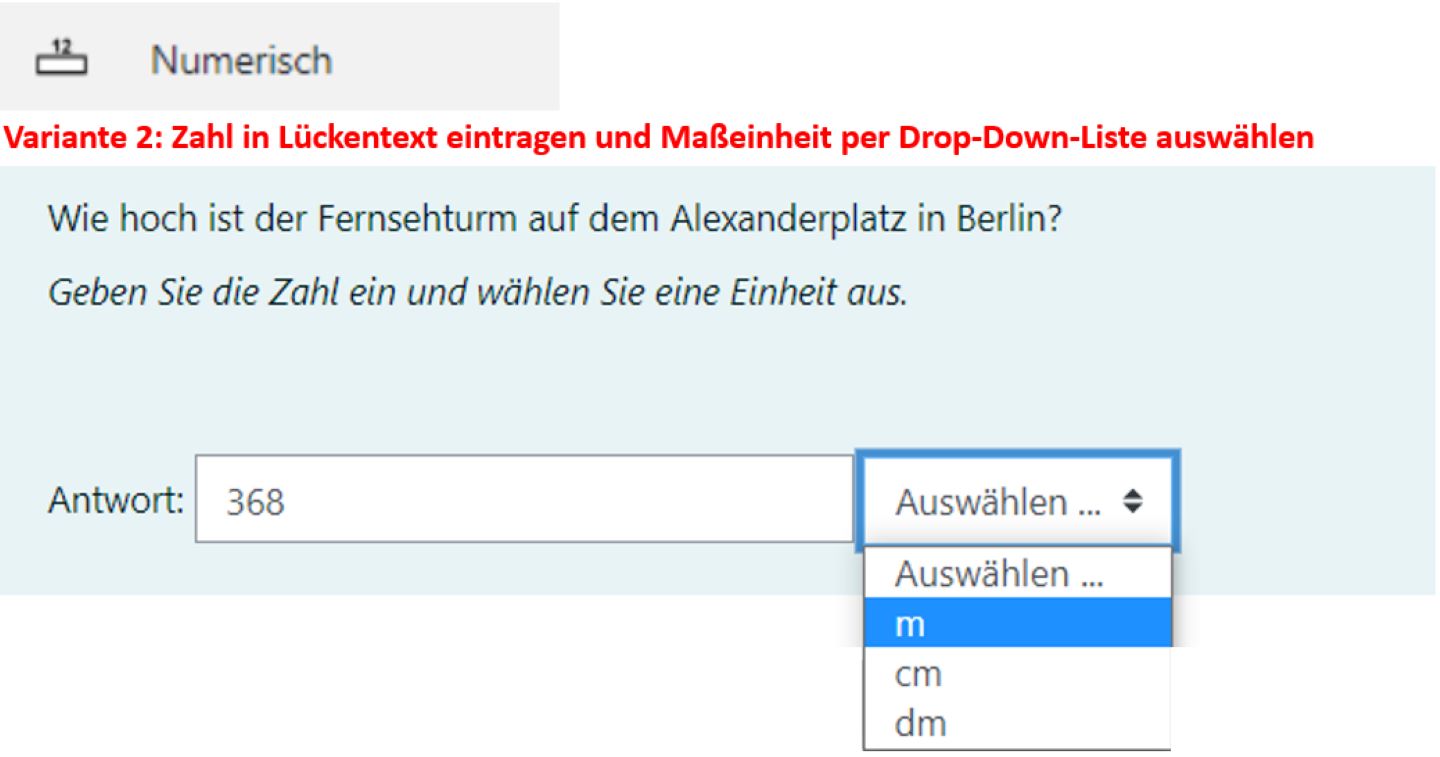
  • NM: Numerical
  • BR: Calculated
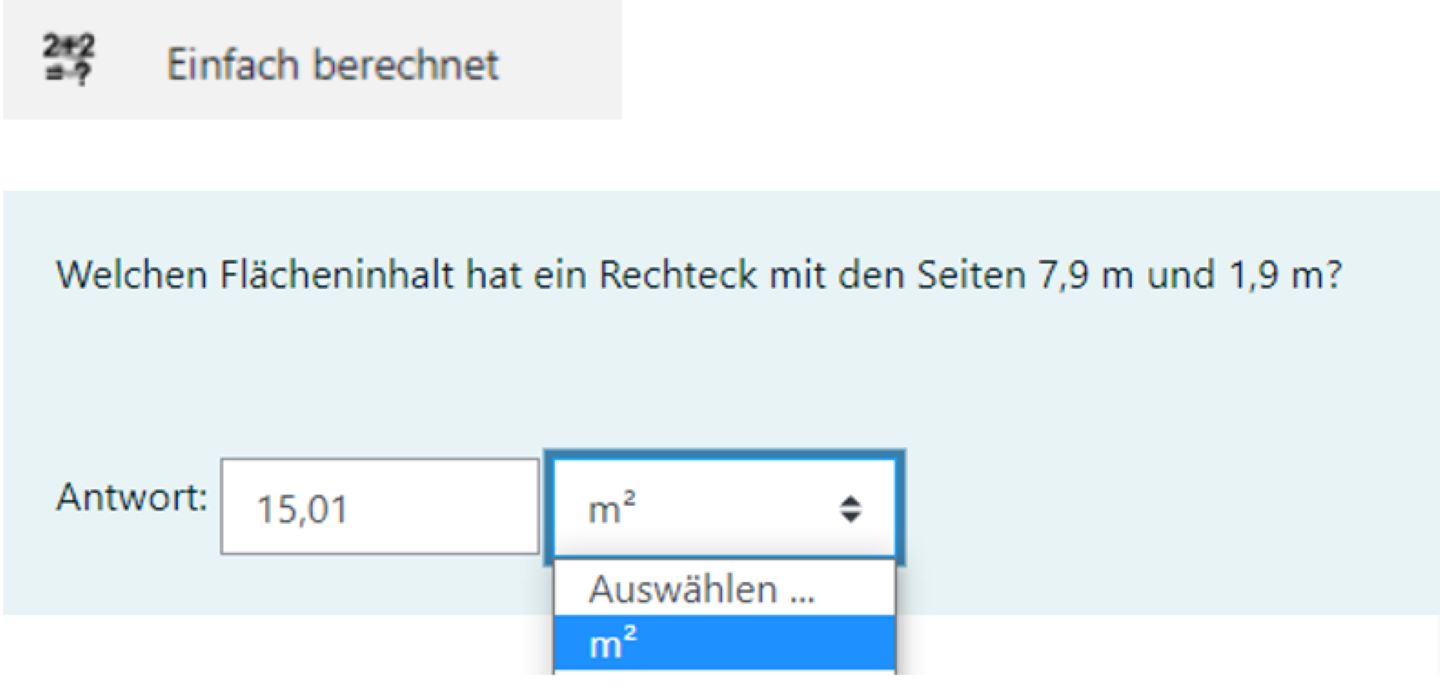
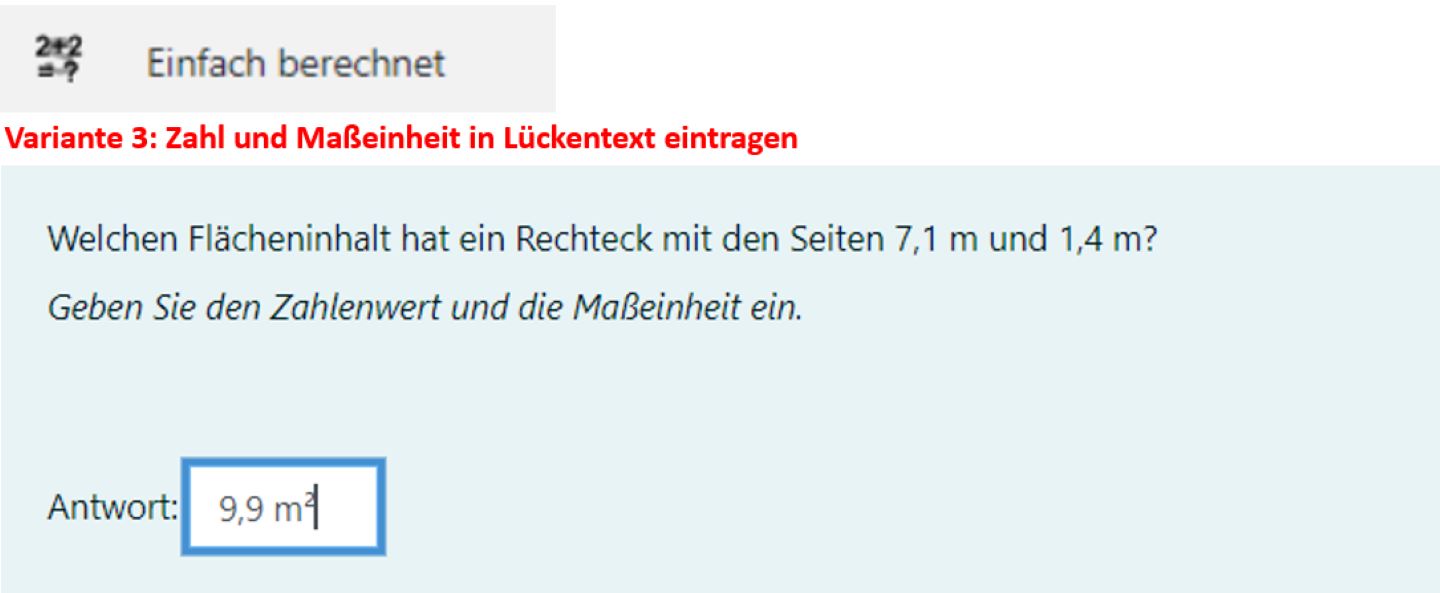
  • EB: Simple calculation
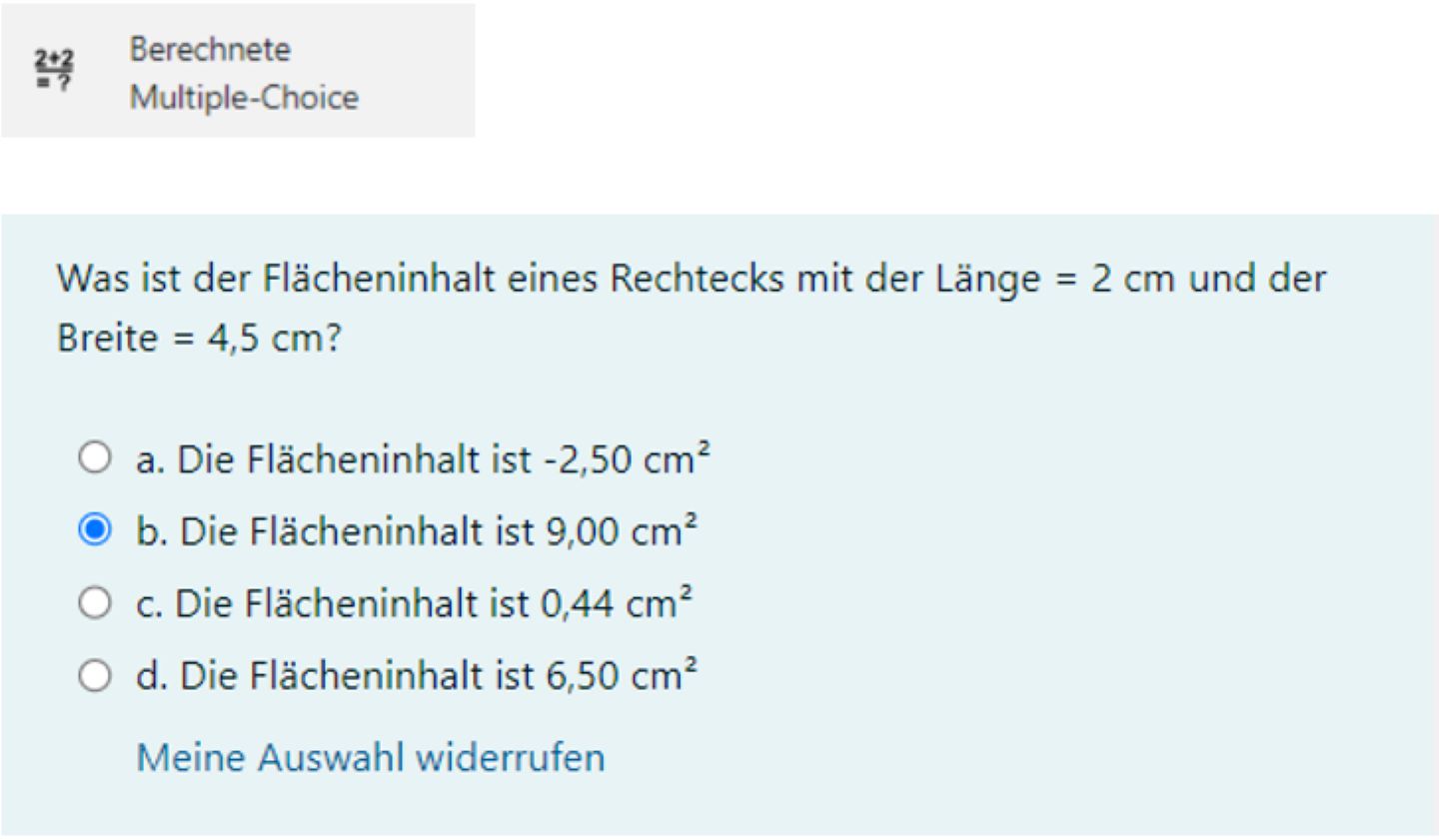
  • BMC: Calculated multiple choice

Miscellaneous

  • B: Description

Standard question types

Moodle offers an extensive range of question types. However, it is usually sufficient to familiarise yourself with the "multiple choice" question type to get started. You can use this to design an online exam.
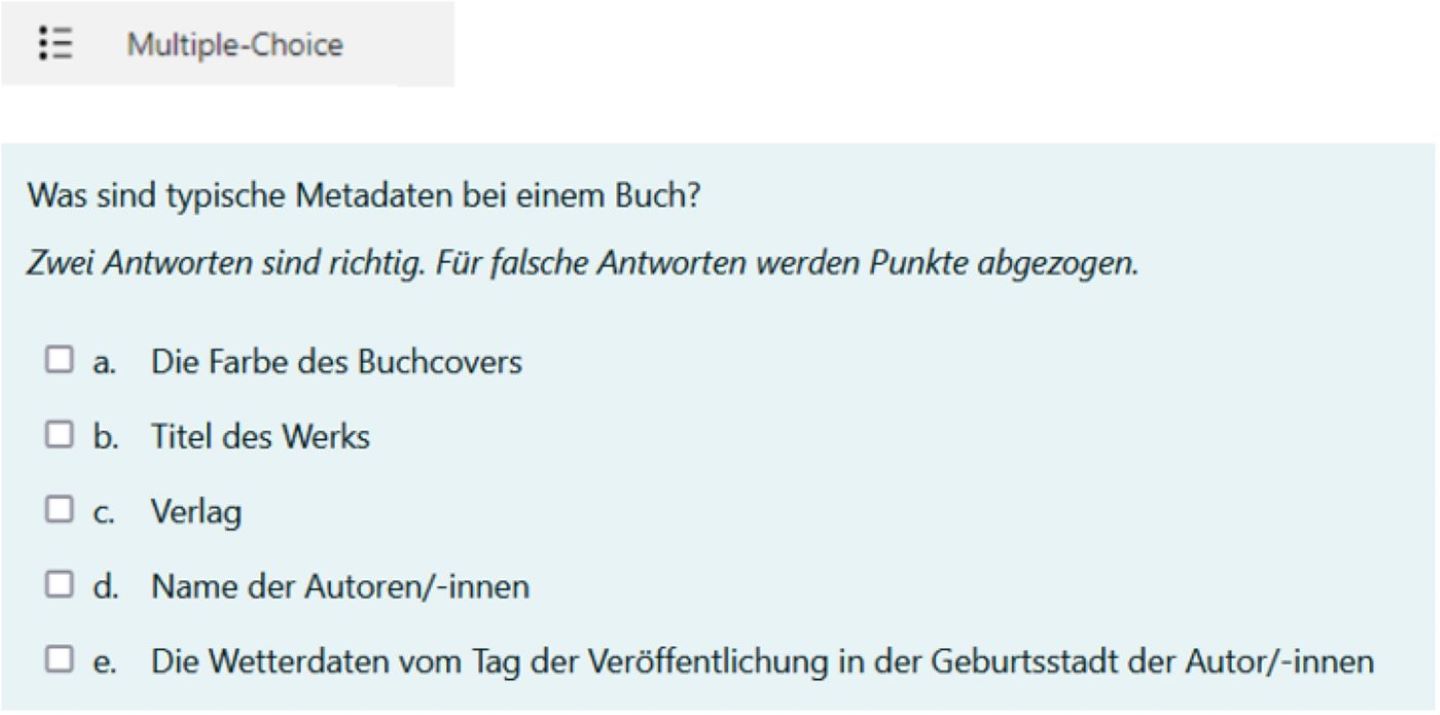
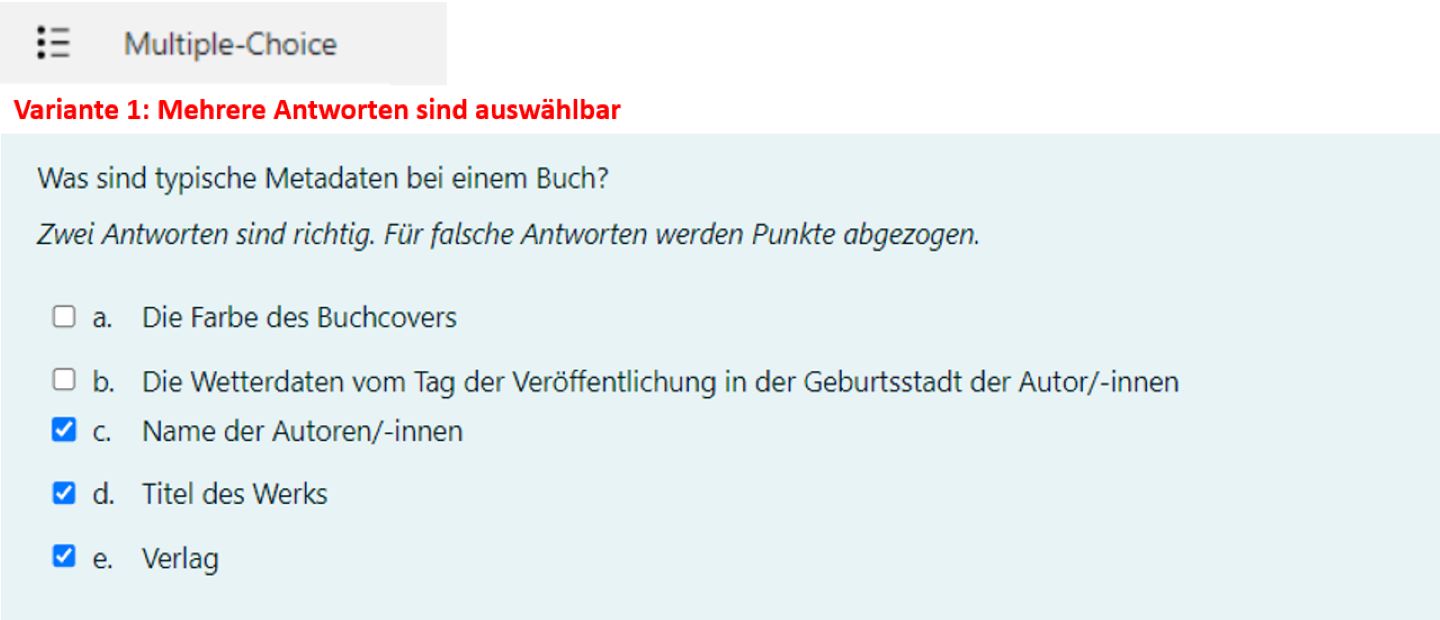
Brief description:

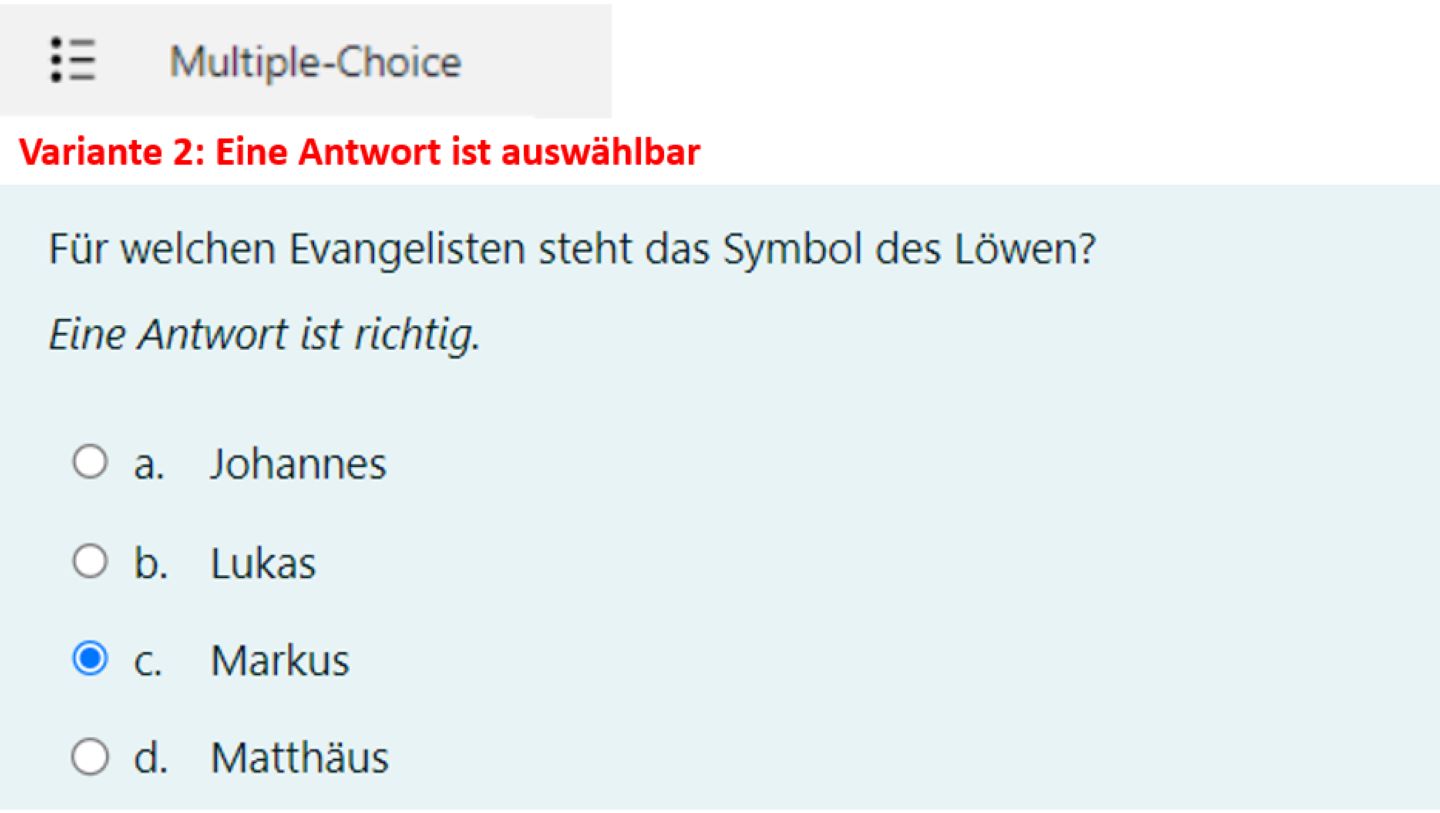
Multiple-choice and single-choice questions

Question type "Multiple choice":

Level of difficultyComplex
Frequency+++
EvaluationAutomatic, closed question type
Media types in the task textText, link, image, video, audio, H5P, mathematical formulae (with TeX)
Media types in answer optionsText, link, image, video, audio, H5P, mathematical formulae (with TeX)
AccessibilityLargely barrier-free

The development of question types is very dynamic.

The latest instructions for question types can therefore be found here in the Moodle Documentation under Question types sorted alphabetically.

Notes:

For online exams, at least 4 answer options are recommended. 5-6 answer options are better.

Screenshots:

Brief description:

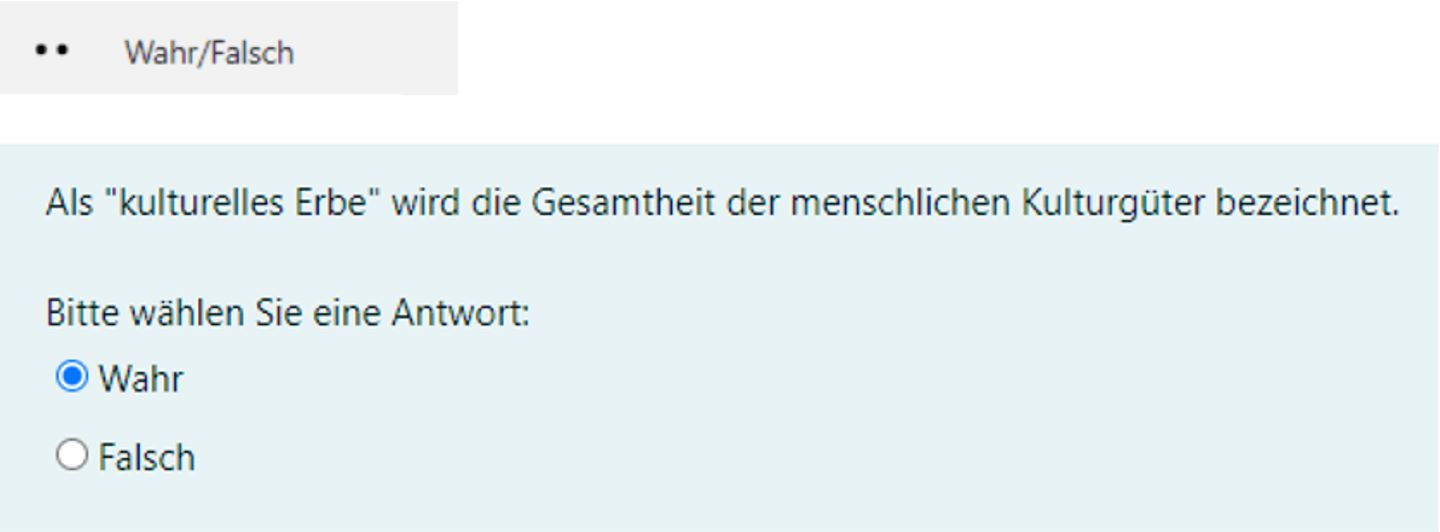
Single-choice question with the choice between "True" and "False"

Question type "True/False":

Level of difficultyEasy
Frequency++, Standard, available on Moodle Teaching and Moodle Exams
EvaluationAutomatic / closed question type
Media types in the task textText, link, image, video, audio, H5P, mathematical formulae (with TeX)
Media types in answer optionsPreset
AccessibilityLargely barrier-free

The development of question types is very dynamic.

The latest instructions for question types can therefore be found here in the Moodle Documentation under Question types sorted alphabetically.

Notes:

This question type should not be used in online exams. The probability of guessing the correct answer is 50 percent.

Screenshots:

Text-based question types

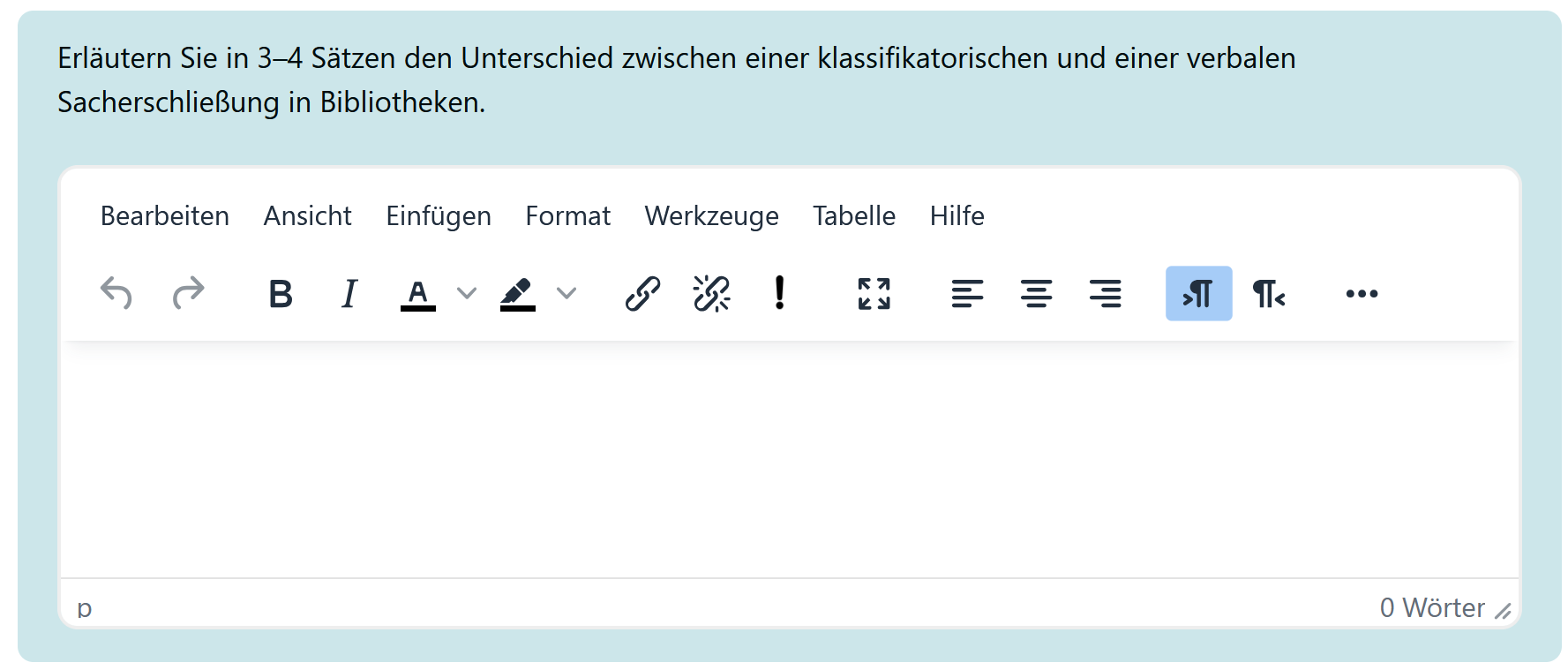
For text-based question types, a word, word groups or longer text can be typed into a field as an answer.
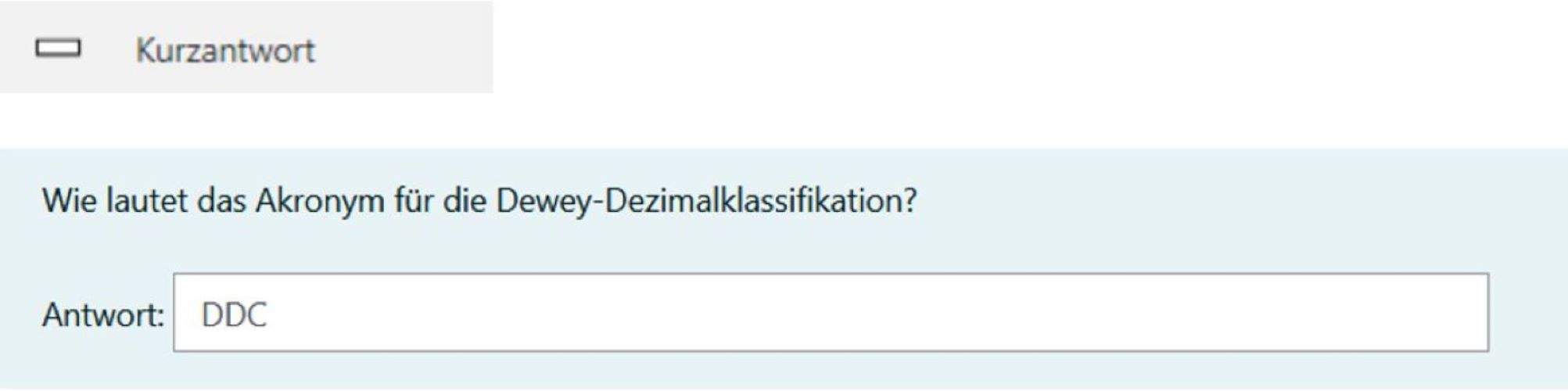
Short description:

  • Short answer in one line via text input
  • Multiple answers can be marked as correct
  • The evaluation can be activated or deactivated for upper and lower case letters

Question type "Short answer":

Level of difficultyeasy
Frequency+++, Standard, available on Moodle Teaching and Moodle Exams
EvaluationAutomatic / closed question type
Media types in the task textText, link, image, video, audio, H5P, mathematical formulae (with TeX)
Media types in answer optionstext
VariablesYes, textual deviations from the correct answer are possible.
AccessibilityLargely barrier-free

The development of question types is very dynamic.

The latest instructions for question types can therefore be found here in the Moodle Documentation under Question types sorted alphabetically.

Notes:

  • Short answers are closed question types. However, you can store several correct answers in order to also evaluate answers that are correct in terms of content but not spelled correctly.
  • However, it is recommended that you do not enter too many words as short answers. Ideally, the short answer should consist of one word.
  • It is recommended that you offer tasks as exercises first. Then you can include typical spelling mistakes in the answers.

Screenshots:

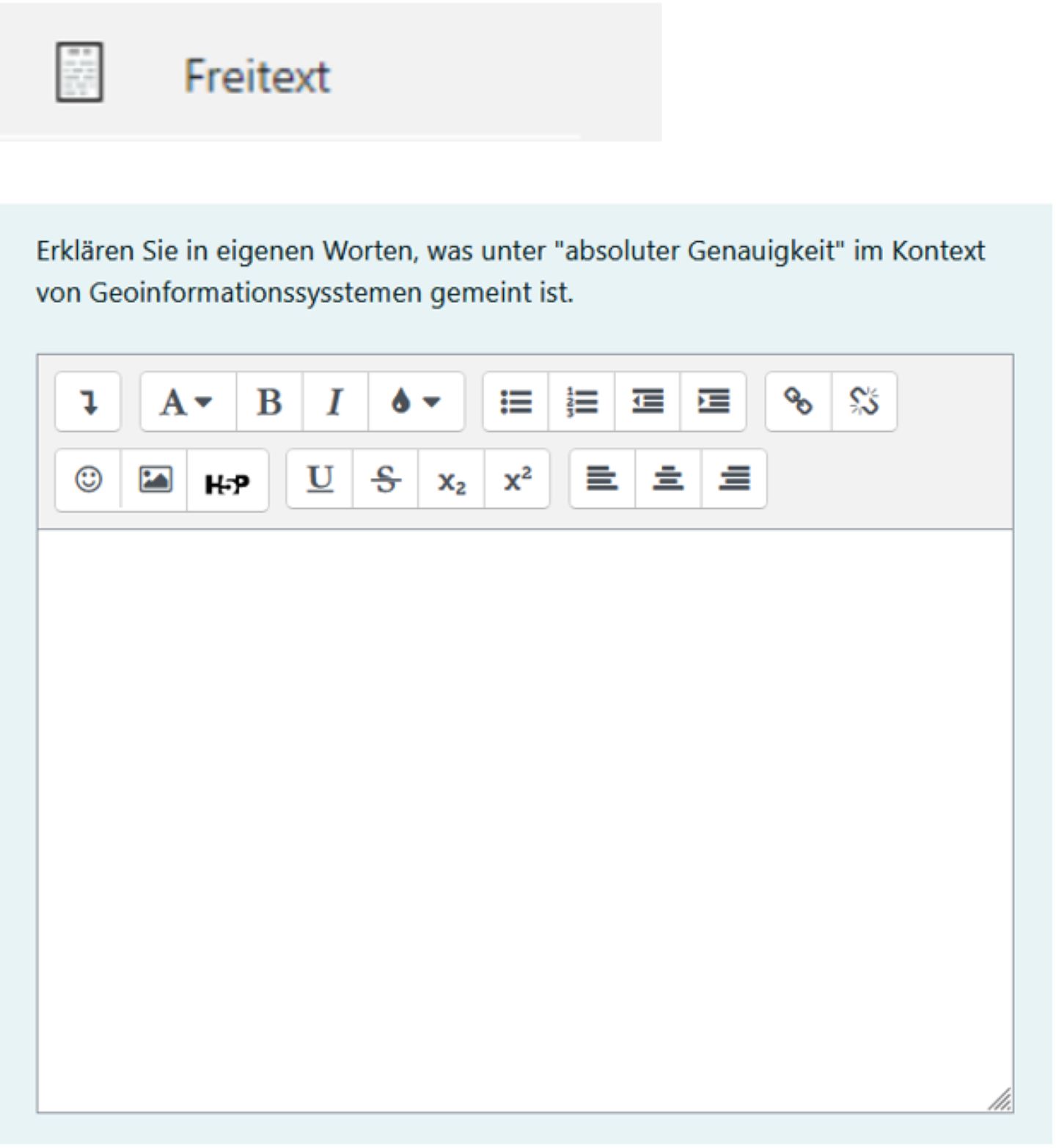
Brief description:

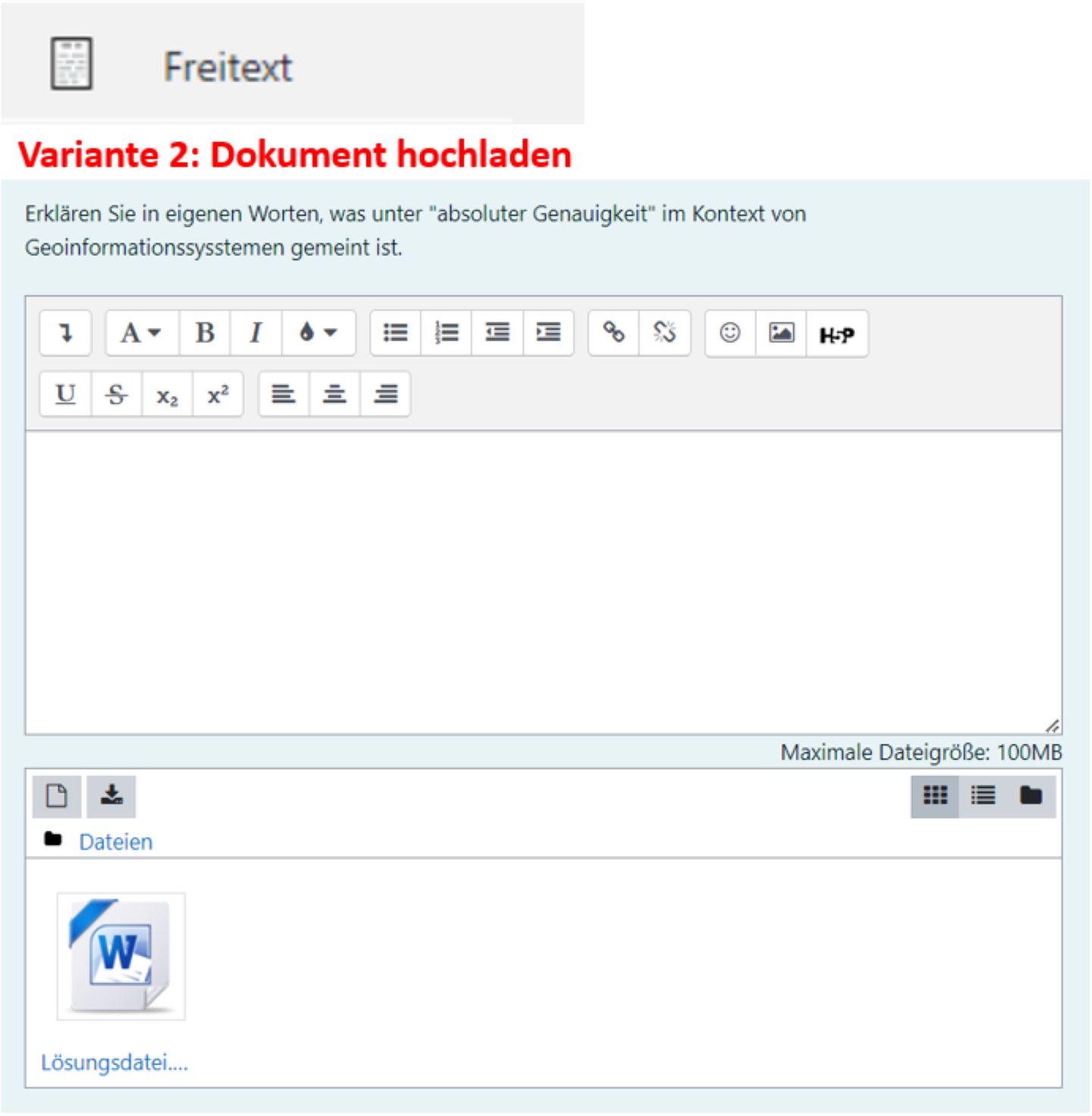
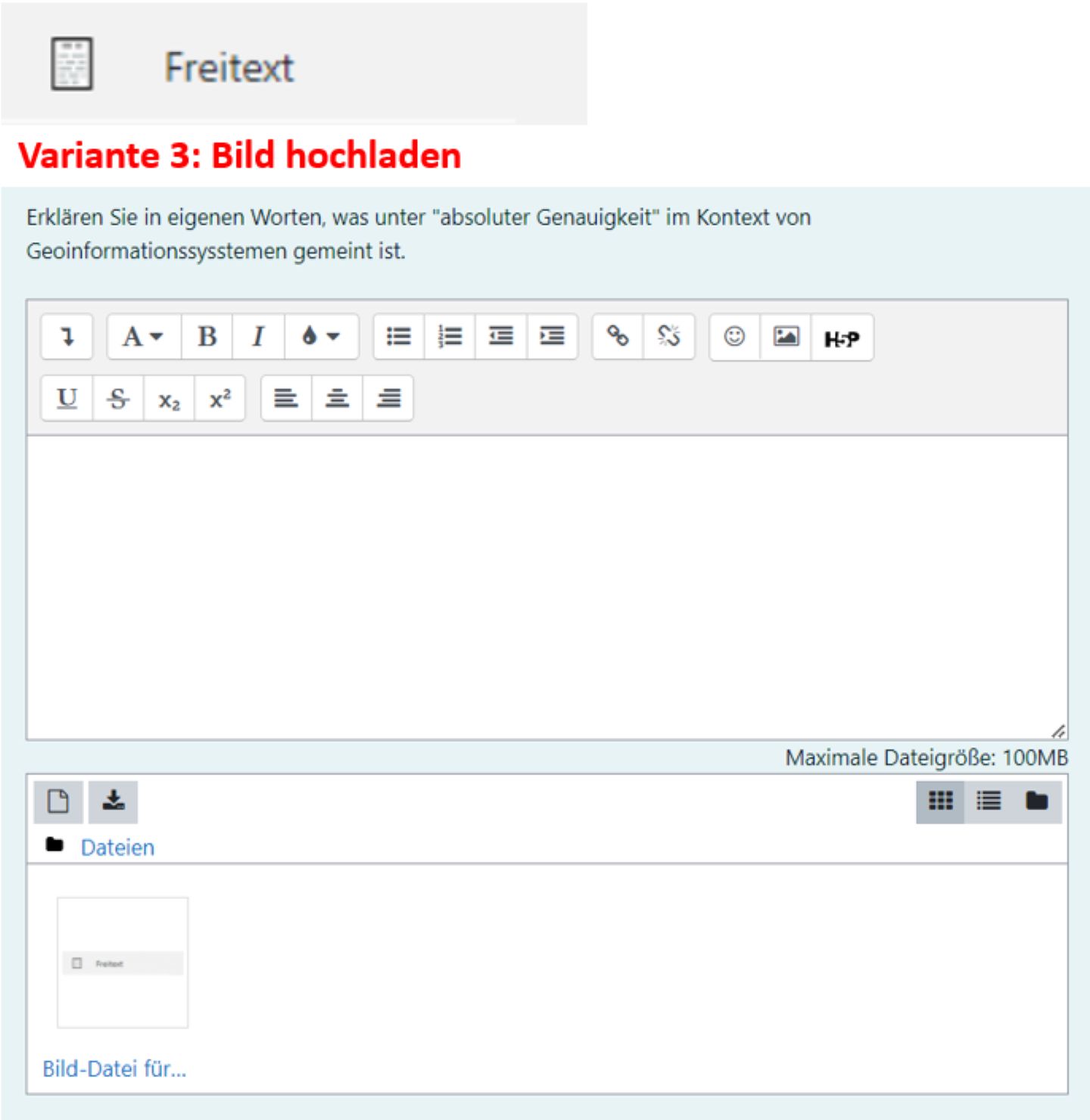
  • Enter free text as an answer in a larger field.
  • Free text can be supplemented with various media, such as images, audio files, and videos.
  • Free text can be supplemented with links and mathematical formulas (TeX).
  • Free text also allows you to set more complex and individualized tasks. However, evaluation is not automatic. If the exam is in the format of an open-book exam or a term paper, we recommend using the “Assignment” activity in Moodle instead of the “Test” activity. There, text documents and presentations of a larger scope can be uploaded.
  • Under “Answer options,” you can add text modules to the answer.
  • It is possible to attach a file to a free text for submission. However, the files must be downloaded separately and individually. In addition, the attached file is not included in the exam backup with the Quiz Archiver. We recommend using the submission activity instead.

Profile question type "Essay":

Level of difficultyEasy
Frequency++, standard, available on Moodle Teaching and Moodle Exams
EvaluationManual / open question type
Media types in the task textText, link, image, video, audio, H5P, mathematical formulae (with TeX)
Media types in answer optionsText, link, image, video, audio, H5P, equation (with TeX)
AccessibilityLargely barrier-free

The development of question types is very dynamic.

The latest instructions for question types can therefore be found here in the Moodle Documentation under Question types sorted alphabetically.

Screenshots:

Matching question types for words and word groups

With matching question types, predefined words or groups of words can be assigned to a question or category. In addition, given words or word groups can be sorted into the correct order.
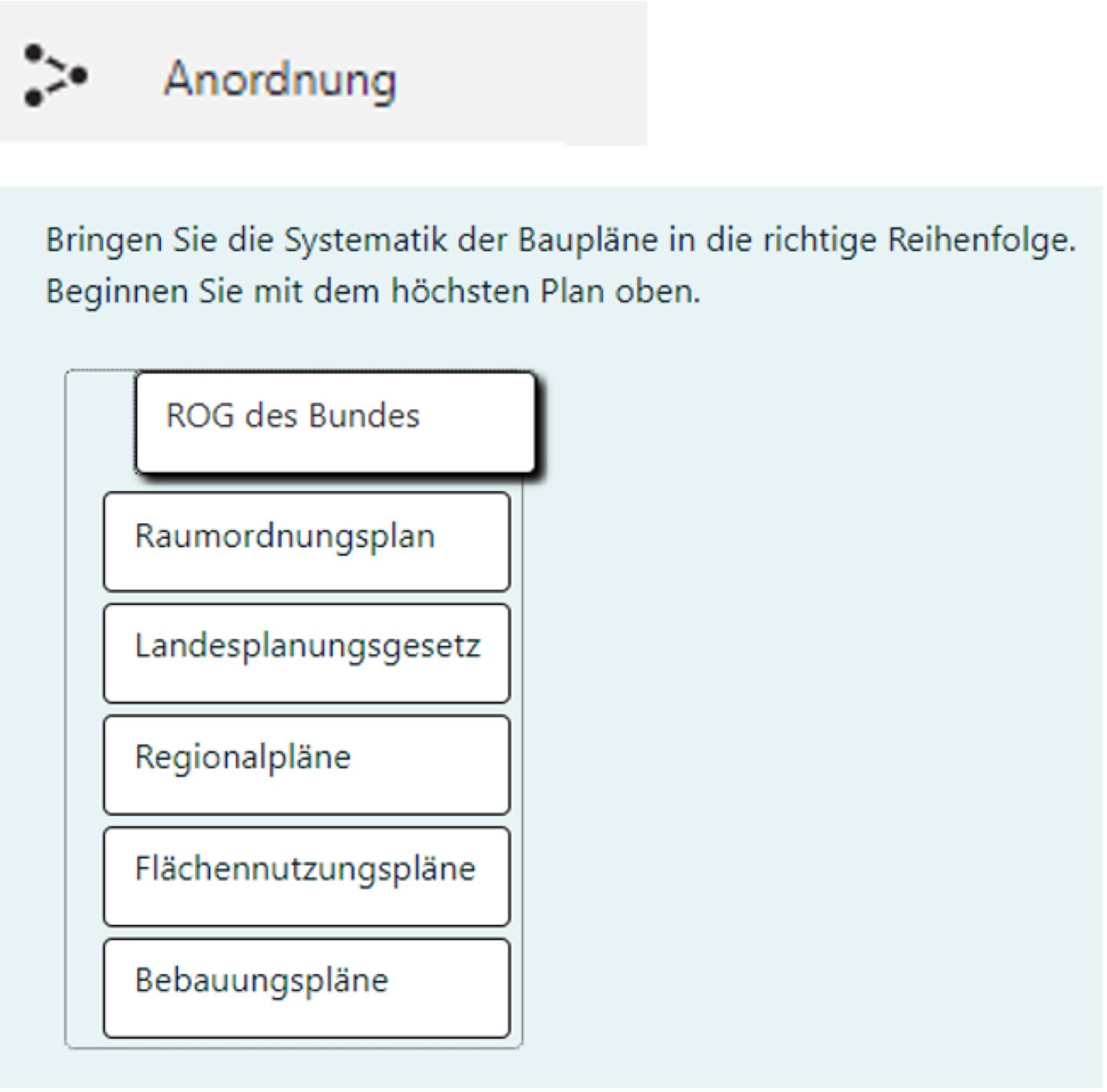
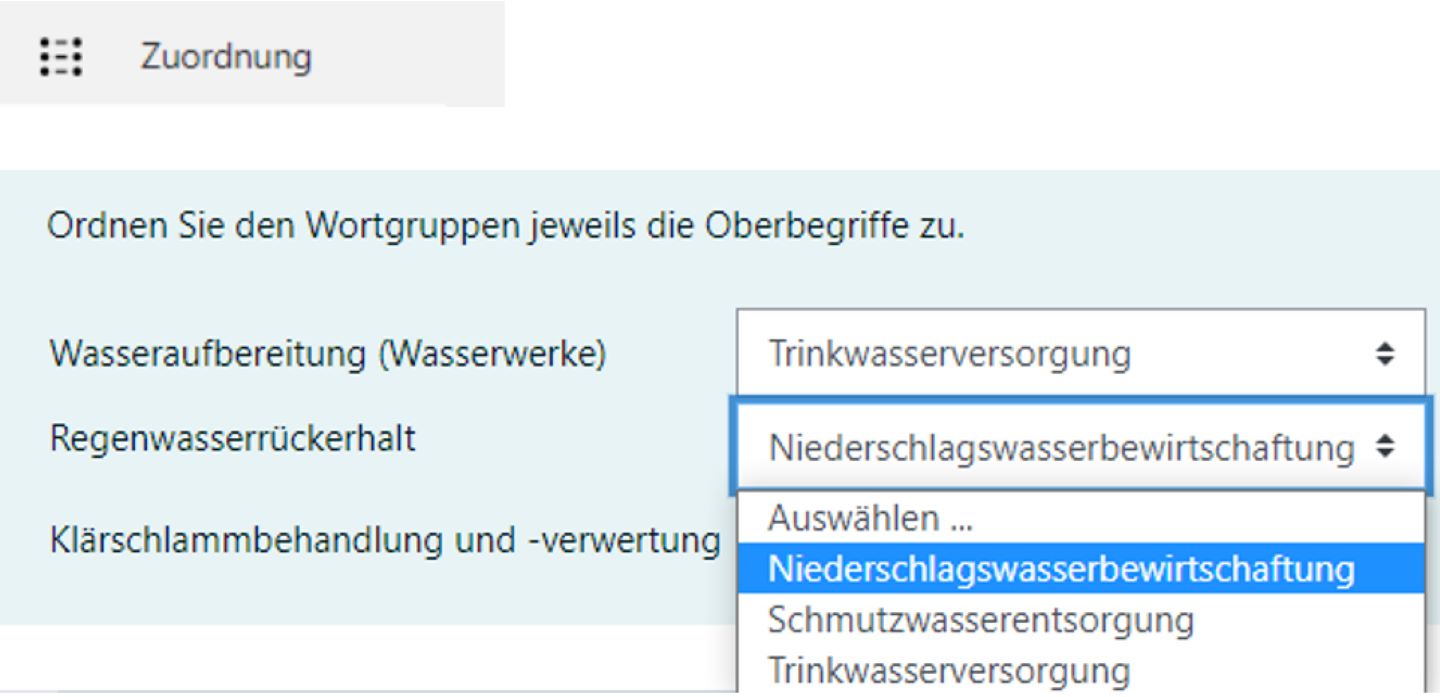
Short description:

  • With this question type, text or image items can be sorted in a vertical or horizontal order. This allows you to check processes, chronological sequences, or hierarchical structures, for example.
  • The items are displayed automatically and in random order.
  • This question type can only be used on laptops or PCs. Display and movement on mobile devices such as smartphones and tablets does not work properly.
  • The sequence can be evaluated according to various criteria, such as the absolutely correct position, relatively correct position, longest subsets, or the relationship of items to each other.

Question type "Arrangement":

Level of difficultyComplex
Frequency+, external plugin, internal plugin from Moodle 4.4 onwards (approx. end of 2025), available on Moodle Teaching and Moodle Exams
EvaluationAutomatic / closed question type
Media types in the task textText, link, image, video, audio, H5P, mathematical formulae (with TeX)
Media types in answer options

Different text editors can be set for the movable answer elements: 1) HTML format, 2) Moodle text format, 3) plain text, 4) Markdown format.

If “Moodle text format” is selected, mathematical formulas (with TeX) can also be added as answers.

Accessibilitybarrierefrei, aber es müssen geeignete Bildbeschreibungen hinterlegt werden

The development of question types is very dynamic.

The latest instructions for question types can therefore be found here in the Moodle Documentation under Question types sorted alphabetically.

Screenshots:

Short description:

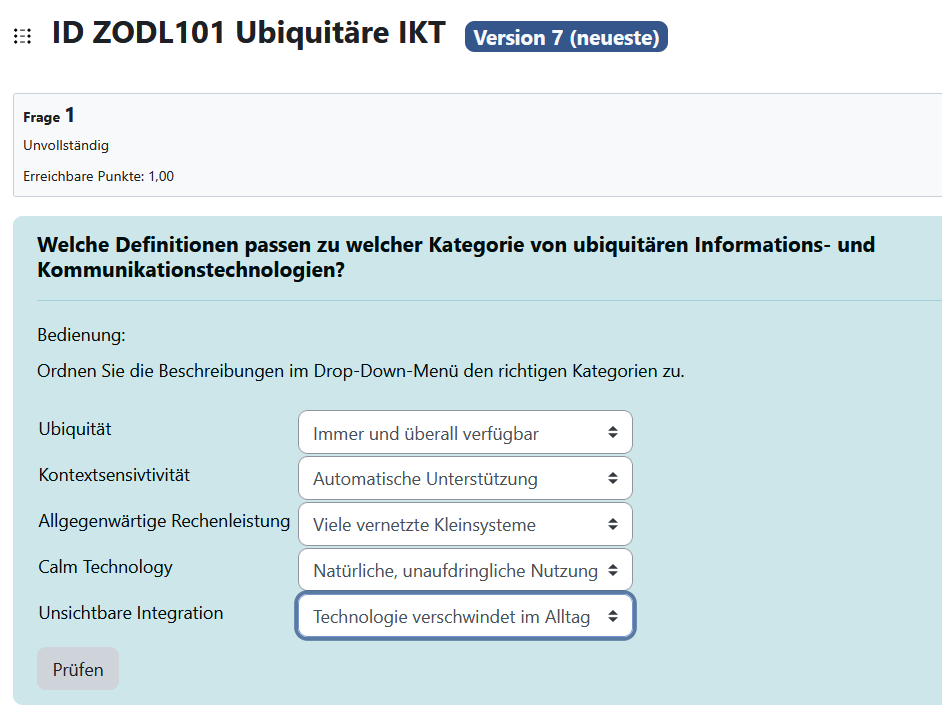
  • Question text to which an element can be assigned via drop-down list
  • Multiple question texts can be assigned to each other

Question type "Matching":

Level of difficultySimple
Frequency++, standard, available on Moodle Teaching and Moodle Exams
EvaluationAutomatic / closed question type
Media types in the task textText, link, image, video, audio, H5P, mathematical formulae (with TeX)
Media types in answer optionsPreset
AccessibilityNot accessible for people with motor or physical disabilities

The development of question types is very dynamic.

The latest instructions for question types can therefore be found here in the Moodle Documentation under Question types sorted alphabetically.

Didactic examples

Balance sheets: asset and liability accounts, source: “LehrerSühling” YouTube channel

Screenshots:

Short description:

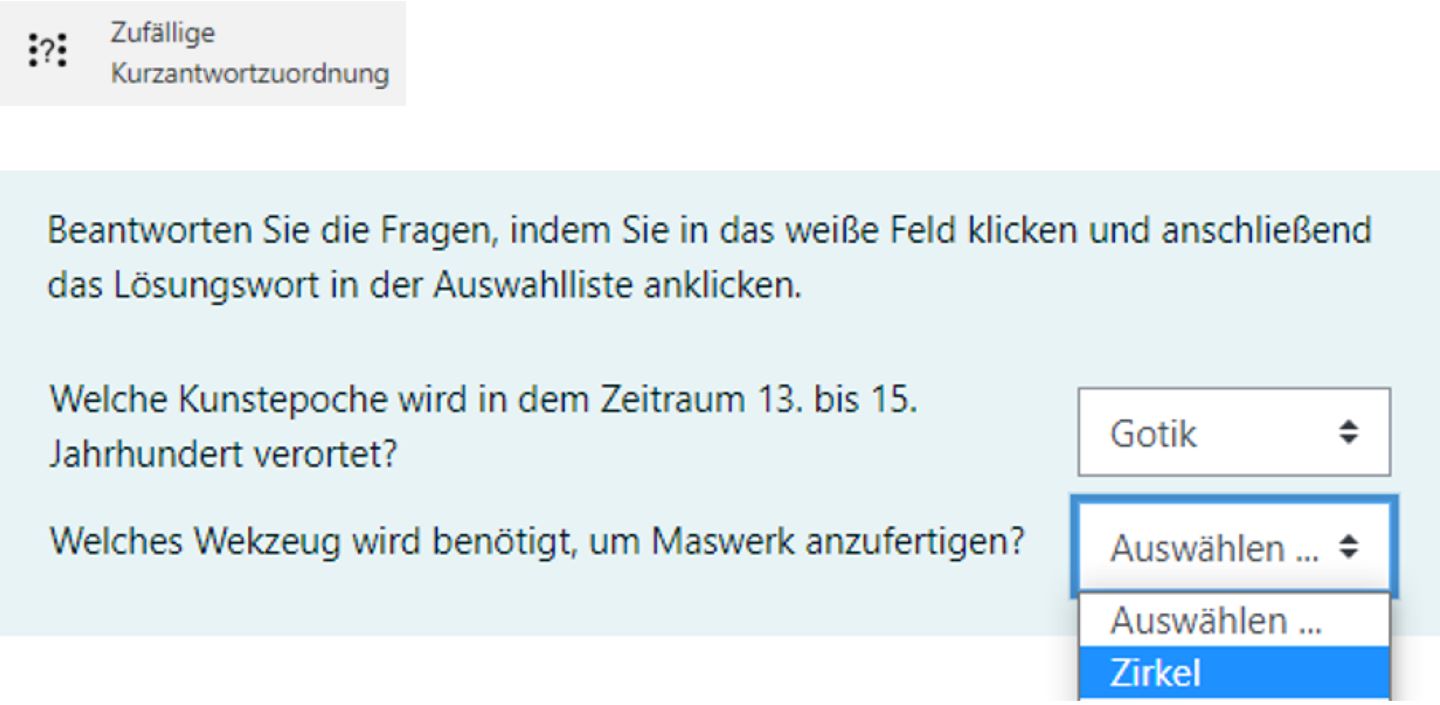
  • Question text to which an element can be assigned via a drop-down list
  • Multiple question texts with assignments possible
  • The question texts are automatically selected at random from a collection of questions
  • Question type is similar to the “Assignment” question type, with the difference being the random question collection
  • No useful application scenario has yet been found for this question type. Please feel free to inform the Digital Teaching team if you find a good application scenario for this question type.

Profile question type "Random short answer matching":

Level of difficultyEasy
Frequency+, Standard, available on Moodle Teaching and Moodle Exams
EvaluationAutomatic / closed question type
Media types in the task textText, link, image, video, audio, H5P, mathematical formulae (with TeX)
Media types in answer optionsPreset
AccessibilityLargely barrier-free

The development of question types is very dynamic.

The latest instructions for question types can therefore be found here in the Moodle Documentation under Question types sorted alphabetically.

Screenshots:

Matching and marking question types for cloze texts

Matching and marking question types for cloze texts are suitable for multi-line, coherent text sections. Here, predefined words or word groups can be selected and added to a cloze text. Individual letters, words or word groups in a text can be highlighted.
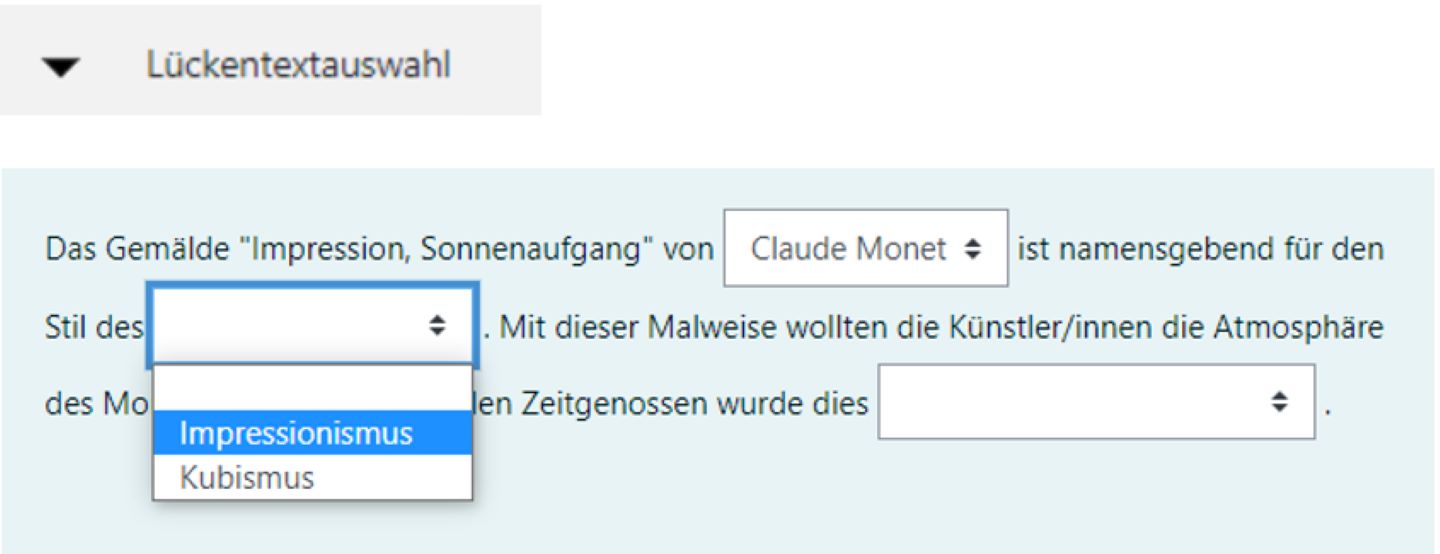
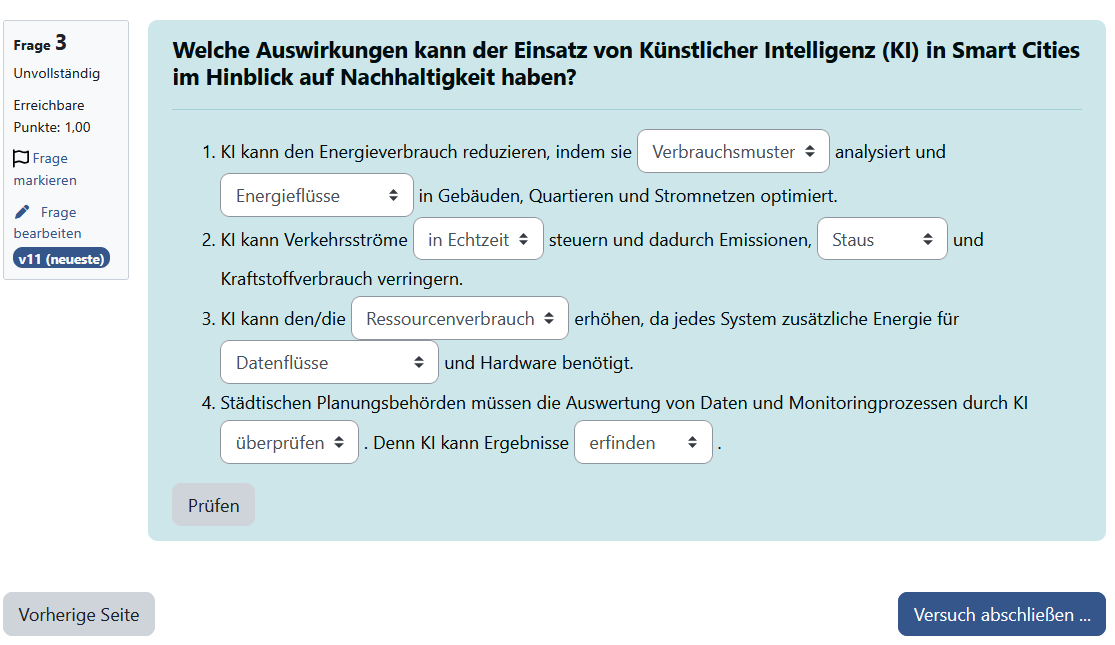
Short description:

  • Cloze text with missing words
  • Missing words can be selected from a drop-down list
  • Please ensure that the order of the items in the drop-down window is identical to the order of entry under “Selection.” The answer options are not randomly reordered. Therefore, you should take this into account when creating the order within a group under “Selection.”
  • The “Advanced cloze text” question type also offers the option of creating cloze texts with drop-down lists.

Profile question type "Cloze selection":

Level of difficultyComplex
Frequency+, Standard, available on Moodle Teaching and Moodle Exams
EvaluationAutomatic / closed question type
Media types in the task textText, link, image, video, audio, H5P, mathematical formulae (with TeX)
Media types in answer optionsPreset
AccessibilityNot accessible for people with motor or physical disabilities

The development of question types is very dynamic.

The latest instructions for question types can therefore be found here in the Moodle Documentation under Question types sorted alphabetically.

Screenshots:

Short description:

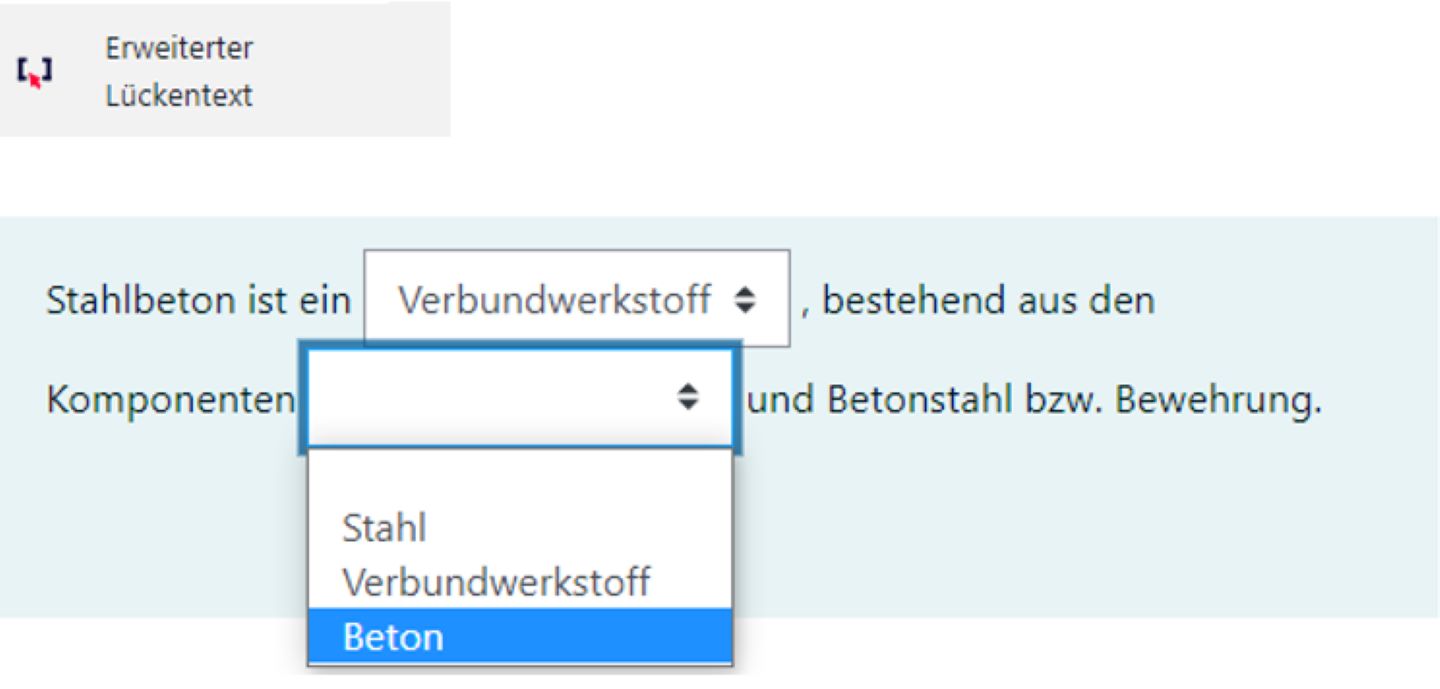
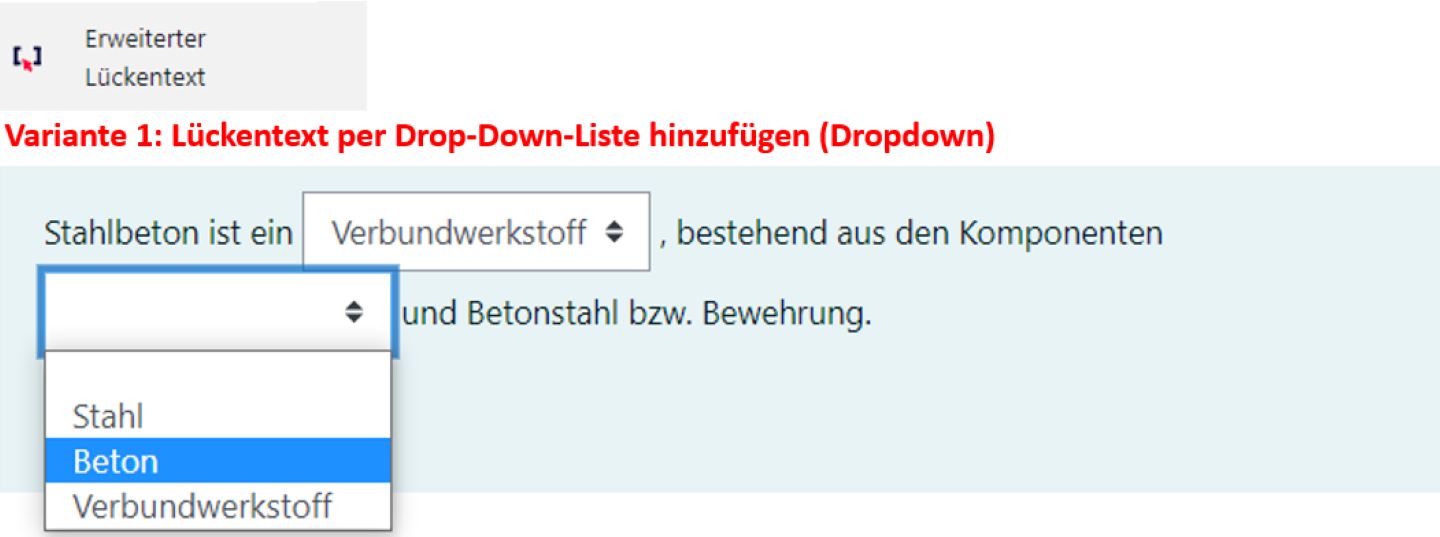
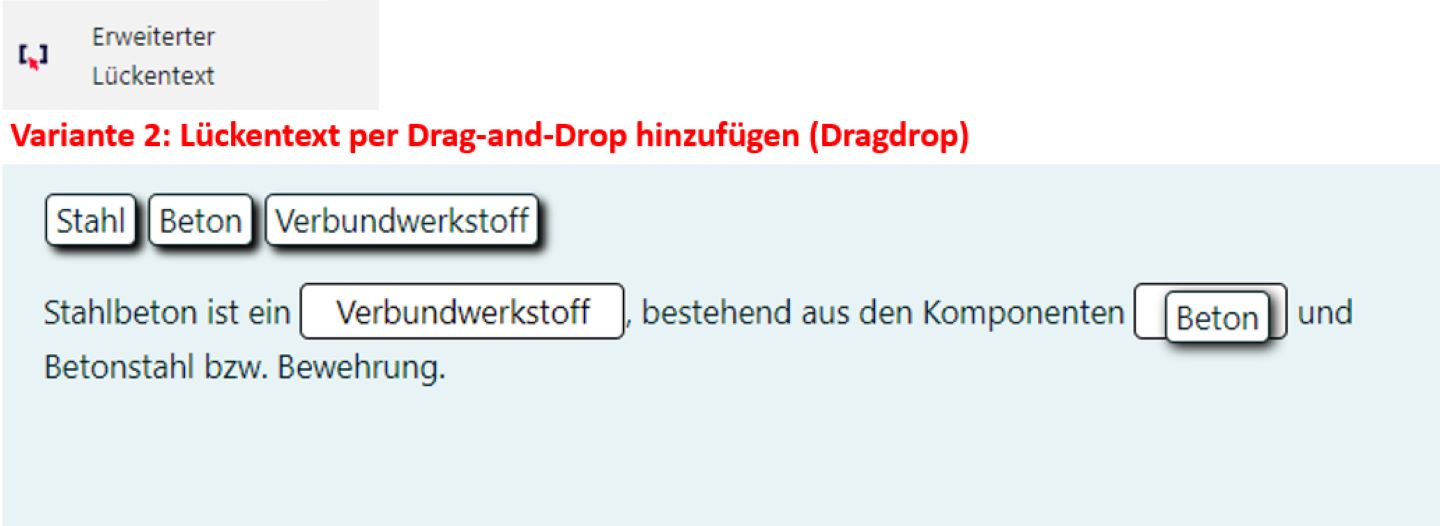
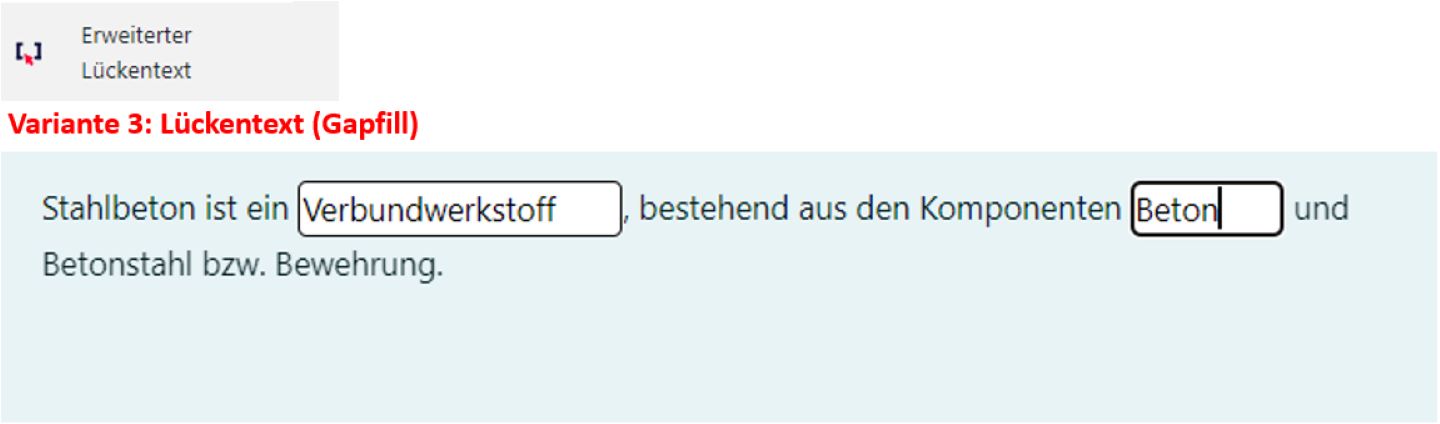
  • Cloze text with missing words
  • There are three ways in which the missing words can be added:
    1) via drop-down list,
    2) by dragging and dropping the words into the gap
    3) via gapfill
  • "Extended gapfill" offers both drop-down lists like the "gapfill selection" question type and drop-down lists like the "drag-and-drop on text" question type. The user interface for creating questions is more intuitive than for the other question types. Only one variant can be used at a time, either drag-and-drop or drop-down list.
  • It is possible to insert gaps into tables using the HTML editor.
  • This is most useful for drag-and-drop questions.

Profile question type "Extended cloze text":

Level of difficultyComplex
Frequency+, external plugin, available on Moodle Teaching and Moodle Exams
EvaluationAutomatic / closed question type
Media types in the task textText, link, image, video, audio, H5P, mathematical formulae (with TeX)
Media types in answer optionsPreset
AccessibilityNot accessible for people with motor or physical disabilities

The further development of question types is very dynamic.

The latest instructions for question types can be found here in the Moodle documentation.

Notes:

  • As this is an external question type, there is no guarantee that it will be maintained in the long term. This means that some functions may no longer be available after the next Moodle upgrade. This is already the case with the “gap settings,” for example. These can only be edited with the older Atto text editor.

Screenshots:

Plugin names: clozeeditor, tinymce_clozeeditor

Brief description:

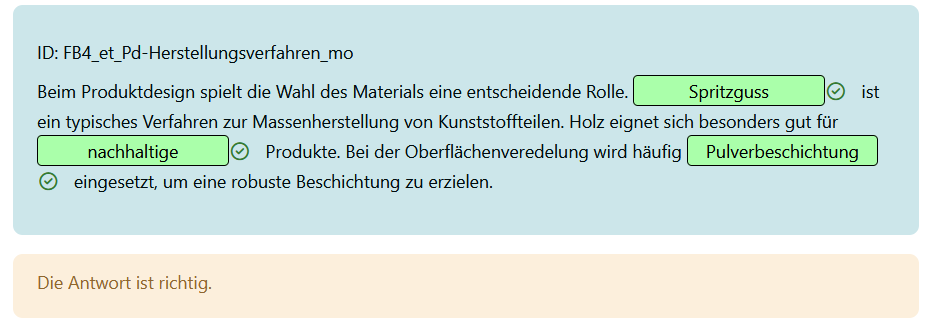
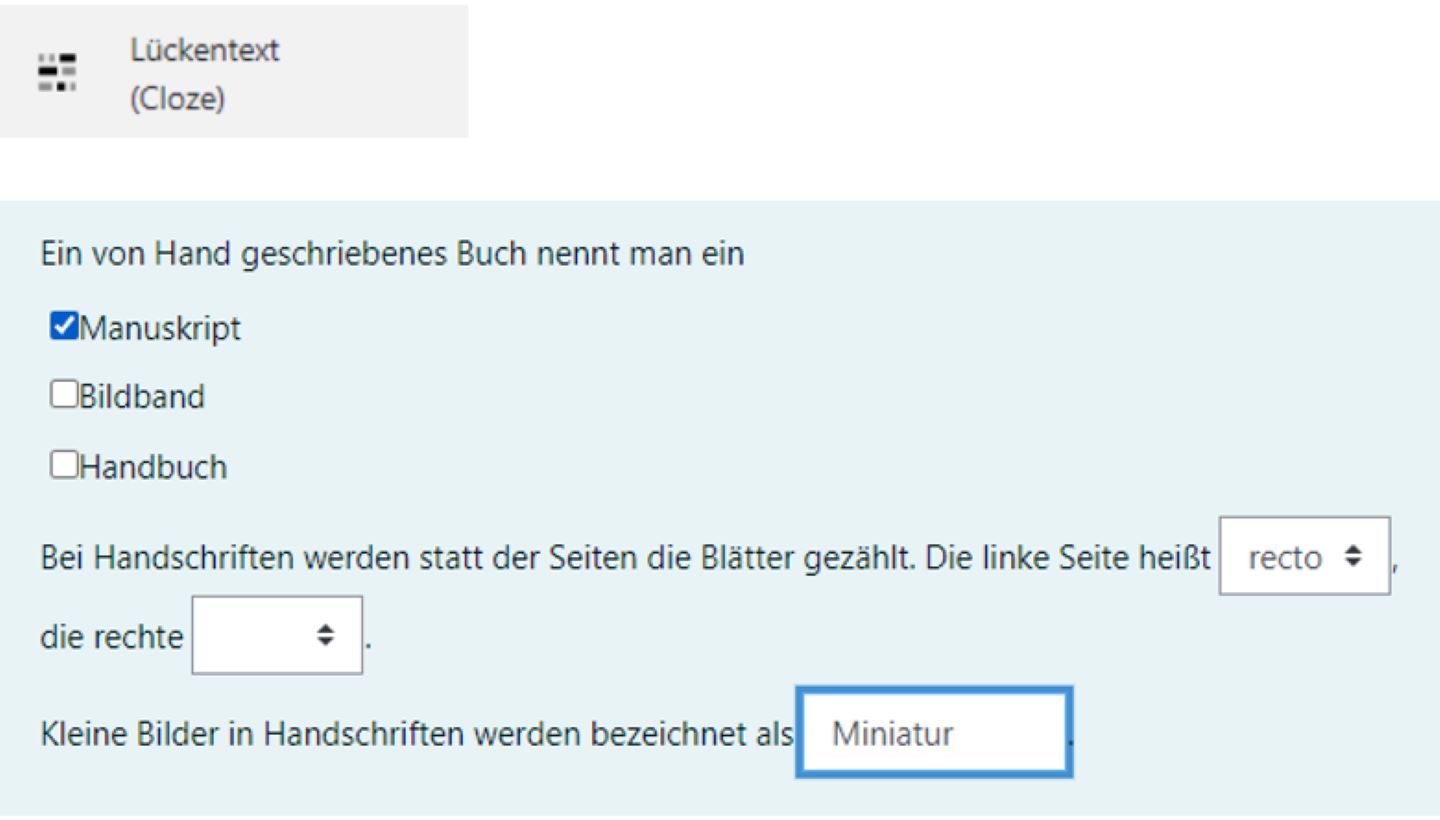
  • Cloze text combining different question types
  • The special feature of this task type is that several question types can be combined in one paragraph or text:
  1. Short text entries in cloze texts
  2. Clicking via multiple choice
  3.  Selection via multiple-choice drop-down list
  4. Cloze texts for numerical tasks
  • HTML knowledge is required for creation.

Instructions

The creation of cloze tasks requires a certain amount of training. There are three different ways to create them:

  • HTML code: To gain a basic understanding of how to create tasks, we recommend starting with the instructions provided by the University of Ulm. These explain exactly how to create the HTML code. You will also need this basic understanding to be able to correct tasks later, even if you choose a different method of creation.

Tips:

  • The gaps are as wide as the longest incorrect or correct word. To make it more difficult to guess the answers, an incorrect answer with a longer string of characters, e.g., “XXXXXXXXXXXXXXXXXXXX” or “00000000000000000000,” should be added to each question.
  • After creating the question type, a plugin appears in the TinyMCE editor that helps to simplify the creation of this question type. It has the same icon as the question type.

Profile question type "Cloze":

Level of difficultyComplex
Frequency+, Standard, available on Moodle Teaching and Moodle Exams
EvaluationAutomatic / closed question type
Media types in the task textText, link, image, video, audio, H5P, mathematical formulae (with TeX)
Media types in answer optionsPreset
AccessibilityNot accessible for people with motor or physical disabilities

The development of question types is very dynamic.

The latest instructions for question types can therefore be found here in the Moodle Documentation under Question types sorted alphabetically.

Screenshots:

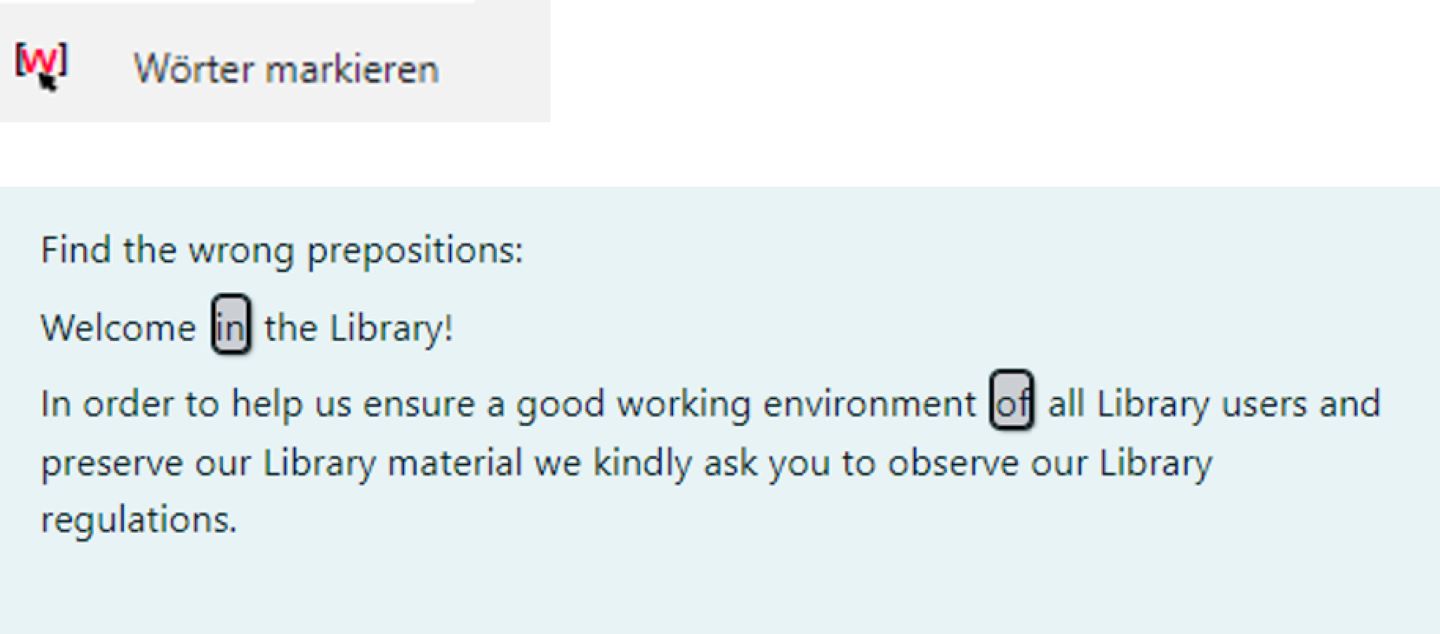
Short description:

Mark letters or words in a paragraph of text

Question type "Marking words":

Level of difficultyComplex
Frequency++, external plugin, available on Moodle Teaching and Moodle Exams
EvaluationAutomatic / closed question type
Media types in the task textText, link, image, video, audio, H5P, mathematical formulae (with TeX)
Media types in answer optionsPreset
AccessibilityNot accessible for people with visual impairments, motor or physical disabilities.

The development of question types is very dynamic.

The latest instructions for question types can therefore be found here in the Moodle Documentation under Question types sorted alphabetically.

Notes:

  • As this is an external question type, there is no guarantee that it will be maintained in the long term. This means that some functions may no longer be available after the next Moodle upgrade. This is already the case with the “gap settings,” for example. These can only be edited with the older Atto text editor.

Screenshots:

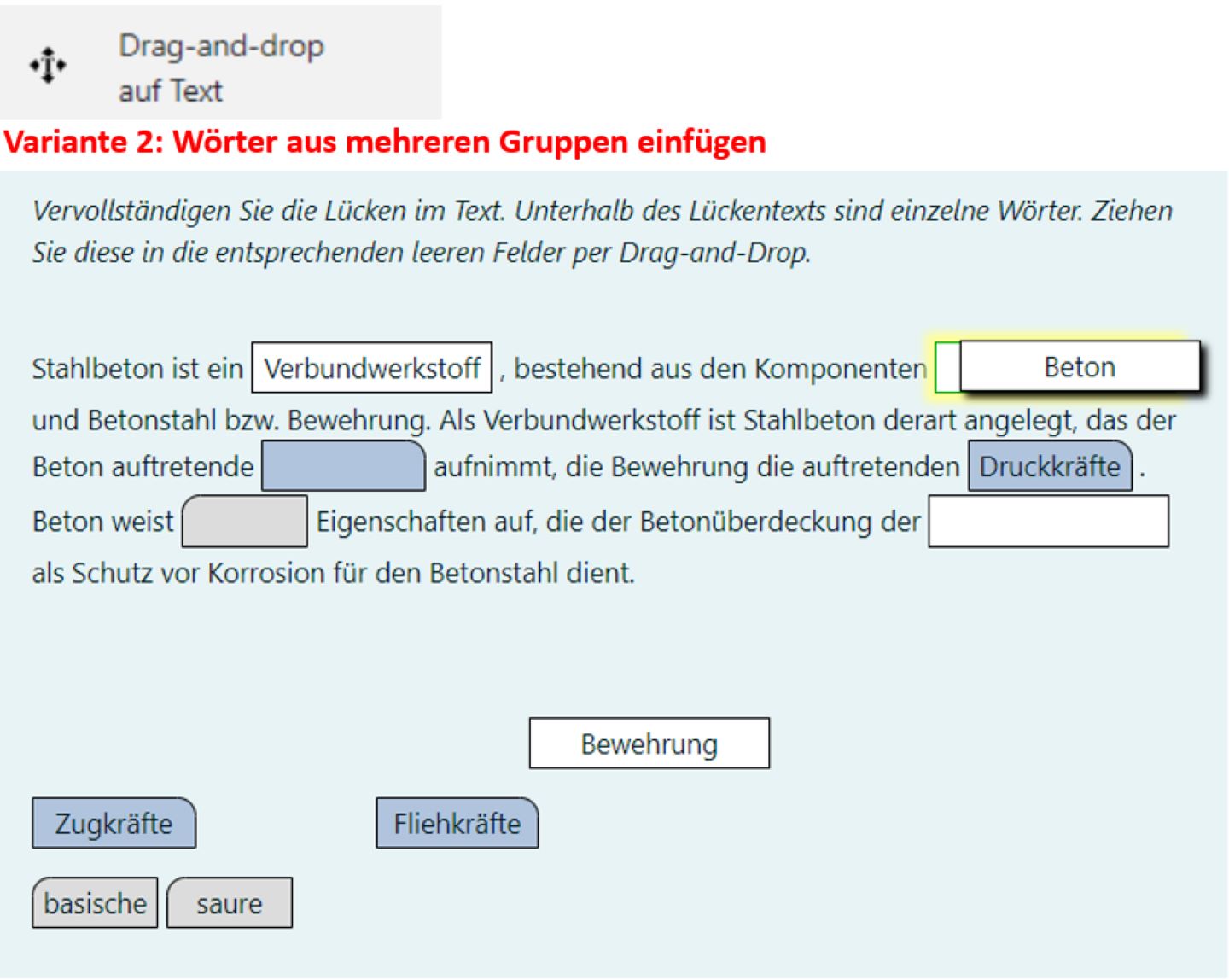
Short description:

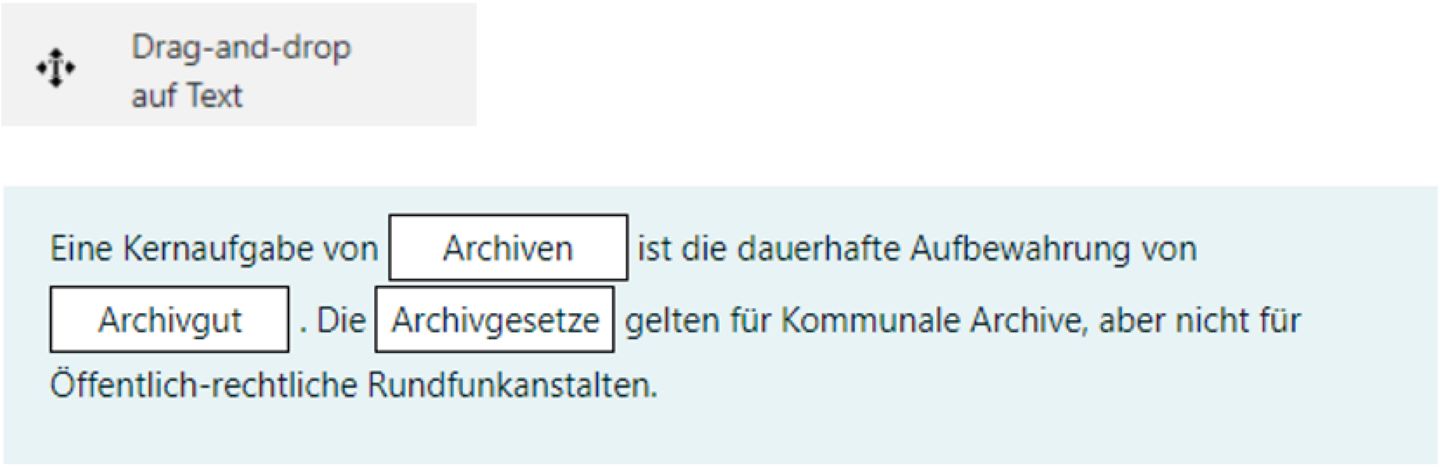
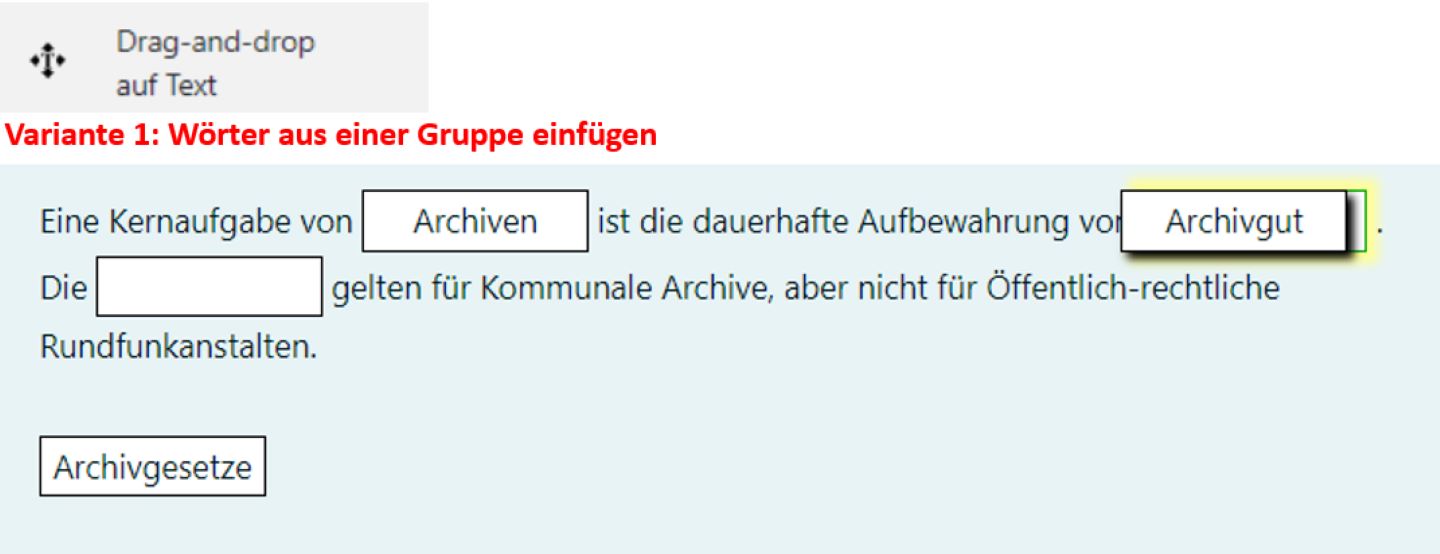
  • Cloze text with missing words
  • Missing words can be dragged and dropped into the cloze text
  • In an advanced version, different cloze text categories can be created. The text elements to be moved can then only be moved into a gap that corresponds to the category and form of the item.

Profile question type "Drag-and-drop on text":

Level of difficultyComplex
Frequency+, Standard, available on Moodle Teaching and Moodle Exams
EvaluationAutomatic / closed question type
Media types in the task textText, link, image, video, audio, H5P, mathematical formulae (with TeX)
Media types in answer optionsDefault
AccessibilityAccessible. Use the tab key to navigate through the gaps in the text. Select a gap. Then press the space bar to enter an answer in the gap. If you press the space bar several times, the next answer will be inserted into the gap.

The development of question types is very dynamic.

The latest instructions for question types can therefore be found here in the Moodle Documentation under Question types sorted alphabetically.

Screenshots:

Matching question types for images and text
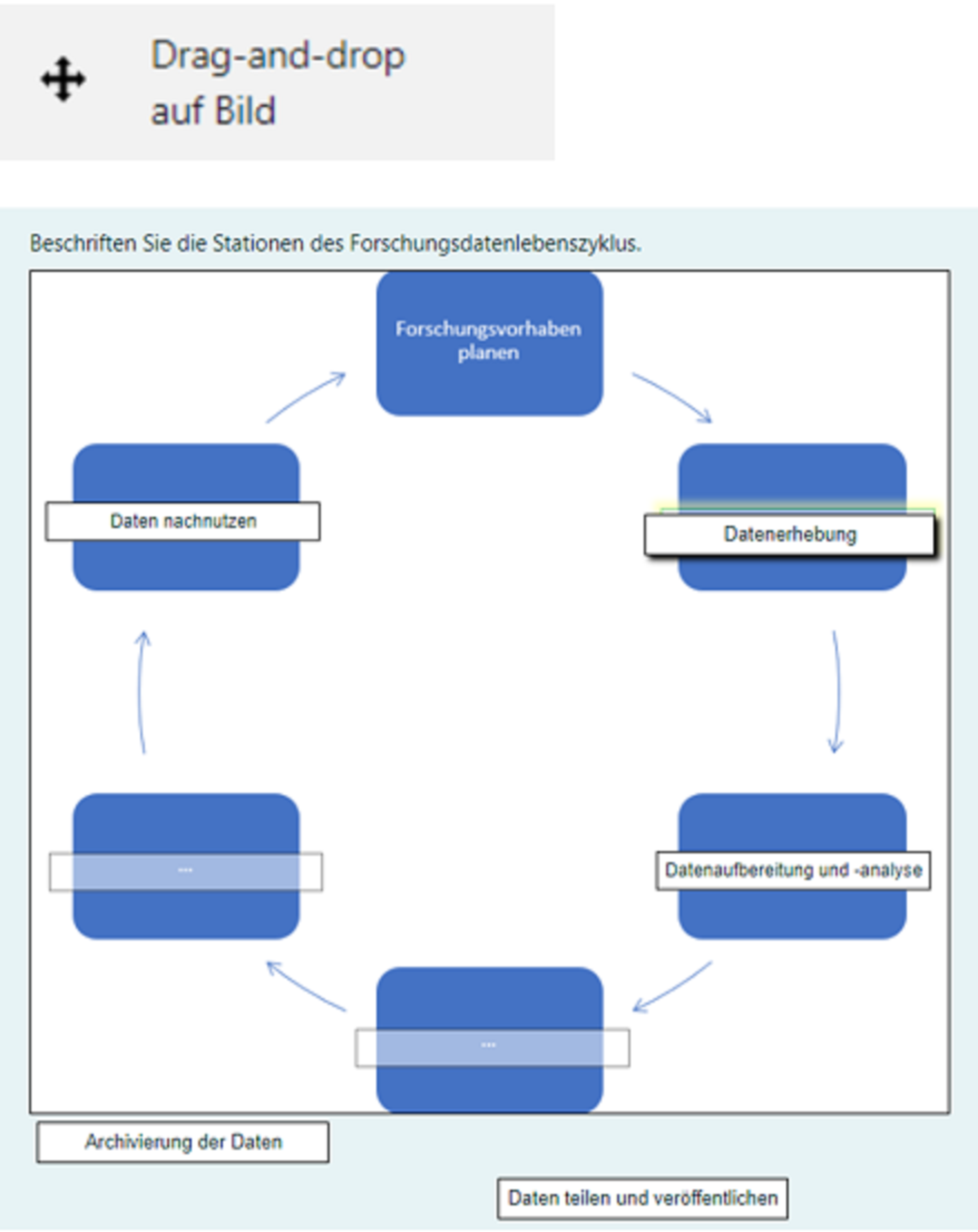
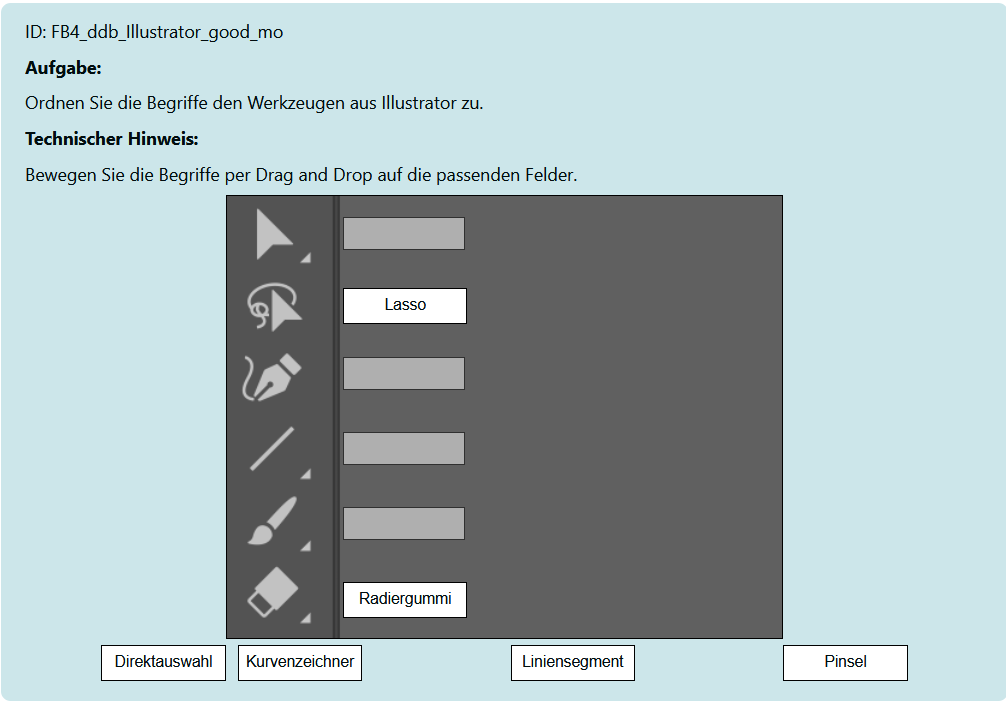
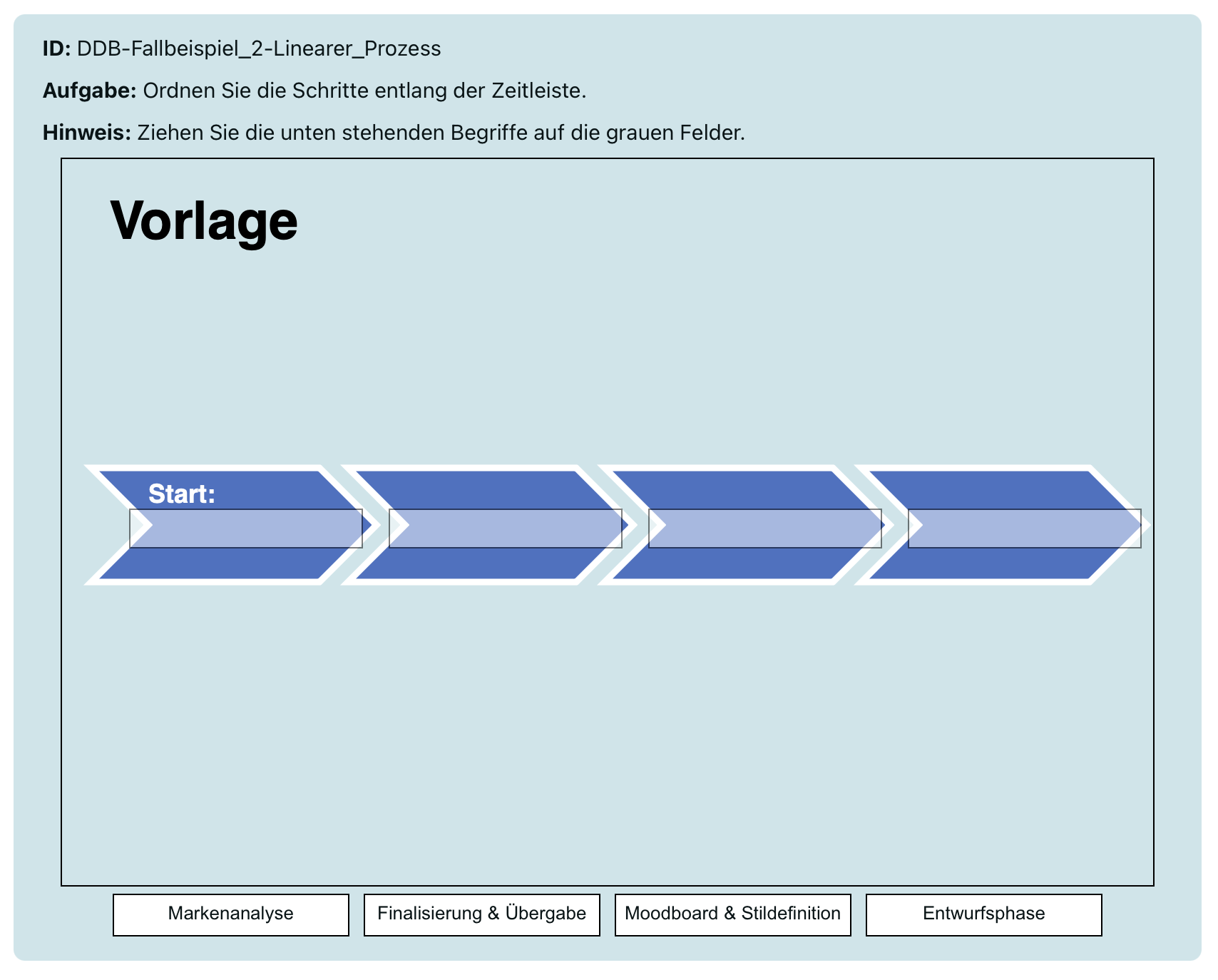
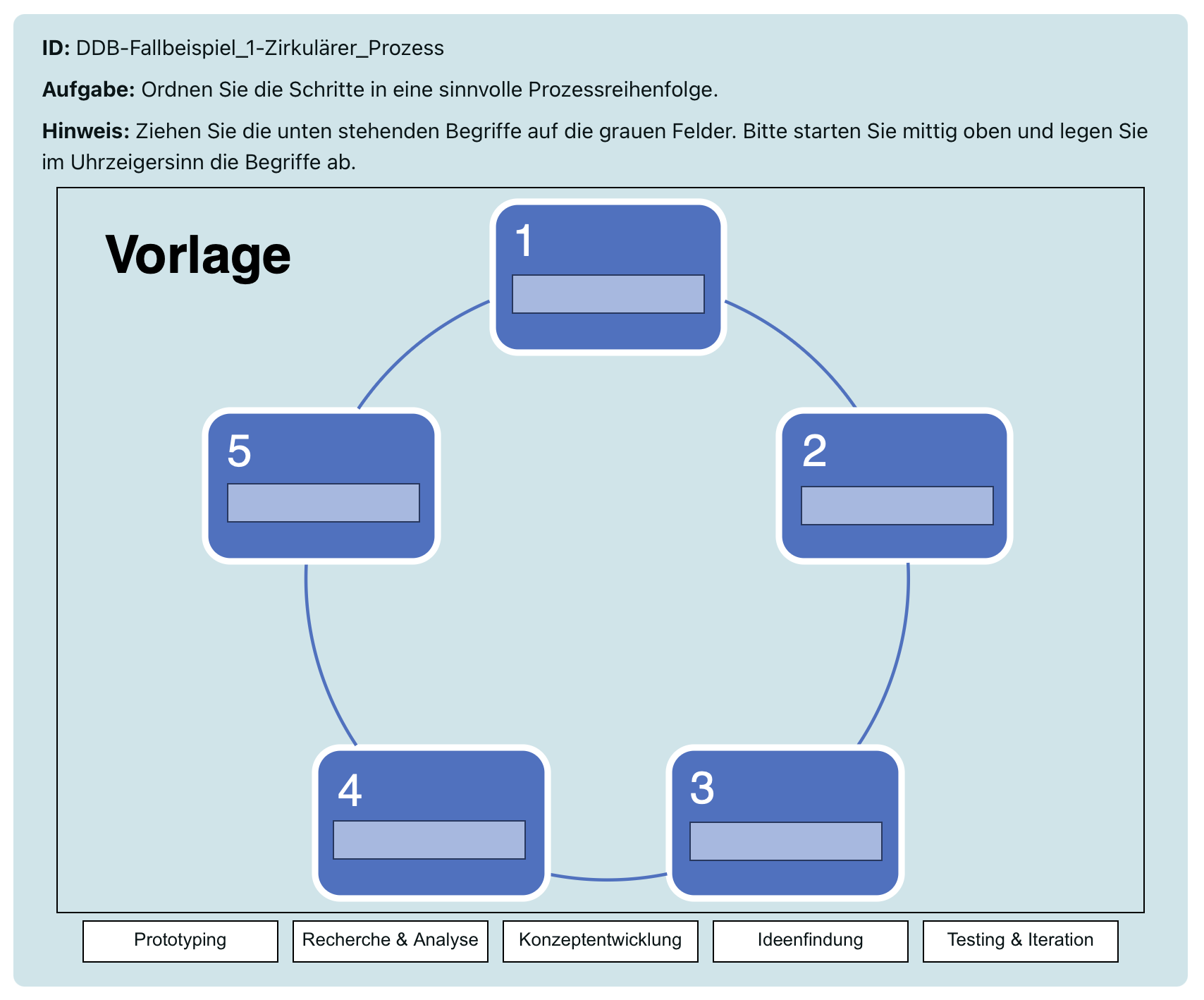
Short description:

Small images or word cards are dragged and dropped into a predefined area on a larger image.

Question type "Drag-and-drop on picture":

Level of difficultyComplex
Frequency+, Standard, available on Moodle Teaching and Moodle Exams
EvaluationAutomatic / closed question type
Media types in the task textText, link, image, video, audio, H5P, mathematical formulas (with TeX) + images can also be included in the answer options
Media types in answer optionsPredefined, but mathematical symbols can be added as answers using images.
AccessibilityNot accessible for people with visual impairments, motor or physical disabilities.

Didactic examples:

Accounting, source: “Lehrer Sühling” YouTube channel

The development of question types is very dynamic.

The latest instructions for question types can therefore be found here in the Moodle documentation under Question types sorted alphabetically.

Screenshots:

Brief description:

Small images or word cards are dragged and dropped into a larger predefined field area on a larger image.

Notes:

  • Please note the following size specifications:
  • The ideal image format is a maximum of 600 pixels wide and 400 pixels high. This ensures optimal display in the preview.
  • The images should not be wider than 600 pixels. This ensures that they are archived optimally as PDF files, e.g., for online exams.
  • Images should not be taller than a Din-A-4 page.
  • This ensures that they are optimally archived as PDF files, e.g. for online exams.
  • Make sure that the image is sharp enough but not too large in terms of file size, max. 50 MB. The larger the file, the slower the task will load in online exams.

Question type "Drag-and-drop on marker":

Level of difficultyComplex
Frequency+, Standard, available on Moodle Teaching and Moodle Exams
EvaluationAutomatic / closed question type
Media types in the task textText, link, image, video, audio, H5P, mathematical formulas (with TeX) + additional images can be included in the answer options
Media types in answer optionsPreset
AccessibilityNot accessible for people with visual impairments, motor or physical limitations.

The development of question types is very dynamic.

The latest instructions for question types can therefore be found here in the Moodle documentation under Question types sorted alphabetically.

Didactic examples:

Balance sheets, table: Assets and liabilities, source: “Lehrer Sühling” YouTube channel

Screenshots:

Mathematical question types

Specific types of mathematical questions are listed here. Most other question types also offer the option of working with mathematical tasks based on Mathjax (Tex). The list shows you for each type whether you can use mathematical formulas only in the task text or also in the answers.
Short description:

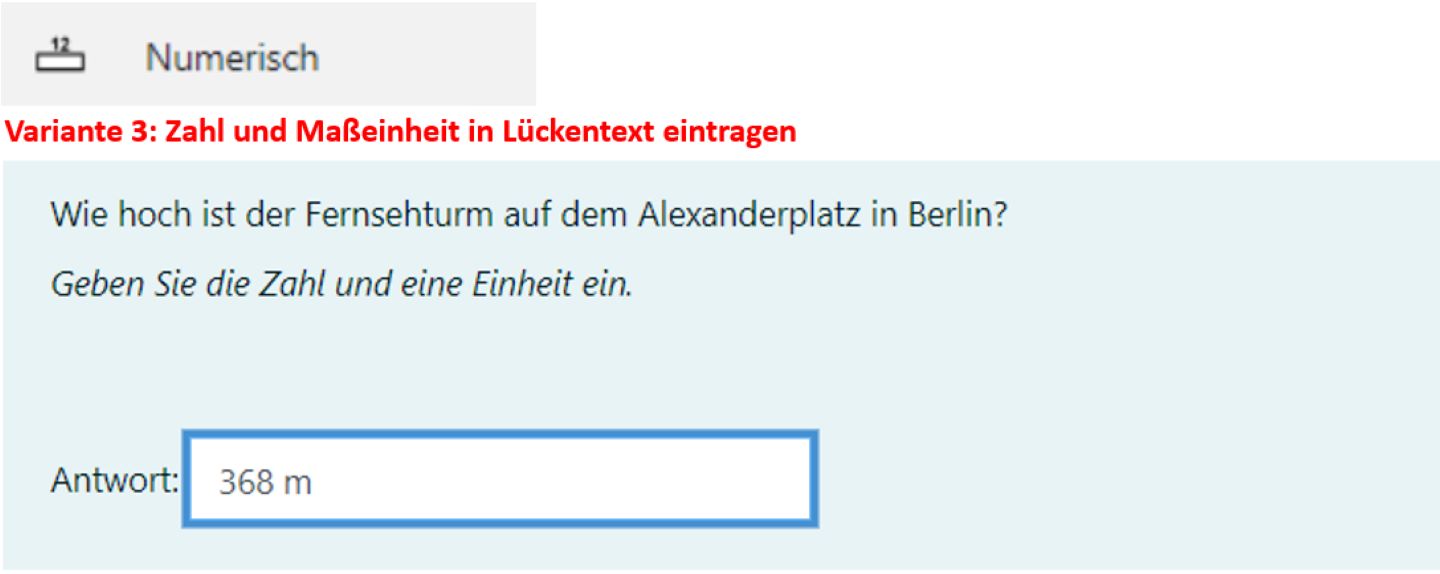
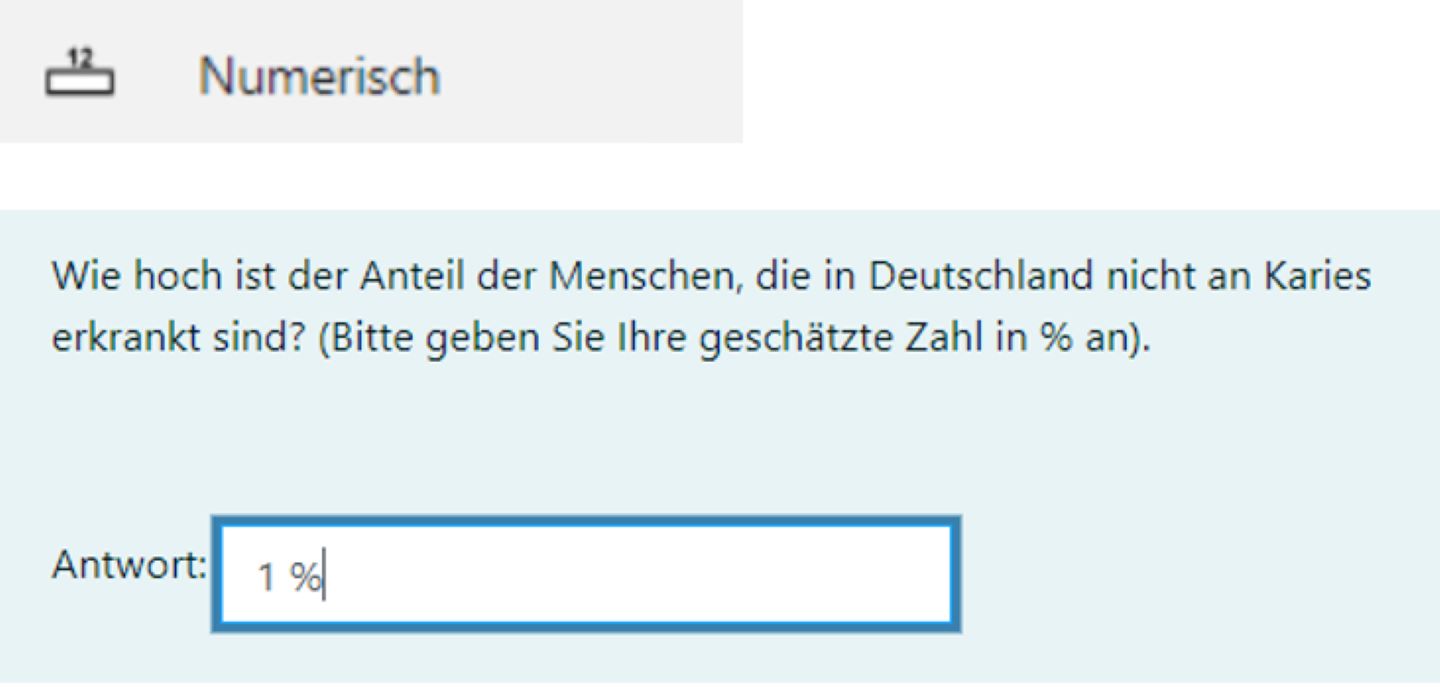
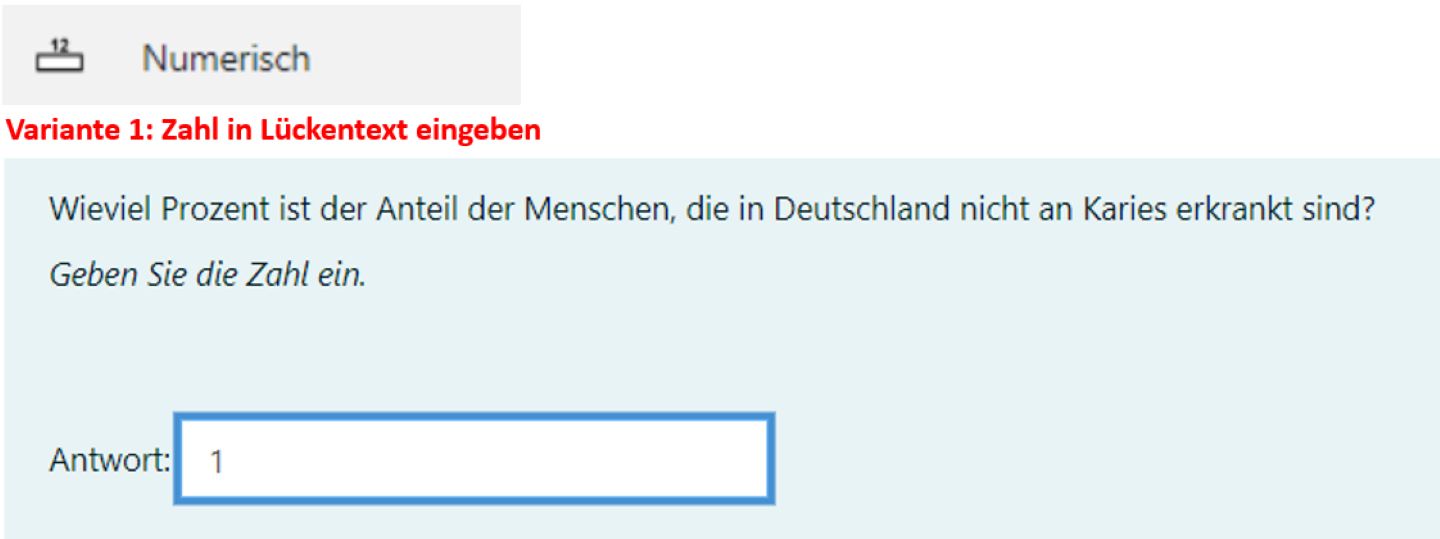
  • Enter a number in a text field
  • Tolerance ranges can be set for numerical answers that are still rated as correct
  • Optionally, units of measurement can also be specified, with two variants:
    1) Enter number and unit of measurement in cloze text
    2) Enter number in cloze text and select unit of measurement via single choice and radio button

Question type "Numerical":

Level of difficultyEasy
Frequency++, standard, available on Moodle Teaching and Moodle Exams
EvaluationAutomatic / closed question type
Media types in the task textText, link, image, video, audio, H5P, mathematical formulae (with TeX)
Media types in answer optionsText
Mathematical formulae in answer options (TeX)No
Mathematical variables in answers (TeX)Yes, one formula, different variations
Tolerance1. Nominal, 2. Relative
AccessibilityLargely barrier-free

The development of question types is very dynamic.

The latest instructions for question types can therefore be found here in the Moodle Documentation under Question types sorted alphabetically.

Screenshots:

Short description:

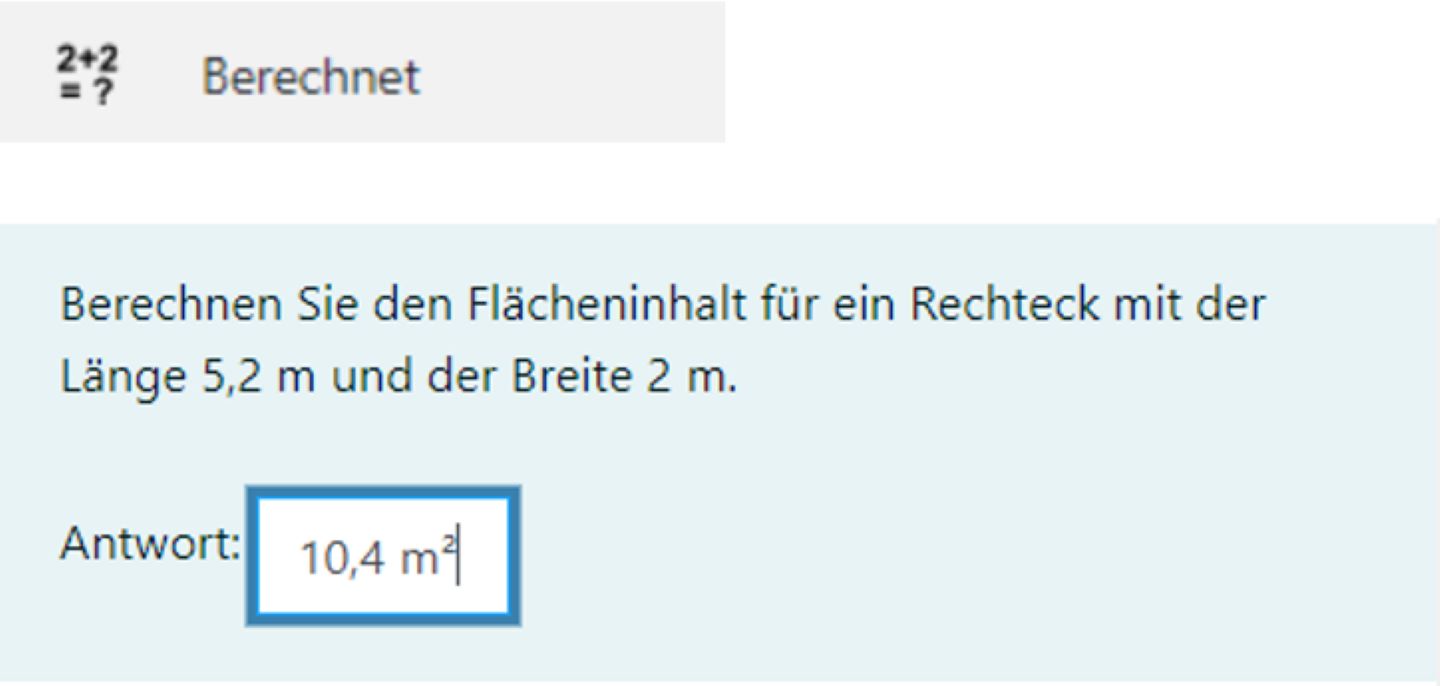
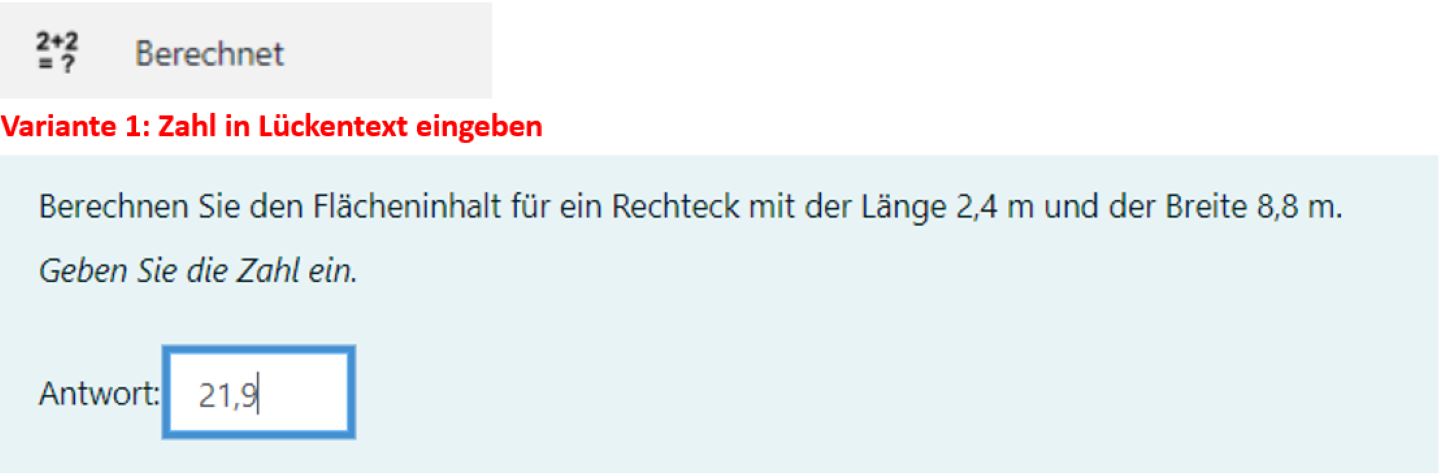
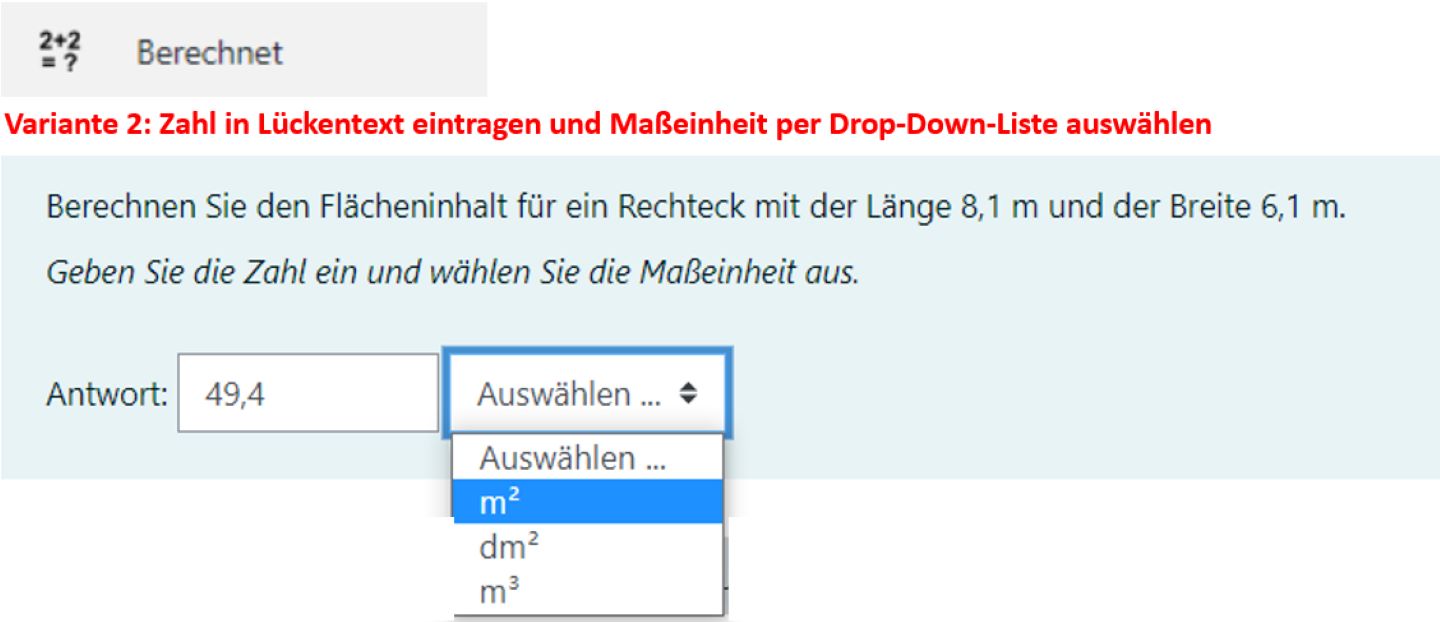
  • Enter a number in a text field
  • Variables can be stored for the numbers. The variables are created from data records. This can be done at different levels: The creation of common data records is not easy. Therefore, the question type should only be used if you have in-depth knowledge of question collections and data sets in Moodle.
  • Tolerance ranges can be set for numerical answers that are still assessed as correct.
  • Optionally, units of measurement can also be specified, with two variants:
    1) Enter number and unit of measurement in cloze text
    2) Enter number in cloze text and select unit of measurement via single choice and radio button.
  • Similar to the "Numerical" question type, with the difference that variables can be used. If no variables are required, it is advisable to use the "Numerical" question type.
  • Similar to question type "Simply calculated". It is recommended that the "Simply calculated" question type is preferred. Simply calculated" can also be used to create variables, but these are limited to one question. The use of data sets is not necessary.
  • With the “Calculated” question type, mathematical functions based on LaTeX can also be used. This is not possible with the “Simple calculation” question type.

Fact sheet question type "Calculated":

Level of difficultyDifficult
Frequency+++, Standard, available on Moodle Teaching and Moodle Exams
EvaluationAutomatic / closed question type
Media types in the task textText, link, image, video, audio, H5P, mathematical formulae (with TeX)
Media types in answer optionsText
Mathematical formulae in answer options (TeX)Yes
Mathematical variables in answers (TeX)

Yes, one formula, different variations

There are many special rules for naming variables. If these are not observed, the variables will not work.

ToleranceYes, 1. Nominal, 2. Relative, 3. Geometric
AccessibilityLargely barrier-free

The development of question types is very dynamic.

The latest instructions for question types can therefore be found here in the Moodle Documentation under Question types sorted alphabetically.

Screenshots:

Short description:

  • Enter a number in a text field
  • Tolerance ranges can be set for numerical answers that are still rated as correct
  • Optionally, units of measurement can also be specified with two variants:
    1) Enter number and unit of measurement in cloze text
    2) Enter number in cloze text and select unit of measurement via single choice and radio button
  • Similar to the "Numerical" question type, with the difference that variables can be used. If no variables are required, it is advisable to use the "Numerical" question type.
  • Similar to the "Calculated" question type with variables, with the difference that the variables only relate to the individual question item. Preferably use "Calculated simple". The settings here are simpler than for the "Calculated" question type.

Profile of the "Calculated simple" question type:

Level of difficultyComplex
Frequency+++, Standard, available on Moodle Teaching and Moodle Exams
EvaluationAutomatic / closed question type
Media types in the task text

Text, link, image, video, audio, H5P, mathematical formulae (with TeX)

In this question type, you can use more complex mathematical functions with TeX.

Media types in answer optionsText
Mathematical formulae in answer options (TeX)Yes
Mathematical variables in answers (TeX)Yes, one formula, different variations
AccessibilityLargely barrier-free

The development of question types is very dynamic.

The latest instructions for question types can therefore be found here in the Moodle Documentation under Question types sorted alphabetically.

Screenshots:

Brief description:

  • Multiple-choice or single-choice questions on mathematical formulae. The correct calculation method must be selected for a solution. Variables from a predefined range can be used for the numerical values.
  • Tolerance ranges can be set for numerical answers that are still assessed as correct.

Question type "Calculated multiple choice":

Level of difficultyComplex
Frequency+, Standard, available on Moodle Teaching and Moodle Exams
EvaluationAutomatic, closed question type
Media types in the task textText, link, image, video, audio, H5P, mathematical formulae (with TeX)
Media types in answer optionsGiven
Mathematical formulae in answer options (TeX)Yes
Mathematical variables in answers (TeX)Yes, one formula, different variations
AccessibilityLargely barrier-free

The development of question types is very dynamic.

The latest instructions for question types can therefore be found here in the Moodle Documentation under Question types sorted alphabetically.

Screenshots:

Miscellaneous

Short description:

  • Is not a question type
  • Intermediate pages for additional information

Profile question type "Description":

Level of difficultyEasy
Frequency+, Standard, available on Moodle Teaching and Moodle Exams
EvaluationNo evaluation
Media types in the task textText, link, image, video, audio, H5P, mathematical formulae (with TeX)
Media types in answer optionsNone
AccessibilityLargely barrier-free

For lecturers: Step-by-step instructions for creating the question type "Description"

Note on managing collections of questions

For each question type, you will find information on whether it is a standard Moodle question type or an external plugin. You will also find out on which Moodle instances the plugin is available. Please take this information into account, especially if you are planning online exams. This is because external plugins can regularly cause problems. For an online exam, you should therefore primarily use standard Moodle question types.

We also recommend that you mark external question types separately in the question bank, e.g., by using a category or tag. This is because Moodle only allows you to import an entire question bank. As soon as there is a problem with a question type or even just one question, question collections can no longer be imported. If you mark external question types separately, you can filter them out more easily during export.

We also recommend that teachers always maintain the question bank in the development area on the Moodle exam instance. The export should always be done from exam with import into the Moodle teaching instance ecampus. Otherwise, there could be problems if you want to use questions that you developed in ecampus for online exams in exam later on.

We strongly recommend creating question collections only at the course level, not at the test or area level. This is because the question collection is currently being completely redesigned.

OER material

The materials for the question types can be used as Open Educational Resources (OER). You will also find an overview table of all question types here. You can also use the list to plan your own exam design. The latest version is always available on the website. Some of the information on the list may differ in terms of frequency and other points.

You can download the materials for the Moodle question types here. Please provide the following credit when using them:

License: CCBY-SA 4.0, Potsdam University of Applied Sciences, Moodle question types, Julia Lee (concept and text); Charlotte Warkentin (short videos)

Tasks and screenshots vary: ulia Lee, Moritz Maschmann, Charlotte Warkentin

License How-to videos on question types, CCBY-SA 4.0, University of Leipzig, video: Stefanie Falck

Moodle software (e.g., screenshots, screencasts): Copyright Martin Dougiamas with contributions from various developers, license GNU General Public License, Version 3.

Moodle Documentation (when cited): Copyright of the authors (see history of the wiki articles, license: GNU General Public License, Version 3.

Overview of all symbols for question types in the Moodle activity “Tests” at the University of Applied Sciences Potsdam.

Contact

Contact

Centre for Teaching and Learning
Digital Teaching Advisor