Skip to main content Skip to main navigation Skip to footer

HelpDesk-Wiki Moodle Exams (exam)

This page is primarily intended for instructors in the departments of the University of Applied Sciences Potsdam who wish to conduct their teaching using Moodle exams. The focus is on the organizational and technical processes as well as the legal framework for the development, implementation, follow-up, and completion of online exams with Moodle during the semester. Regular Moodle support for conducting an online exam is provided by the decentralized Moodle administrators from the departments.

Bild mit Häkchenfelder-Icon und der Aufschrift "Moodle Prüfungen"

Moodle exams (exam)

Moodle exam is a separate Moodle instance of the University of Applied Sciences Potsdam for online exams. exam is an optional service for lecturers at the FHP departments. Only lecturers and students who have a Campus.account have access to exam. When you first log in with your campus account, you must first confirm the privacy policy and terms of use. You can access Moodle exams (exam) via the following web address:

https://exam.fh-potsdam.de

Table of contents

Develop a repository for exam questions

  • Establish test workflow
  • Create prototype Moodle course in development area
  • Develop question collection(s)
  • Didactic development of online exam questions
    • Create test Import questions
      • Set assessments
  • Establish test workflow

Set up an e-exam

Conducting e-exams

  • Onboarding students before online exam 
    • notification with template
    • Prepare presentation and handout for onboarding
    • Allocate seats if necessary
  • Procedure for course instructors

Follow-up to e-exam

Completion of e-exam

  • Grade recording
  • Announcement of grades
  • Quality assurance
  • Miscellaneous


Planning and coordination of the framework conditions

For general support, creation and administration of Moodle courses, lecturers should contact the responsible staff in the departments, see the following list:

Process Create online exam course in Moodle exams (exam)
ParticipantsDepartmentsCentral IT (ZIT)Central Organisation for Studies and Teaching (ZESL)
StepTime (recommendation)ResponsibilitySupport for
Planning and coordination of framework conditionsby the 30th of June (winter semester)
/ by the 31st of January (summer semester)
LecturersDecentralised examination administration
 
Development of an examination courseby the 31st July (winter semester)
/ by the 28th of February (summer semester)
LecturersIf necessary, media-didactic counselling by ZESL (advice on exam design, testing of the prototype)
Creation of the examination course
 
Parallel to the creation of the Moodle course
 
Lecturers (FHP course creator / in role)
 
If necessary, decentralised Moodle supervisors
Setting up the examination course
 
up to 2 weeks before the examination date
 
Lecturers (FHP course creator / in role)
 
Registration of students
 
up to 1 week before the examination date
 
Lecturers or students


Realisation of the course
 
Exam date
 
LecturersIT service if necessary
Archiving (Quiz Archiver)
 
Immediately after the examination date
 
Lecturers 
Posting of grades (MyCampus)
 
up to 6 months after the examination date
 
Lecturers 
If necessary, conduct the first and second repeat examinationExam date
 
Lecturers
IT service if necessary
Archiving (Quiz Archiver)Immediately after the examination dateLecturers 
Posting of grades (MyCampus)up to 6 months after the examination dateLecturers 
Semi-automatic deletion (Course Lifecycle)2 years after implementation yearZIT 

Orientation on Moodle exams (exam)

For initial orientation, watch the video tutorial on exam. The course structure in Moodle is hierarchical. A course area can contain further course areas as sub-areas. Theoretically, Moodle courses can be created at all levels. However, this is not desirable on Exam because of automatic deletion. It also makes it difficult for students to find the right course again.
Moodle exam courses should only ever be created at the sub-level of a semester. It is important that you familiarise yourself with the course structure on exam at the beginning, under "All courses". The areas invisible to students are greyed out. As a lecturer, you will only see these if you are logged into exam and have the corresponding rights as an FHP course creator. There are now the following main areas on Exam:

  1. Online exams for all current online exams of the departments in the semester. All Moodle courses are automatically deleted in accordance with legal regulations. The time of deletion is 2 years after the end of the year in which an online exam was conducted. The key year is the year entered in the settings below for the course filter. Here you create a new Moodle course for a planned online exam including repeat exams in each department under the current semester. You can import your own course template from the development area into this course. Students cannot remove themselves from courses in this area. This means that your submissions, tests or other exam-related activities remain linked to the course and your accounts.
  2. Special cases (invisible): for online exams in which there were special incidents that should not be deleted automatically, but manually after the special case has been clarified.
  3. Trial exams and demo courses Students can only remove themselves from courses in this area. In all other areas on exam this is not possible for legal reasons.
  4. Development area: After participating in the "Introduction to exam" workshop, lecturers are given their own course area in this section for developing online exams. Courses are not automatically deleted in this course area. The course templates are therefore retained regardless of the semester. It is therefore advisable to develop the template for the online exam in this area and import it later into another course in the online exams area. In this way, the original online exam is always retained.
  5. Course templates The course templates help to set up and organise the process of an online exam form in a Moodle course. The standardised template makes it easier for students to find their way around an online exam. Students can try out the templates in the mock exam and the demo courses.
  6. Recycle bin (invisible): for manual deletion of Moodle courses. Please note: Courses in the online exams section are deleted automatically. All other courses, e.g. from the development area, can be moved to the recycle bin area for annual semi-automatic deletion.
Orientierung auf Moodle-Prüfungen (exam): Aufbau, Bereiche, Funktion

Processes for online examination forms (standard)

Here you will find an introduction to the online examination form and a step-by-step guide to implementing the process.

E-exam (presence)

Written exam in presence, usually with Moodle tests

E-exam (distance)

Written exam at a distance, usually with Moodle tests

Open book exam (distance)

Written exam at a distance, usually with Moodle tasks

Other formats

The development of further standard online examination forms is planned from the end of 2025.

Accounts, roles and rights for lecturers

At the beginning of your employment, you will receive a Campus.account from the Central IT Services, which you can also use to log into ecampus. When you log in to ecampus for the first time, you must confirm the data protection declaration and the user declaration before you are granted access to the platform. 
If you have a Campus.account as an external lecturer, the same procedure applies to you as for FHP lecturers. If you are only teaching at FHP for a short time without a campus account, please contact your decentralised Moodle supervisors to obtain a temporary account for one Moodle instance only.
You will find the most important roles and rights for lecturers on ecampus in the accordion.

FHP course creators can create new courses in the course areas "Online exams", "Special cases" and in their own "Development area". FHP course creators are automatically enrolled in the created courses with the role of course owner with extended rights. The role can only be assigned at course area level and not at course level. As a rule, lecturers at the University of Applied Sciences Potsdam already have this right. If you as a lecturer cannot create courses in the online examinations area, you still need to apply for the right. 
 

This role is particularly suitable for lecturers who are also the creators of the online exam, e.g. by developing the didactic exam design and/or the question sets in a Moodle course.

Obtain a role

If you have been working as a lecturer at the FHP for some time, you probably already have the role and do not need to do anything. If you are logged into Exam with your Campus.account, you can check for yourself whether you have the FHP course creator role. To do this, click on "All courses" in the Moodle menu. If you see all five main course areas, you have FHP course creator rights. This includes the course areas:

  1. online exams
  2. special cases (greyed out, as only visible for FHP course creators and higher rights as an area)
  3. mock exams and demo courses
  4. development area
  5. recycle bin (greyed out, as only visible to FHP course creators and those with higher rights than this area)

If you do not see the course areas, please contact your decentralised Moodle administrator. They can assign you the role. To do this, you must have already logged in once with your campus account on exam. Please use this email template:

"I have been working as a lecturer at the University of Applied Sciences Potsdam in the department of [name of department] since [date] [eventually until]. I am planning to conduct online exams on Moodle exam. Please grant me the right as FHP course creator. If you have not already done so, please set up a separate course area for me to develop online exams in the "development area"."

External lecturers of the departments only receive a temporary account on the Moodle instance exam with an external e-mail address.

The application for the temporary account can be made by the main examiner or by the Dean's Office. The application is made by e-mail to moodleadmin@fh-potsdam.de or digitale-lehre@fh-potsdam.de. The application should be submitted no later than two weeks after the start of the semester in which the online examination is to take place. The main examiner or the Dean's Office can write the e-mail with the external lecturer in the Cc and the following completed template:

"[First name, surname] will take part in the following online examination from [date] to [date] as an external lecturer in the subject area [name of subject area]:

  • [name of online exam]
  • [name of the main examiner]
  • [link to Moodle course if applicable]

Please set up a temporary Moodle account on exam for this period.

Afterwards, the external lecturer will be entered into the Moodle course as the course coordinator by [the course coordinator with extended rights / someone from the administration]."


Areas / enrolment as FHP course creator
Lecturers are enrolled by the decentralised Moodle supervisors in all main course areas except "Trial exam" with the FHP course creator role. This means that you also have the rights of the role in all sub-course areas.

FHP course creator rights

  • Can create new courses in the “Online Exams” section.
  • Can delete newly created courses in the “Online Exams” area within 24 hours of creation. This should only be done for courses in which no online exams have yet taken place. As a rule, Moodle courses in the Online Exams area are deleted automatically. After 24 hours, courses in the Online Exams area can no longer be deleted.
  • You can move courses to course areas where you have “FHP course creator” rights. These are usually the course areas “Online Exams,” “Special Cases,” and “Trash.” To do this, you need higher rights in the course you want to move, such as “Course Manager.”

Assign roles FHP course creator
FHP course creators cannot assign rights to other people in your Moodle courses. However, since you are automatically entered as the “course administrator with extended rights” in the courses you create, this role gives you extensive rights to enroll other people in a Moodle course.

Short description Course administrator with extended rights:

The role of course administrator with extended rights is primarily intended for lecturers who want to develop, conduct and manage an online exam. You can also add other course administrators with extended rights or simple course owners to your Moodle course. This role is particularly suitable for lecturers who are also the creators of the online exam, e.g. by developing the didactic exam design and/or the question sets in a Moodle course.
Note: This role has many of the same rights as the "Trainer" role in the Moodle documentation. There you will find extensive help on using Moodle, which is constantly updated by the Moodle community.

Areas/ Enrolment Course administrator with extended rights:

As a rule, enrolment in a course with this role takes place automatically when a course is created if the person has been enrolled in a course area with the FHP course creator role.

Rights Course administrator with extended rights:

Have almost all rights within a course. 
 

  • Create, edit and delete activities and materials
  • View the processing status and results of submissions and tests
  • Assign assessments
  • Move courses (only if you also have course area rights as an FHP course creator in the following course areas: online exams, special cases, own development area)
     
  • Change course name (full)
  • Change course name (short)
     
  • Create and change enrolment key

Assign roles as course administrator with extended rights:

The role of course administrator with extended rights is primarily responsible for enrolling other people in a Moodle course. You can enrol and disenrol people in a Moodle course with the following roles or assign these roles:
 

  • course administrator with extended rights
  • course administrator
  • tutor
  • course tutor
  • participant

Brief description of course administrator:

The course administrator role is primarily intended for lecturers who develop and conduct an online exam. It has fewer rights in a Moodle course than the "Course administrator with extended rights" role. For example, the role cannot change course names or add people with higher roles such as "Course administrator with extended rights" in a course.
As a rule, course administrators are enrolled in a Moodle course by "Course administrators with extended rights" at course level.
Note: This role has many of the same rights as the "Trainer" role in the Moodle documentation. There you will find extensive help on using Moodle, which is constantly updated by the Moodle community.

Areas / Enrolment of course administrators

Course administrators can only be entered at the Moodle course level by course administrators with extended rights or higher rights..

Rights of course administrators :

Have almost all rights within a course. 
 

  • Create, edit, and delete activities and materials.
  • View the processing status and results of assignments and tests.
  • Assign grades.
  • Move courses (only if you also have course area rights as an FHP course creator in the following course areas: online exams, special cases, your own development area).
  • Change course name (complete)
  • Change course name (short)
  • Create and change enrollment keys

Assign roles to course administrator:

The course administrator role can help enrol other people in a Moodle course for which they have permissions. You can enrol and de-enrol people in a Moodle course with the following roles or assign these roles:

  • course administrators
  • tutor
  • course tutor
  • participant

Brief description of course tutor

This role is suitable, for example, for external instructors who can assign grades but should not have extended editing rights like course administrators in the course.

Areas / Enrolment

The role of course instructor can only be assigned at the Moodle course level by course administrators or higher roles..

Course tutor rights
  • Can see activities that are not visible to students, but not hidden blocks.
  • Can see the completion status and results as well as assessments for the activities "Task" and "Test" and can also give assessments themselves.
Assign roles Course tutor

Cannot assign roles

Teachers can obtain a separate test account at exam. This allows them to enroll in an exam course in a second role as participants and test what students actually see in the exam.

Test accounts are only issued if they are actively used. To apply, teachers should contact the Central IT Department by email at moodleadmin@fh-potsdam.de.

Accounts, roles and rights for students

At the beginning of their studies, students from the departments receive a Campus.account from the Central IT Services, which they can also use to log into ecampus. When you log in to ecampus for the first time, you must confirm the data protection declaration and the user declaration before you are granted access to the platform.

Short description Participant:

The Participant role is the default role for students in a Moodle course.

Areas/ enrolment student

Students can only be enrolled at the Moodle course level by course administrators or higher rights.

Participant rights:

  • Can carry out activities and view materials and blocks.
  • Can participate in online exams.
  • Cannot make any changes to course content settings and can only see their own work status and the assessments of assignments from course leaders that only affect them.
  • For legal reasons, students cannot remove themselves from online examinations if they are enrolled as participants. You can only remove yourself from courses in the "Trial exams and demo courses" section.

Assign roles as participants:

Cannot assign roles in a course.

Brief description of tutor

This role has almost all the same rights as a course tutor. It is suitable, for example, for students who are employed as student employees in the department to support the implementation of teaching. The role should therefore only be assigned deliberately. Students also have access to assessments and solutions to tests. It is therefore important that these are subject to confidentiality through the contract with the university.

Areas / Enrolment Tutor

The role of participant with extended rights can only be assigned at the level of Moodle courses by course managers or higher roles.

Rights participant tutor

  • Students with these rights can also delete and change the course content of lecturers in the same course.
  • Can create activities, materials and blocks themselves like lecturers.
  • Can participate in activities and view materials and blocks.
  • Can view and edit the processing status and results of the "Assignment" and "Test" activities.
  • They cannot view or edit assessments of assignments, tests and H5P exercises like course leaders.

Assign roles Tutor

Can assign the role of participant

Self-enrolment in a course

Self-enrollment with an enrollment key is the most common method students use to enroll in a Moodle course. When creating the enrollment key, it is important to follow a few basic rules (see accordion tab “Login problems enrollment key (standard)”).

Before sending the enrollment key to students, always check that it matches the course. If error messages appear during enrollment, instructors should first check whether the enrollment key sent matches the actual enrollment key. You can find out where to find the enrollment key in the accordion tab “Self-enrollment, with enrollment key (standard)”.

Self-enrolment with an enrolment key is the most common method used to enrol students in a Moodle course. The access data for the course is sent to the students by the lecturers. Students enrol in a course themselves using an enrolment key that they have received from the lecturer. Watch the video to find out how to create or change an enrolment key.

Quick guide

  • Open your Moodle course.
  • Click on "Students" at the top of the course menu.
  • Select "Enrolment methods" from the contextual drop-down menu at the top left.
  • In the "Self-enrolment (student)" line, click on the settings wheel on the right.
  • Click on the symbol with the eye next to the "Enrolment key" field. The automatically generated enrolment key is then displayed. You can now change the enrolment key to an individual enrolment key.
  • Then click on "Save changes" at the bottom.

Notes

  • In some departments, the enrolment keys are predefined. Please contact your decentralised Moodle supervisor.
  • In the settings above, you can also set a specific period for enrolment that differs from the course period.
  • You can also limit the number of participants in the settings.

This is a template for a message that lecturers can send to students after setting up the Moodle course for the online exam. The notification can be sent in the following ways, for example:

  • by e-mail
  • via the announcement forum in the Moodle teaching course on ecampus
  • additionally as an announcement in the online exam course on exam: Even if the students are not yet enrolled, you can find all important information about the online exam in one place at a later date. It is therefore worth submitting the announcement message "twice".

Note: Entries in square brackets must be added individually.

Dear students,

the online exam will take place on [date], from [time] to [time]. You will receive the access data for the online examination. You can use this to enrol in the Moodle course yourself. The online exam takes place on the Moodle exam platform (Exam) of the University of Applied Sciences Potsdam (https://exam.fh-potsdam.de). This is an additional Moodle instance alongside the Moodle teaching platform (https://ecampus.fh-potsdam.de).

Please enrol in the course as early as possible. When you log in with your campus account for the first time, you must first confirm the privacy policy and the rules of use. You can then enrol in the course in the following way:

  1. To do this, click on the link to the course: 
    [add link]
  2. You can also find the course via the Moodle search with the following short name 
    [add (short) course name]
  3. The long name of the course is:
    [Add (full) course name]
    Please note that only the short name is unique, as it can only be assigned once. If you use the long name in the course search, several courses with similar names may be displayed.
  4. Then log in to Moodle with your campus account.
  5. The enrolment key is as follows:
    [Enrolment key]
    (Please copy the enrolment key with the right mouse button and then paste it into the corresponding field for the enrolment key with the right mouse button).
  6. You confirm the entry by clicking on the "Enrolment " control panel. The actual online examination in the course will not be activated until the examination date.

Please take a look at the "Trial exam for students" on Exam beforehand to familiarise yourself with the online exam procedure and the technical operation of an online exam. Various online exam formats are also presented there. You must be logged in to Exam before you can access the course.

Take a look at the following online exam format in the mock exam, as it is similar to our exam format:

[Please select the appropriate exam format and delete the others]

  • E-exam (presence)
  • E-exam (distance)
  • Open-book exam (distance)

Further information:

  • Please also remember to officially register for the online exam via MyCampus.
  • If you have been granted compensation for disadvantages by the examination board of the department, please submit the document to me as early as possible so that appropriate arrangements can be made.

If you have any questions, you can reach me here on the following days from [time] to [time]:

[room/ e-mail address/ Moodle forum etc.].

Kind regards/ Best regards

[Name of lecturer]

For legal reasons, students cannot remove themselves from online examinations if they are enrolled as participants. You can only remove yourself from courses in the "Trial exams and demo courses" section.

You can also combine self-enrolment with automatic enrolment in a group.

The process

  • Click on "Students" at the top of the course menu. Create groups.
  • Activate the group enrolment function in self-enrolment.
  • Assign individual enrolment keys for each group.
  • Provide the students in each group with the general access data for the course. The students receive a group-specific enrolment key.
  • During self-enrolment, students are then automatically assigned to the corresponding group.

Further instructions

One of the most common reasons why students have login problems is that the enrolment key is transmitted in continuous text. As a result, it is easy for the password to be copied with the gap in front of it or punctuation marks that do not belong to the enrolment key. Here is an example:

Negative example: The password is "Symposium2024".

Transmitting an enrolment key in a continuous sentence often leads to many error messages. This is because it requires contextual knowledge. How are students supposed to know that the inverted commas are not part of the enrolment key or the full stop at the end of the sentence? The number "0" could also be read as a capital "O" by foreign students. An additional hurdle is that the enrolment key is not easy to mark and copy. Due to careless mistakes, it is easy to copy gaps and punctuation marks that do not belong to the enrolment key. Moodle uses the word enrolment key. It is therefore helpful for students if you stick to the terminology. This is because the enrolment field is also named as such.

Please consider the following tips when submitting the enrolment key:

  • The enrolment key should be on a separate line.
  • To make the enrolment key stand out better, the line before and after it should be empty.
  • Only the pure enrolment key should appear in the line, just as it should be copied into the enrolment field.
  • There must not be an invisible gap before and after it, which could be marked by mistake.
  • There must not be a punctuation mark at the end, even if it would be grammatically correct.
  • The word enrolment key should be used instead of password, as this corresponds to Moodle's terminology and makes it easier for students to find the field into which they need to copy the enrolment key.
  • The enrolment key should contain unique characters that cannot be confused. For example, the lowercase l is problematic because it looks exactly like the capital I or sometimes looks like a 1 in English. The upper and lower case O is also problematic as it can be confused with the number 0. Special characters such as goose feet and the middle bar are also unfavourable, as there are different variants of these.

Here is an example of a suitable form of transmission.

Positive example:

The enrolment key is as follows:

Symposium24

(Please copy the enrolment key with the right mouse button and then paste this with the right mouse button into the corresponding field for the enrolment key).

Note: similar rules apply to the provision of the short name of the course as for the enrolment key.

Error messages occur when logging in, especially with the course lifecycle method semesterisation. This is because a new course is being created. The content of an older course is imported into the new course. Unfortunately, the enrolment key is not transferred.

You have to change the enrolment key in the new course each time you want to use a specific enrolment key when creating the semester.

You also need to adjust the information on the enrolment key in your message template for students.

It is very helpful for students, lecturers and staff if the responsibilities, processes and rules for online examinations are clarified in the department. This set of rules should be communicated in the department at the beginning of the degree programme or activity to ensure successful onboarding. It is recommended, for example, to publish these rules on the department's website or in a cross-departmental information portal on Moodle. If a department consists of several degree programmes and each programme has different rules and processes, these must also be made easily accessible and understandable for students, lecturers and staff.

Particularly in the case of the "self-enrolment" enrolment method, the department should clarify and define how students receive the access data for enrolment, from whom, how and where.

Further methods of enrolment in a course (selection)

With the following enrolment methods, enrolment is carried out by the person responsible for the course. Students cannot enrol in a Moodle course themselves.

If you have the appropriate rights through your role, you can add individual participants or other roles to your Moodle course. To do this, participants must be registered in Moodle with their campus account. On ecampus, this is usually done automatically via the campus account of the University of Applied Sciences Potsdam.

Quick guide

  • Open your Moodle course.
  • Click on the "Participants" tab at the top of your Moodle course menu.
  • Click on the blue field "Enrol users".
  • A pop-up window will now open.
  • Click on the "Search" field on the right under the heading "Select users".
  • Enter the name of the person you want to enrol.
  • Users will now be suggested to you.
  • Select the desired person with a click.
  • By default, people are enrolled in Moodle courses as "participants". This means that they have no editing rights. If you want to enrol the person as a participant, you can therefore leave the default selection.
  • If you want to enrol the person with a different role, click on the drop-down menu to the right of "Assign course role".
  • Then click on the role.
  • At the end, click on the "Enrol selected users and global groups" field to confirm.
  • The new course leader is now enrolled in your course and you can see him/her with his/her role at the bottom of the list of participants.

If you have the appropriate rights through your role, you can add individual participants or other roles to your Moodle course. To do this, participants must be registered in Moodle with their campus account. On ecampus, this is usually done automatically via the campus account of the University of Applied Sciences Potsdam.

Quick guide

  • Open your Moodle course.
  • Click on the "Participants" tab at the top of your Moodle course menu.
  • In the row of the person you want to deregister, click on the recycle bin symbol in the "Status" column on the right.
  • You will now be asked in a pop-up window whether you are sure you want to remove the person from the course. Confirm the process by clicking on "Deregister".

Establish test workflow

Procedure (recommendation)

The SEB and the default settings for the strict online exam make it difficult to test the online exam easily. You should therefore plan a test strategy in several phases with your team.

Ideally, the content questions are developed and tested in a Moodle course in the development area on exam, which serves as a repository for several online exams. When developing content, the team should be able to test and change questions quickly and frequently, without the strict restrictions that apply in the online exam. Therefore, the following should not yet be activated here:

  • SEB
  • Health declaration
  • Declaration of independence
  • Restriction to one run

Only when the content development of the exam questions has been completed should the run be set up and rehearsed. Therefore, allow enough time for the development of the questions. A minimum of 3-6 months is recommended for this.

If you have not worked with the Safe Exam Browser (SEB) before, you should familiarize yourself with its functions at least 2 months in advance in the development area at exam.

The setup and run-through for the live online exam should take place no later than 2-4 weeks before the online exam. A separate Moodle course is created for the live online exam in the online exam area on exam. This is followed by further steps:

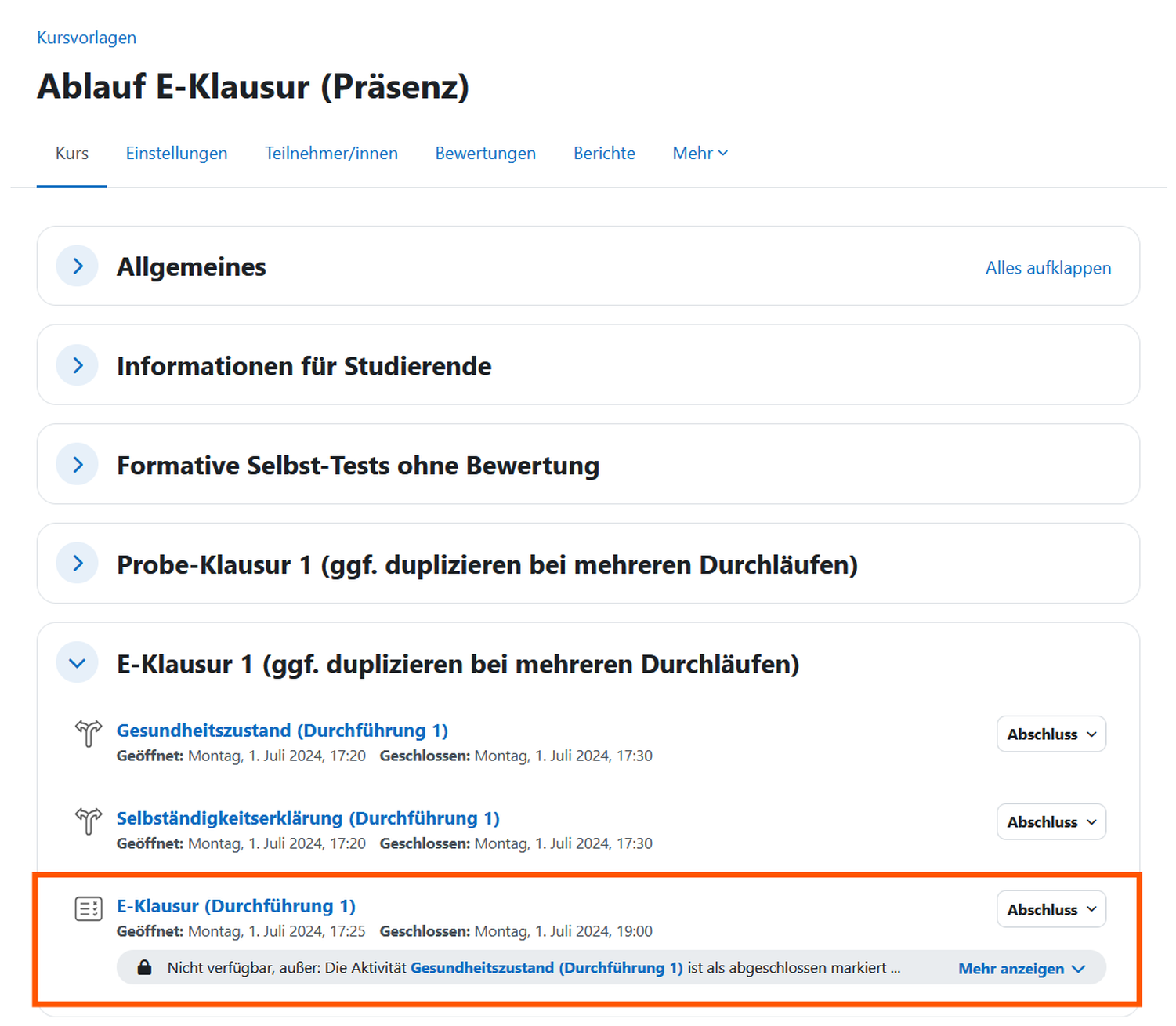
  • Import the course template for the e-exam (in-person) from the course template area.
  • Import the exam questions into the test.
  • Link the test to the health and independence declaration as a prerequisite. Set the test time for processing.
  • Set the times for the test.
  • Only one run is possible in the test for the online exam.
  • This means that the test must be reset for each test, as must the health and independence declaration.

Note on course templates:

It is recommended that you re-import the course templates for each semester, as they are constantly being developed. This allows new configurations and profiles, such as for SEB, to be integrated directly into the current online exams.

The final settings for the live online exam are made on exam at least two to one week before the online exam

  • If the run-through was successful, adjust all times for the health and independence declaration and for the test for the live online exam.
  • You can no longer test the online exam, as it is now set for the exam times.
  • A countdown to the online exam will appear in the Test activity.

No later than 1 week to 3 days before the online exam, send the students the information they need to register for the online exam course using the announcement form in the Moodle course for teaching on ecampus.

Here you will find a general overview of the further scheduling of the framework conditions for an online exam.

Students must be given the opportunity to test the technical operation of an online exam in advance. This is ensured by referring to the mock exam for all students in the ZESL mock exams and demo courses section. The link to the mock exam is already integrated into the course template for the e-exam (in-person) from the course template section.

If your students have no experience with online exams at FHP, it is recommended that you conduct a mock exam on site using exam PCs with the SEB and test questions. The preparation steps are similar to those for the online exam.

If you as a teacher have not yet conducted an online exam yourself, it is also recommended that you conduct a mock exam on site to familiarize yourself with the process.

The course template for the e-exam (in-person) from the course template area already includes a section for an individual trial exam with SEB.

It is recommended that the trial exam be conducted two to three months before the exam date. This is only about the technical process. Therefore, students from different courses can also participate. If you conduct the mock exam in January or shortly before the actual online exam, there is a greater likelihood of participants and exam supervisors being absent due to illness during the actual online exam.

You can only test the online exam in the role of participant. You can change the role temporarily for this purpose. However, we recommend that you, as the course administrator, set up a separate account and enroll it in the course as a participant. Here you can find out how to request the “participant” test account for instructors.

You can then test the view of both roles in two different browsers at the same time. It is important that the browsers are not from the same company. For example, you can use the Firefox browser for instructors and the Chrome browser for participants.

This allows you to reset the test attempt immediately after testing with the participant role in one browser by switching to the course instructor role in the other browser. This saves time during testing, as you do not have to constantly log in with a different role.

Create an online exam course in the area of online exams

Safe Exam Browser (SEB)

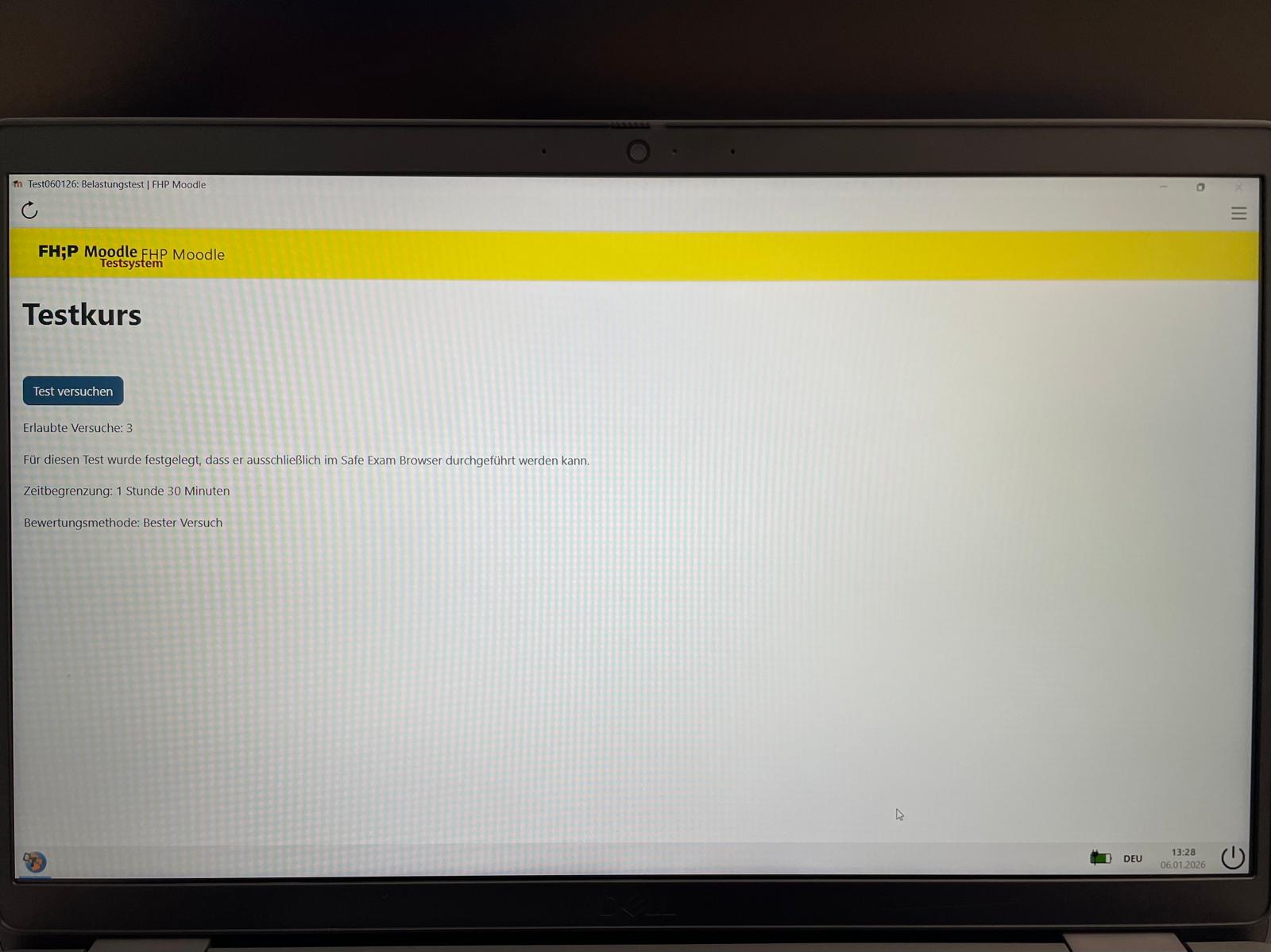
With the Safe Exam Browser (SEB), an online exam can be started in a secure kiosk mode. In kiosk mode, only the Test activity can be started.
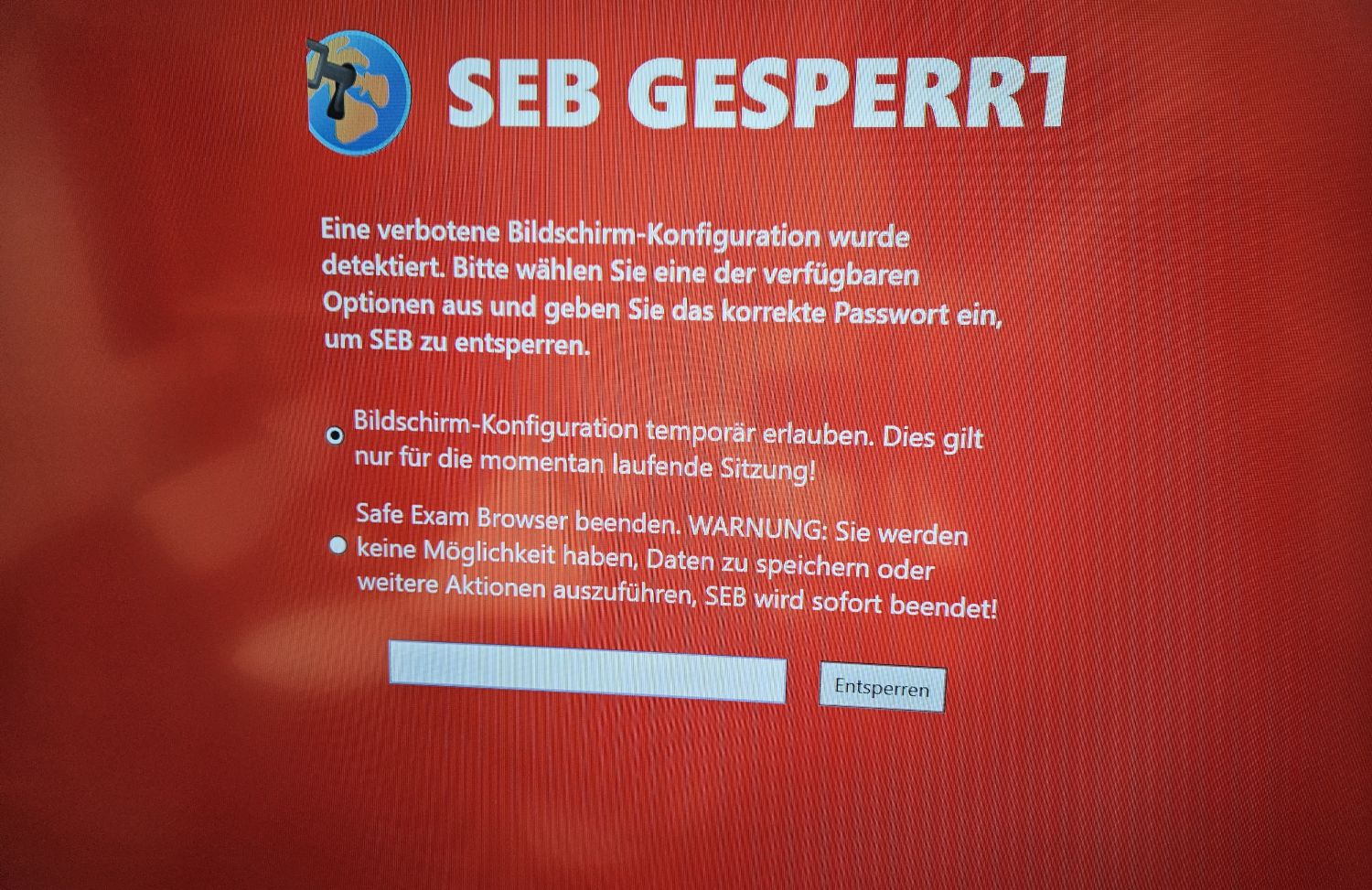
The Safe Exam Browser prevents typical activities that can be used for cheating. If suspicious activity is detected, a lock screen appears (see screenshot). The e-exam can then no longer be continued until the exam supervisor has entered a password to unlock it. To do this, however, the course administrators must first set a password for closing and unlocking in the SEB settings, see accordion tab “SEB settings”.
 

A selection of functions offered by the SEB:

  • No other programs can be opened, e.g., email programs or chat tools such as Teams.
  • The SEB detects when the screen is shared with others via an online conferencing tool such as Zoom or Teams and prevents this.
  • The SEB detects externally connected additional screens and prevents this.
  • No other websites can be opened.
  • Shortcut keys are disabled.

In principle, the SEB can be used on all three Moodle instances at the Potsdam University of Applied Sciences. However, we only recommend using it on exam  for the following reasons:

  • Special configuration templates are stored on exam, which enable quick and secure settings for the respective standard exam formats.
  • The central further development of the SEB for online exams is only carried out for exam.

Further information:

Please import the course template for “E-exam procedure (in-person)” into your online exam course on exam. The default setting for the SEB in the tests is already correctly set in the course template. You may then only need to add a separate password for the SEB.

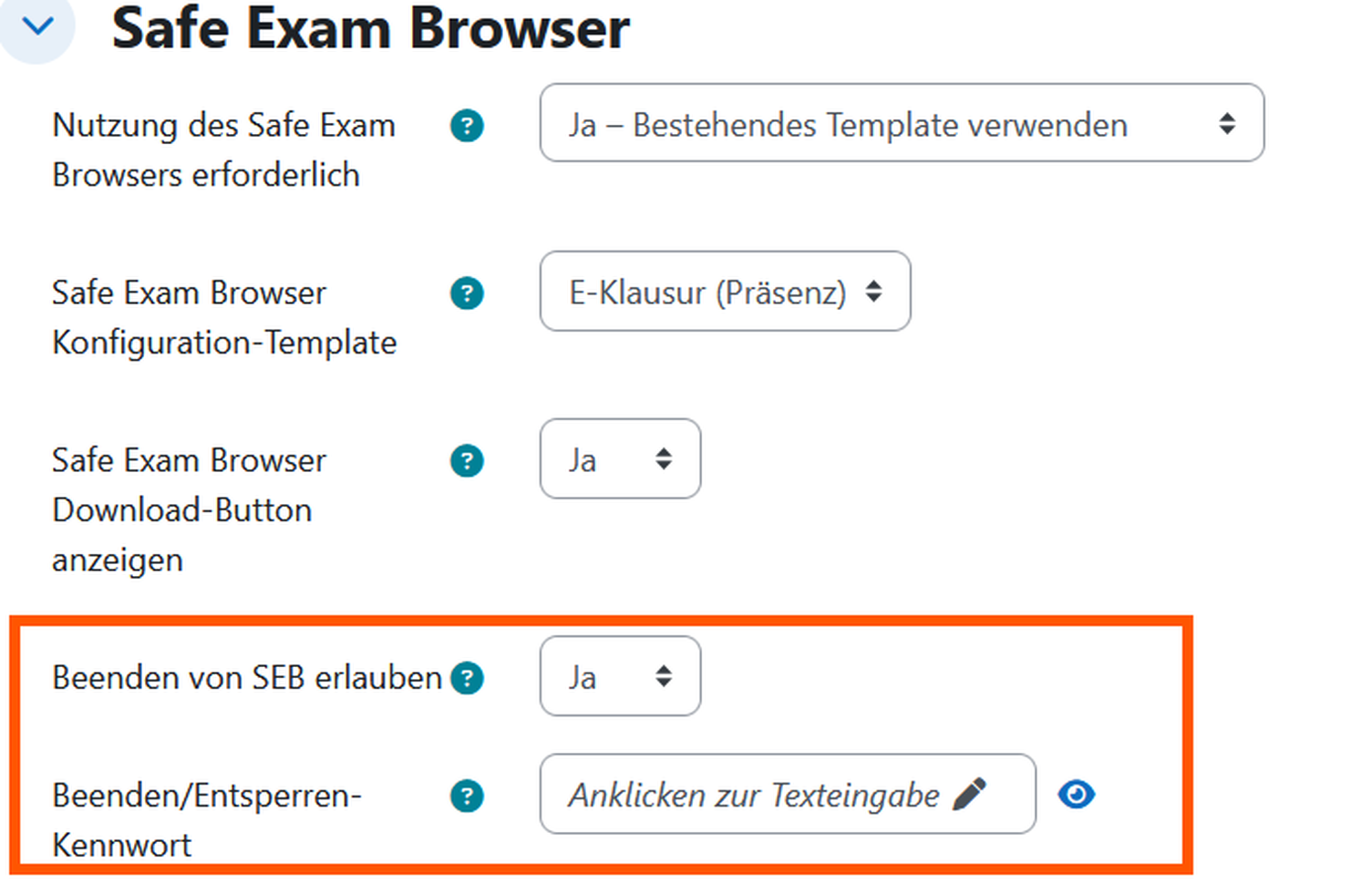
By default, independent termination of the SEB is deactivated. In this case, the exam supervisor must terminate the SEB at the end. However, this is impractical if you are planning multiple runs with different cohorts on the same devices. Even for very large cohorts of more than 20 people, it is recommended that you create a separate password for the SEB to terminate/unlock.

Instructions for setting a password for SEB

  • Click on the test.
  • Select the “Settings” tab in the test menu.
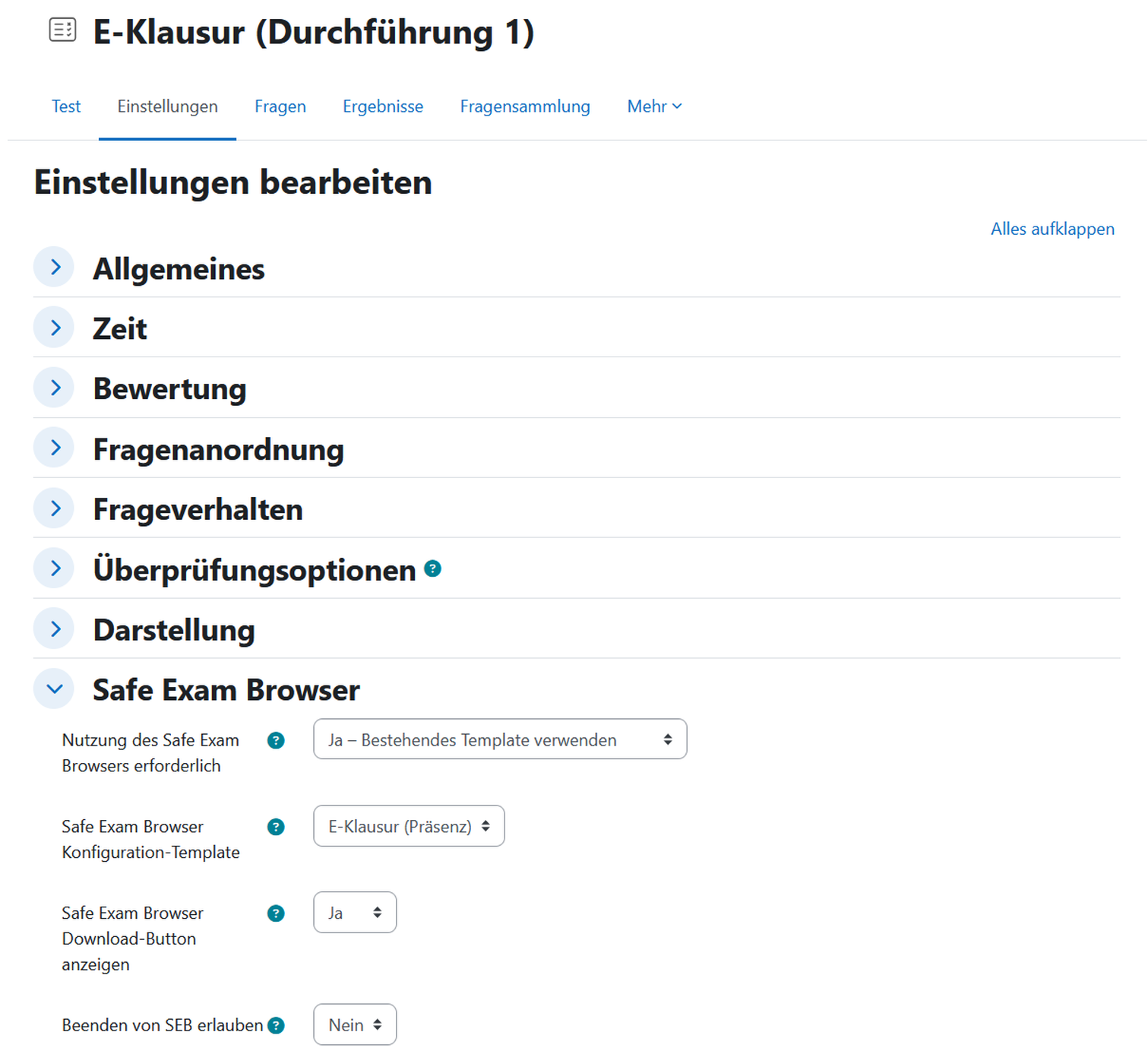
  • Open the “Safe Exam Browser” section.
  • Select “Yes” from the drop-down menu for the “Allow SEB to be closed” option.
  • Another option, “Close/Unlock Password,” will then appear. Enter a password in the text field.
  • Please note that if you leave the field blank, the SEB can be closed at any time! It is therefore essential to set a password.

If you are not using the course templates for the process, you can still set the SEB template in the test on exam.

Instructions for selecting the SEB template

  • Click on the test.
  • Select the “Settings” tab in the test menu at the top.
  • Open the “Safe Exam Browser” section.
  • For the option “Use of Safe Exam Browser required,” select “Yes - Use existing template” from the drop-down menu.
  • Then, for the option “Safe Exam Browser configuration template,” select “E-exam (in-person)” from the drop-down menu below.

Before the online exam

  • Do not give out the password for the SEB at the beginning of the online exam, but only in the last 5 minutes..

During the online exam

  • The exam supervisor can use the password to unlock/exit the SEB during the online exam to unlock locked computers.
  • Irregular activities should be noted in the exam log. If necessary, the exam supervisor can add affected persons to the invisible “special cases” group. This makes it easier to review the process later.
  • Do not give out the password to end the SEB until the last 5 minutes of the online exam.
  • If participants finish earlier, the exam supervisor can discreetly hand out the password for closing the SEB on a piece of paper, which is then collected again.

After the online exam


The Safe Exam Browser is an open-source plugin developed by ETH Zurich, which is also undergoing continuous development. The SEB is now implemented as standard in Moodle Core.

Procedure for course coordinators

  • Do not give out the password for the SEB at the beginning of the online exam, but only in the last 5 minutes. Otherwise, it is possible that the online exam will be terminated at short notice and can be restarted.
  • As an exam supervisor, please note that digital devices such as smartphones, smartwatches, and earbuds, as well as smart glasses or pens, can be used to cheat. Observe any conspicuous behavior during the exam and note it in the exam log or verify it.

  • During check-in, the exam supervisor asks participants to put away mobile and internet-enabled devices such as smartphones, smartwatches, and headsets along with their coats and bags. At the beginning, the exam supervisor should point out that attempts to cheat will result in failure of the online exam.
  • At the beginning of the check-in period, ask students to place their student ID cards on the table so that attendance can be verified by the exam supervisor during the online exam.
  • 10-15 minutes before the start of the test, the exam supervisor asks participants to log in to exam with their own campus account and open the online exam course. The exam supervisor can also write the link to exam on the board https://exam.fh-potsdam.de. Please note that the link will not open if www. is added before exam.
  • The exam supervisor informs the students that they must first confirm the health declaration and the declaration of independence before the test is activated.
  • The exam supervisor informs the students that the test starts with a slight delay at the beginning of the test time. However, the writing time usually remains the same within the test start time and test end time.

There are several ways to access the course:

  • Students have usually already registered for the online exam course. All they need to do is click on “My Courses” at the top of the Moodle menu. This will bring up an overview of all the courses the student is registered for, with the option to filter them.
  • Another option is to access the course via the Moodle menu at the top by clicking on “All Courses.” Students then click through the sections “Online Exams” > Department > Semester > to the online exam course.
  • It is possible to install a SEB configuration file on the exam PCs that creates a direct link to the online exam course. In this case, students can click directly on the link. However, please note that this process involves a very high administrative effort, as the configuration file must be reinstalled on each individual computer via USB stick and then deleted again after the online exam. With 100 PCs, you should allow several hours of working time for this.
  • Some students do not know their campus name and password by heart. Therefore, some time should be set aside for follow-up support. The process is simplified if students are advised to bring their campus account login details with them on paper before the online exam. It may also be helpful to point out that delays due to forgotten account details may result in a reduction in their own writing time.
  • If necessary, students can reset their account via the central IT website.
  • It is best for the exam supervisor to walk to the back and then to the front of the room. This allows them to quickly check the login process by glancing at the screens and offer help if the online exam course is not yet displayed on the screen.

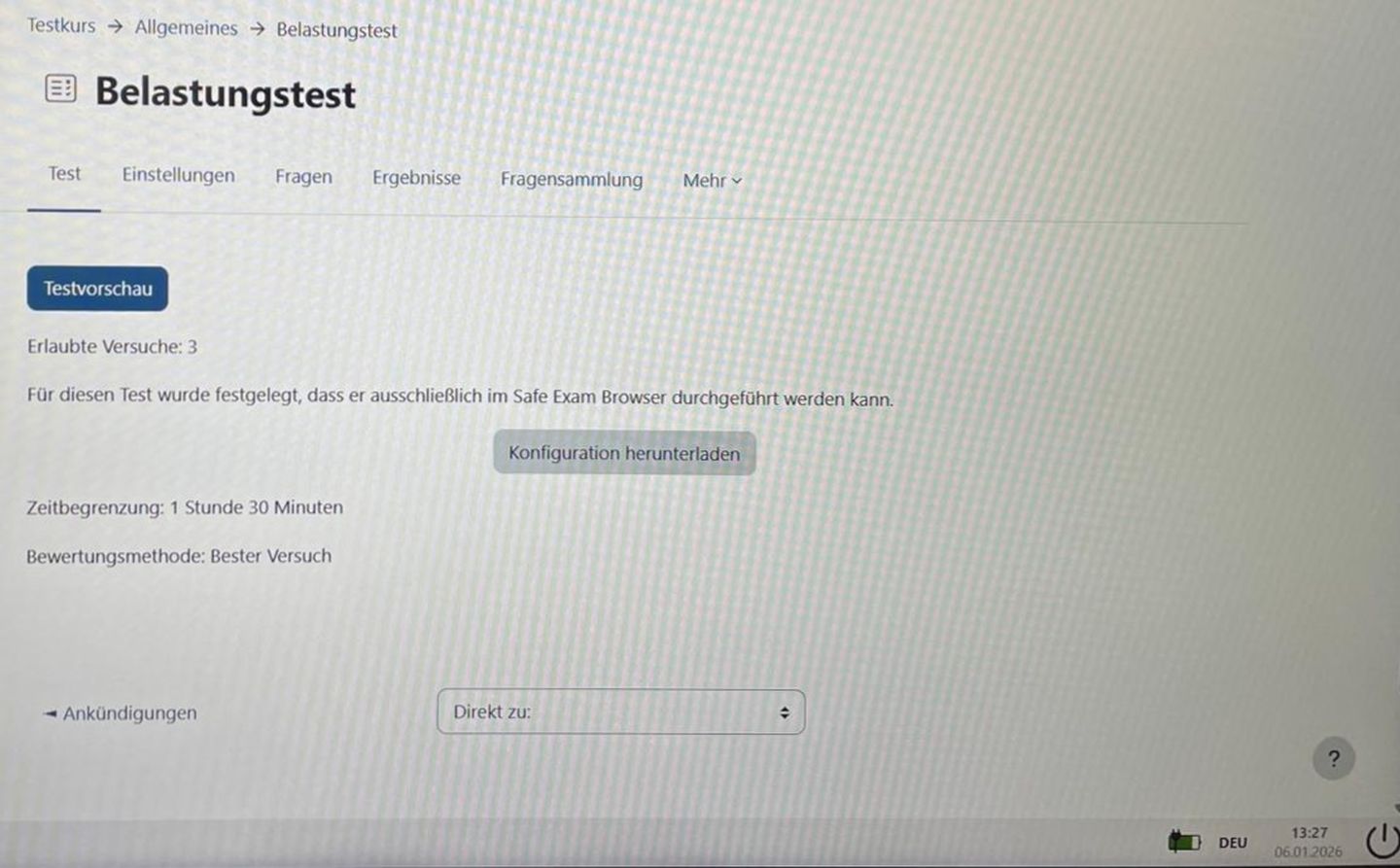
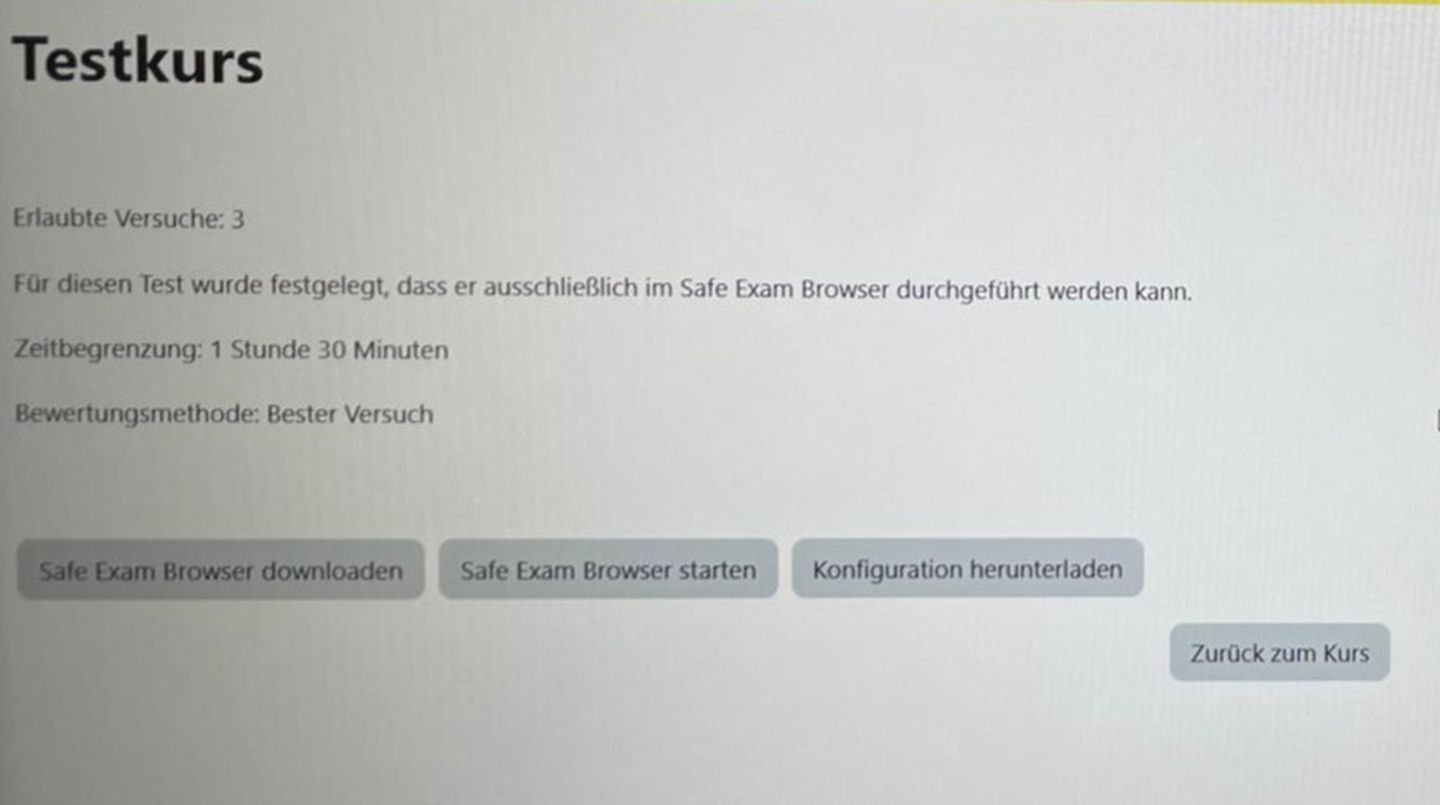
  • At the beginning of the exam, ask the students to click on the “Start Safe Exam Browser” button on the control panel.
  • Walk around the room to check that all students have started Safe Exam Browser in full-screen mode. From this point on, you can assume that you will not be able to simply close Safe Exam Browser and may need the unlock password if you have created one beforehand.
  • Only then should you ask students to start the exam and give them the password for the actual exam that you set beforehand. You can write the password on the board, for example. This process ensures that only students who are actually present have access to the exam.
  • During the exam, check the students' identities using the identification cards provided and an attendance list.
  • In special cases and in the event of irregular activities that lead to the screen being locked, the exam supervisor should first check the case before unlocking the screen with the unlock password. Any anomalies and the process itself should be noted in the exam log. If necessary, the exam supervisor can add the persons concerned to the invisible “special cases” group. This facilitates a technical review of the process later on.

  • Only give out the password to exit the SEB in the last 5 minutes of the online exam. Then write it on the board, for example.
  • If participants finish earlier, the exam supervisor can discreetly hand out the password to close the exam on a piece of paper, which is then collected again.
  • Hide the section with the online exam.
  • If you have several runs with different cohorts, make the section with the next time run visible.

Archiving process Online checks

The Moodle exam instance itself is not intended for archiving. The responsibility for archiving, the provision of data in special cases and the timely deletion of online exams lies with the lecturers, even after you have left the University of Applied Sciences Potsdam. The archiving file is only forwarded to the Examination Service if a special case arises, such as an attempt to cheat. According to legal regulations, official examinations must be archived in an audit-proof manner for certain periods of time, together with the associated metadata. Audit-proof means that it must be verified that the files could no longer be edited after the backup. Moodle tests and .mbz backups can be subsequently modified. PDF files can also be edited retrospectively without additional certification. Therefore, these procedures alone are not suitable for the legally required audit-proof archiving of examinations. There are different procedures for audit-proof archiving for the various online examination forms. These are presented below.

Deletion process for Moodle online exam courses (central office)

All online exams take place in the online exams section of exam.

All Moodle courses are deleted here (semi-)automatically by the central IT department in accordance with legal requirements.

Before deletion, Central IT creates an accession list of courses to be deleted. The deletion of the courses is then requested via the university archive at the Brandenburgischen Landeshauptarchiv (BLHA). After approval by the BLHA, the courses are released for deletion by the university archive. Central IT then deletes the courses.

Moodle courses in the “Online Exams” section on exam are deleted approximately two years after the end of the year in which an online exam was conducted. The reference year is the year entered in the settings of a Moodle course at the bottom of the course filter. Teachers should ensure that the year in which the last repeat exam took place is specified there.

It is recommended that the Moodle course be hidden via the course settings after the last repeat exam has been held.

Deletion process for archiving files (teachers)

The actual archiving file for the online exam is stored locally by the teachers. As with paper exams, teachers are responsible for the deletion process. As with the Moodle courses above, the reference year for deletion is two years after the end of the year in which an online exam was conducted.

Lecturers are responsible for cancelling special cases. There is a special cases area on exam. The special cases area and the recycle bin area are hidden. Only people who are logged into exam and have the "FHP course creator" authorisation can access this area.

A special case is always person-specific. This means that the data of the person concerned for the exam must be stored for longer than the regular exams, e.g. because an attempt at cheating is suspected or the person is seeking legal recourse via a complaint.

To do this, the lecturer moves the online examination course to the special cases area via the course settings. There, the course is no longer subject to automatic deletion. The course should be hidden in the course settings so that students can no longer access it.

Once the special case has been clarified, the lecturer is responsible for initiating the deletion. The lecturer should enquire with the university archive about the deletion regulations. The lecturer must apply to the Brandenburg State Archive (BLHA) via the university archive to have the course deleted. After approval by the BLHA, the course is moved by the lecturer in the course settings to the recycle bin area on exam. Here, all courses are deleted manually once a year by the Central IT Services.

For further information on the legal and formal process, lecturers should contact the examination board of the department and the examination service. Please also clarify the transfer of responsibilities with the department, e.g. if you are only employed as a lecturer at the University of Applied Sciences Potsdam for a short time or are retiring.

Please note that "sharp" examination courses must not be saved as templates with the students' data. A template course should always be created first and then imported into an actual exam course. If lecturers want to save exam templates in Moodle courses for further use, use the dedicated development area on exam. There you can get your own area from the decentralised Moodle supervisors. Lecturers  can create exam templates here, which are then imported for a specific exam.

Courses are not deleted centrally in the development area. Lecturers are responsible for their own development area. If lecturers want to delete courses in the development area, they must move them to the recycle bin area in the settings. The recycle bin is deleted manually once a year by the Central IT Services.

Videotutorial zur Archivierung von Online-Prüfungen mit der Aktivität Test mit dem Quiz Archiver.
Source: Video: Julia Lee, Fachhochschule Potsdam, CC-BY SA 4.0

Archiving online exams with the Quiz Archiver (Activity Test)

Online exams that have been carried out with the Test activity can be archived in an audit-proof manner using the external plugin "Quiz Archiver". The Quiz Archiver is only implemented on the Moodle exam instance. Take a look at the video tutorial. In the following accordion you will find a short instruction in text form.

Further information on the Quiz Archiver (activity test)

  • Click on the test activity in your Moodle exam course.
  • In the context menu of the test, click on the "Results" tab at the top.
  • Then select the "Quiz Archiver" option from the contextual drop-down menu below.
  • Click on the "Archive text" control panel at the bottom. You can accept the default settings.
  • Depending on the number of exams, the archiving process may take a few minutes. With over 100 exams, this can easily take 10 - 15 minutes.
  • In the meantime, click on the rotated arrow to the right next to Test archives. The status display will then be updated.
  • You will see a "Status" column under Test archives. When the creation of the archiving file is complete, it will say "Done". A green download symbol with an arrow pointing downwards then appears on the right in the line of the archiving file. Click on the download icon to download the archiving file to your PC.
  • Select a secure storage folder on your service device. If necessary, add to the name of the file whether it is the first time the test has been carried out or, for example, a repeat test.

Current instructions and information on the "Quiz Archiver" plugin can be found in the Moodle documentation

The Quiz Archiver is an additional plugin for the "Test" activity in Moodle. It offers audit-proof archiving of the results of an online exam with the "Test" activity. The backup data is saved on the lecturer's storage devices, which are independent of the Moodle instance, similar to how paper exams are stored by the lecturers. Meta data for the online exam is saved and certificate files are created. In the event of contradictions by participants in the exam, a certificate for the respective exam backup can be used to prove that the backup was made at a certain point in time. The Quiz Archiver is helpful for exam administration. This is because archiving takes place in separate folders for each person. This means that the data of individual participants can be archived separately for longer in an institution's document management system. The data of all other participants can be deleted earlier in accordance with data protection regulations and are not stored unnecessarily longer than necessary due to the objection.

Only people who are enrolled as course administrator in the Moodle course have the right to create an archive. The archives are personal, i.e. you cannot see the archives of other people in the same course. You should therefore agree in advance who will be responsible for archiving if you are more than one examiner.

The Quiz Archiver creates a zipped tar.gz file. This format can be unzipped on devices running Windows 11 or later or MacOS using built-in tools. For older versions of Windows, we recommend installing a zip program such as 7-Zip. When unzipping the file, please note that you must unzip it twice in succession using the program. Only then will the tar.gz file be unzipped to such an extent that you can continue processing it in a normal folder format on the end device.

The process of unzipping the file is particularly important for viewing the online exam. This allows you to filter out the archive of a single person and make it available for viewing.

Due to automatic evaluation, requests to review exams are rare.

The examinees' answers are provided as a PDF document. This PDF document can be used for review after an online exam. It is recommended that the review always be done on site so that no copies of exam questions and results can be made. Students can view their online exam on a university computer or in print. However, they are not allowed to make copies or copy complete question items and all answer options. They can note down the number of the question item or answer option to which they wish to object. The process is simplified if you add a non-changeable ID for each question at the top of the question text when creating a question.

It is recommended that you save the exam with the Quiz Archiver as soon as possible after completion. The archiving process should also be repeated after major changes. This ensures that the first time the exam is taken is documented in an audit-proof manner with the different versions, in contrast to, for example, a repeat exam or a general change to the grade sheet.

Assessments Portfolio tasks

The assessment feature in Moodle offers a good solution for sharing the results of tests and assignments with students. Moodle has preset settings for calculating overall results, but these can be customised and the overviews can be better structured. Instructions and help on the topic of assessments can be found here.

Requirements:

  • Assessment activities have already been set up.
  • All that remains is to set the assessment in the overall course context.
  • Assessments from several assignments during a semester are added together.
  • The weighting may vary.

Introduction

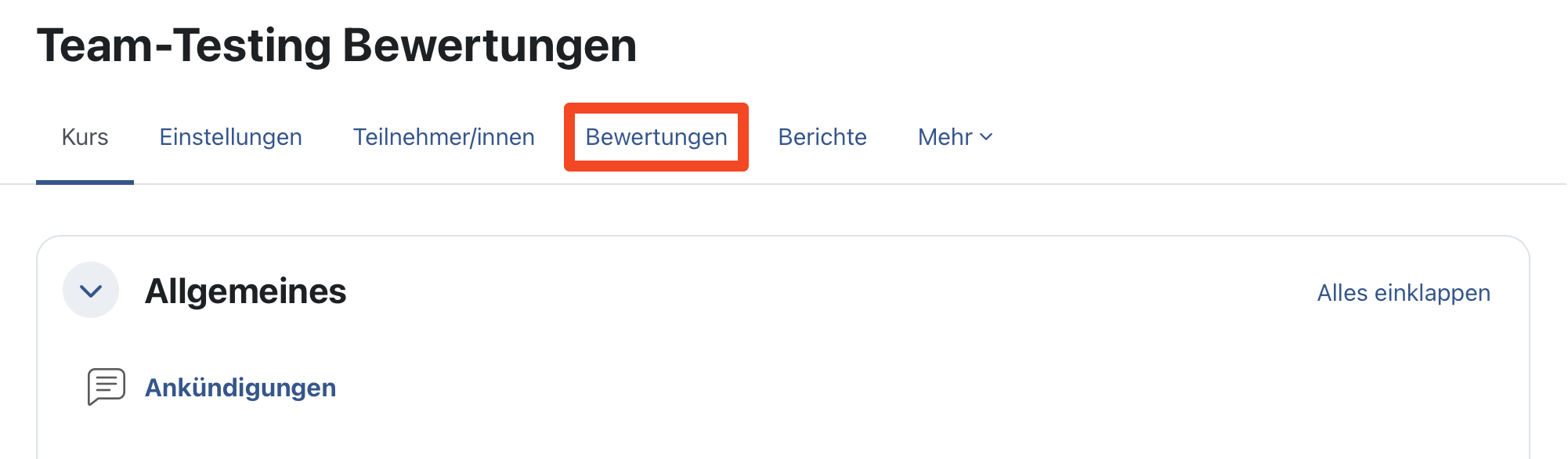
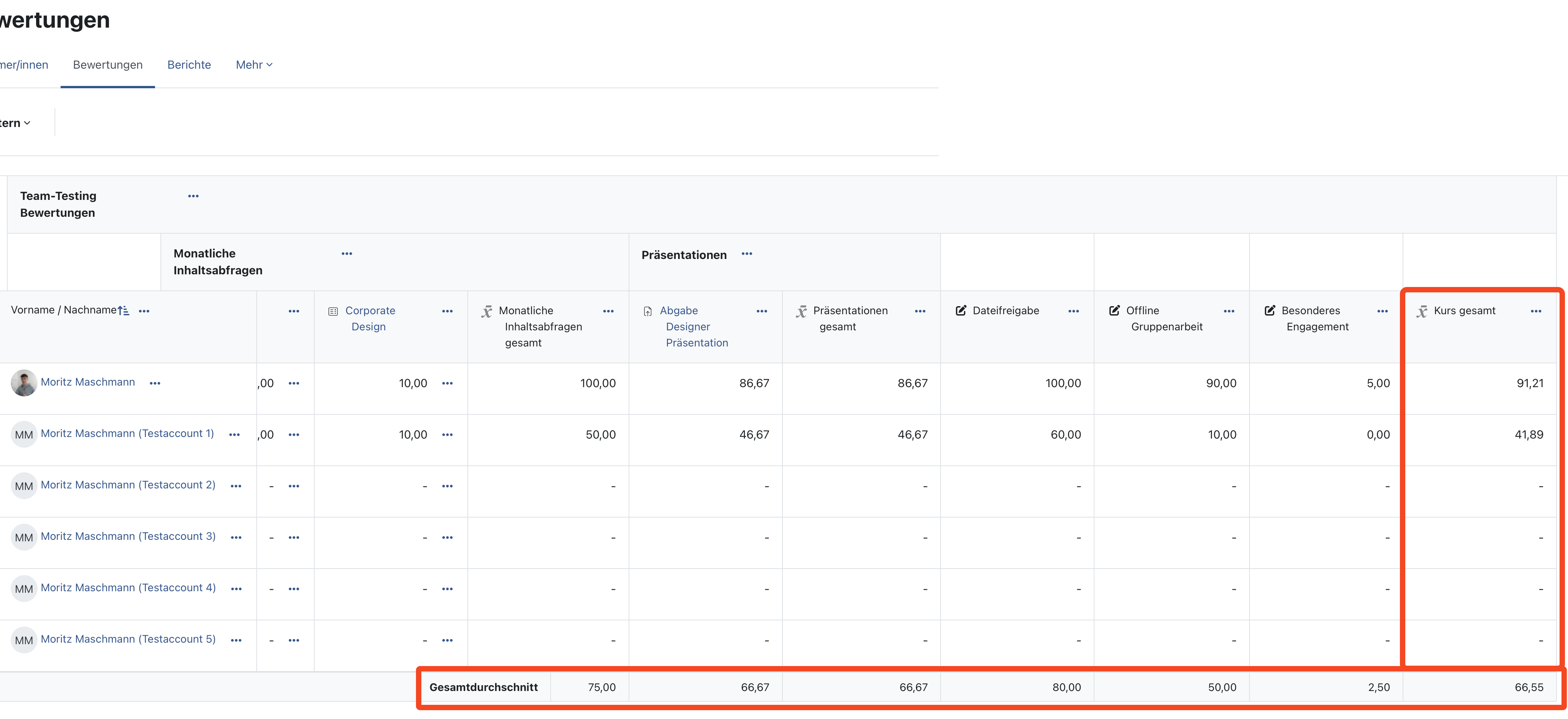
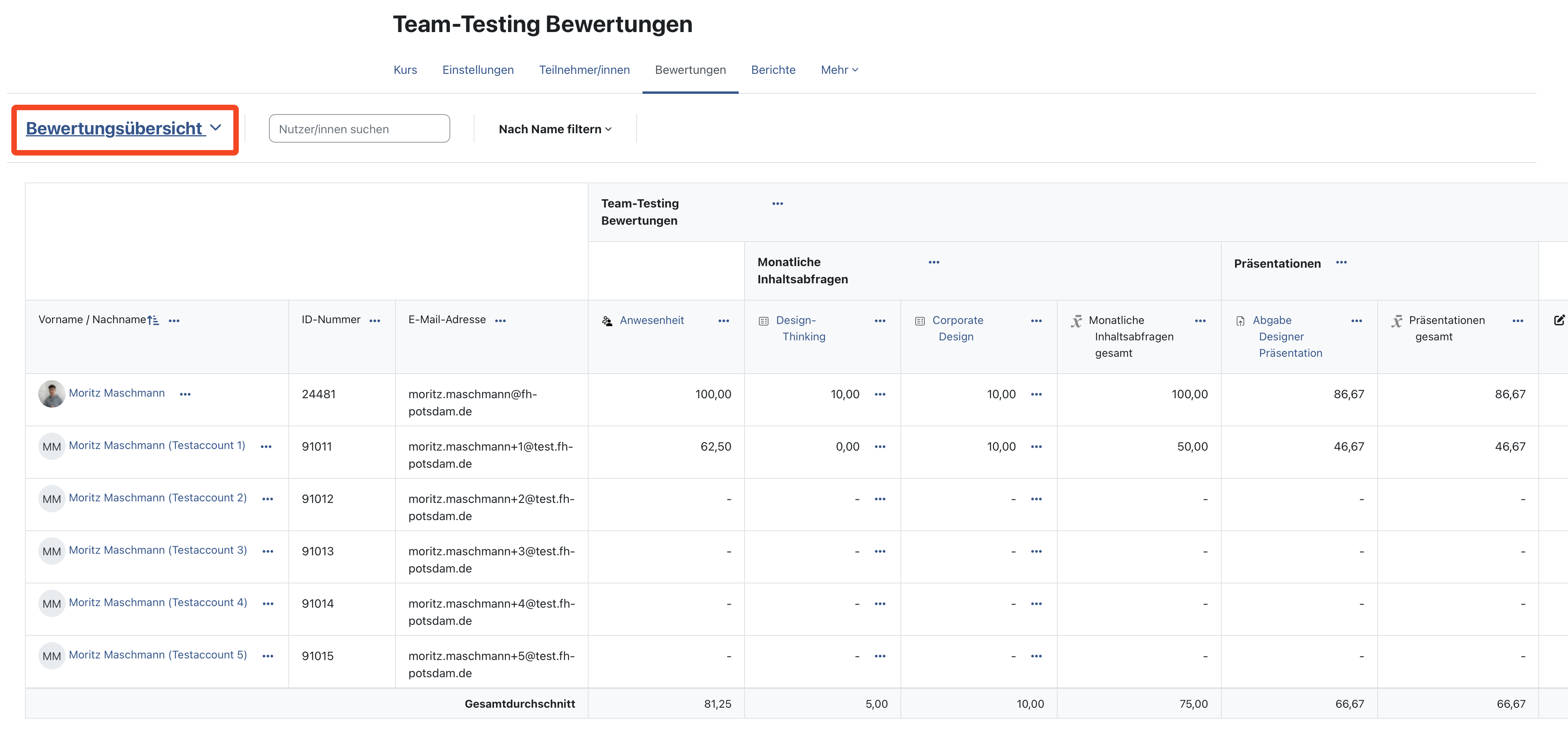
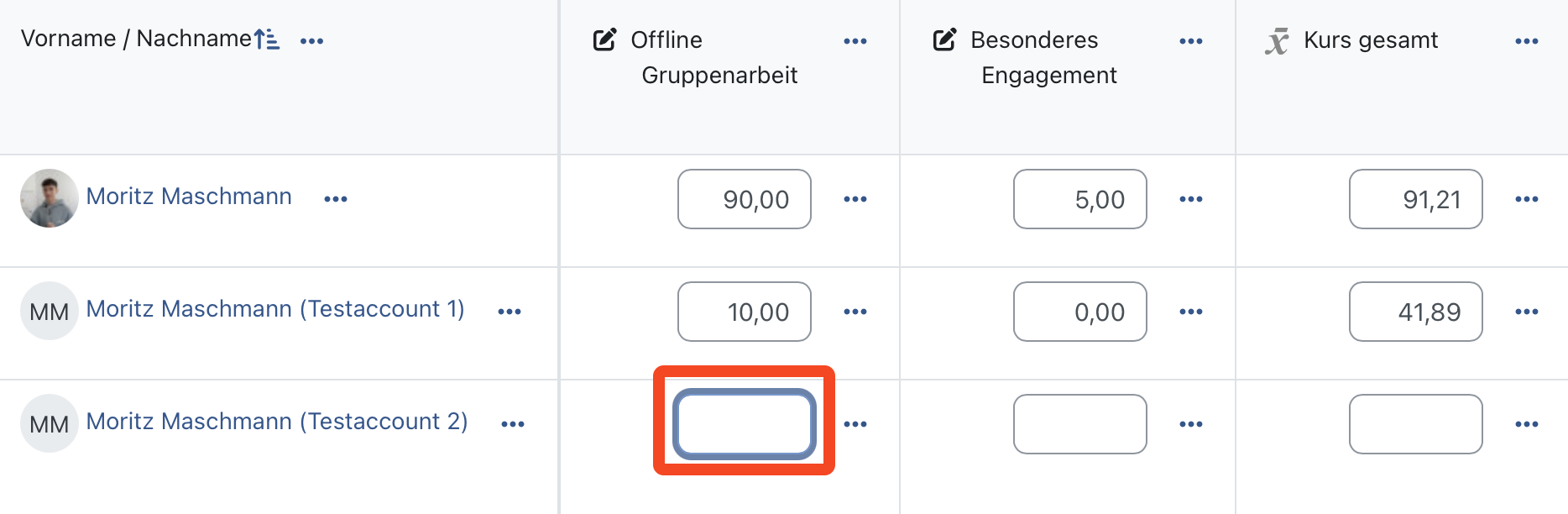
Moodle offers an extra interface for managing and reading assessments, which you can find under ‘Assessments’ in the horizontal menu bar at course level (see series of images below).

In the ‘Assessments’ tab, you will automatically be taken to the assessment overview page. There, you and your students can view your assessments (provided they have been made visible to students). As the person responsible for the course, you can view all assessments from the course there. 

Default settings for assessments

If tests, assignments or tasks have already been created in the course and have been assessed, you will find the results here (for more information on assessable activities, see the accordion tab ‘Assessment types’).

Moodle automatically shows you the overall average of the points for an activity. All of a student's results are also summarised and displayed as a final result under ‘Course total’. This calculation is based on the principle of the ‘simple weighted average’ (for more information, see the accordion tab ‘Assessment categories’). Please note that empty assessments are not taken into account in the default settings.

Changing settings

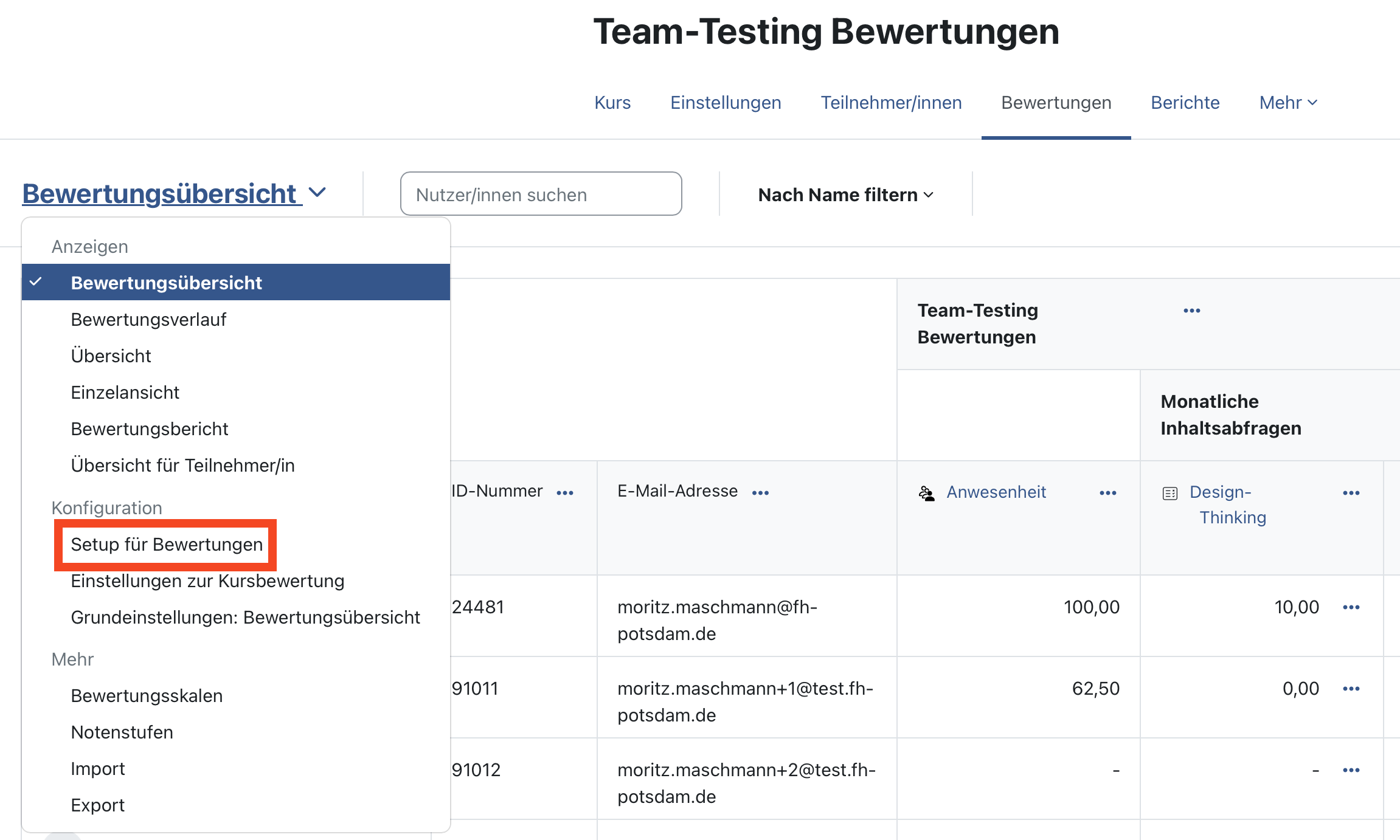
If you want to change these and other default settings, you can do so on the ‘Setup for assessments’ subpage, which you can access as follows:

  1. As the course administrator, click on the ‘Assessments’ tab in the course.
  2. Click on the ‘Assessment overview’ drop-down menu at the top left.
  3. Under Configuration, click on ‘Setup for assessments’.

You will find further step-by-step instructions on the following accordion pages.

Further instructions

Moodle offers a wide range of activities within a course that can be assessed. These include the following activities:

  • Attendance
  • Assignments
  • Offline tests
  • Tests

Within these activities, you can award points or grades either automatically or manually. These can then be viewed in the Assessment tab. This provides you with an overview and allows students to track their performance.

In addition, assessment aspects can be added manually. For more information, see the accordion tab “Assessment aspects.”

Further instructions for the “Task” activity

Assessment aspects are assessments that you can add manually to the course. These can be used, for example, to enter presentations, group work, or other tasks that have been assessed offline into Moodle. Assessment aspects can also be declared as extra points.

Create assessment aspect

You can create assessment aspects by:

  1. As the course administrator, click on the “Assessments” tab in the course.
  2. Click on the “Assessment overview” drop-down menu at the top left.
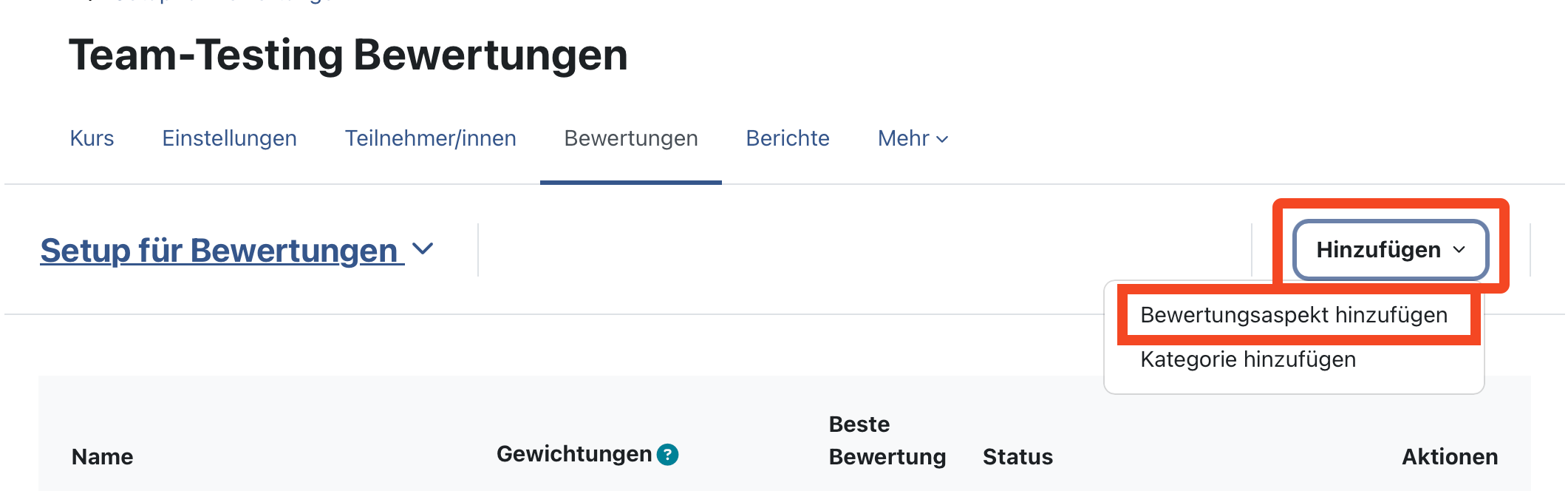
  3. Clicking on “Setup for assessments” under Configuration
  4. Clicking on the ‘Add’ drop-down menu at the top right
  5. Clicking on “Add assessment aspect”

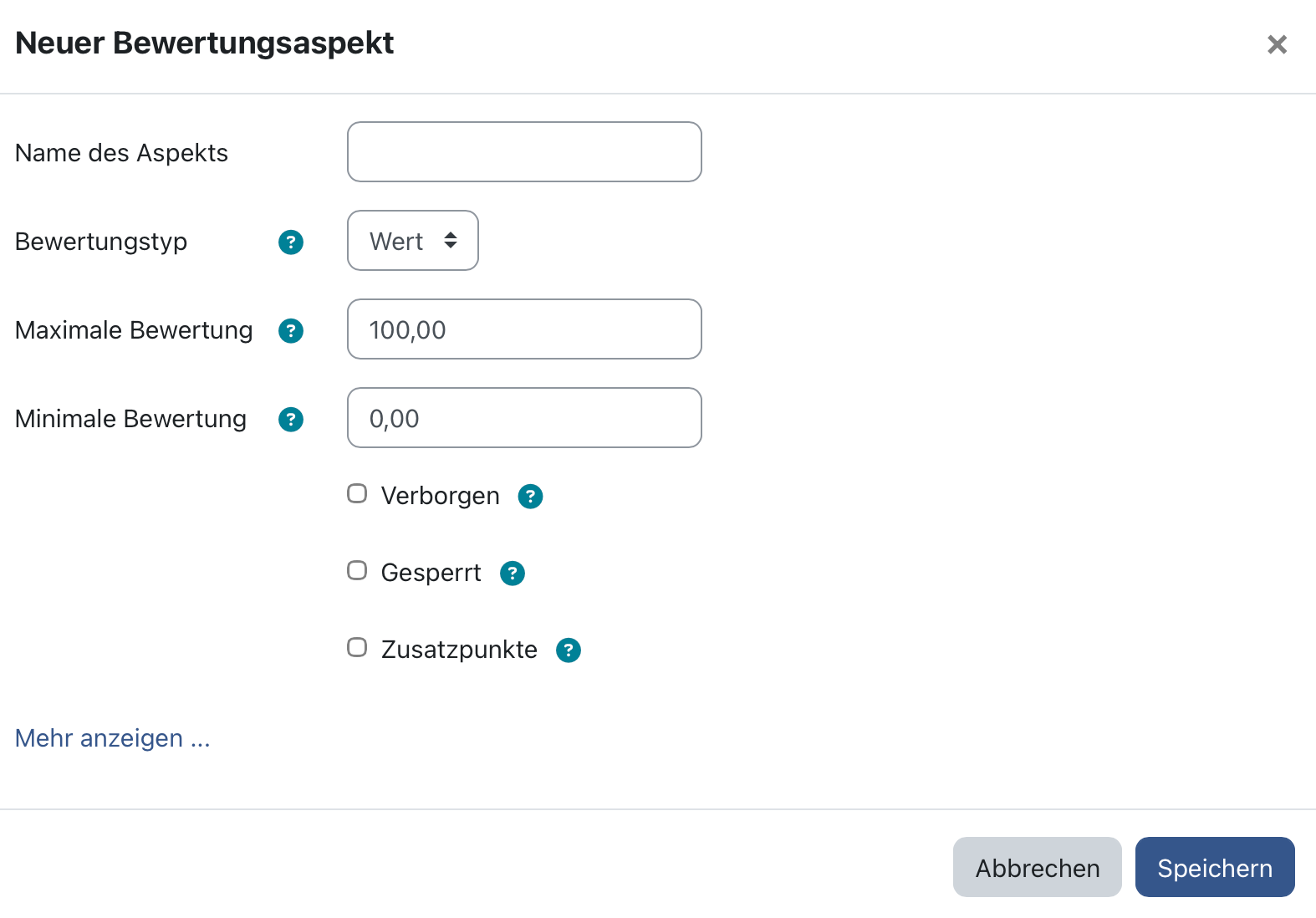
Here you can give the assessment aspect a name, set the maximum number of points, hide the assessment aspect, or declare it as extra points if necessary.

Further setting options

Under “Show more,” you will find more detailed settings options, which you can either click on when creating or by:

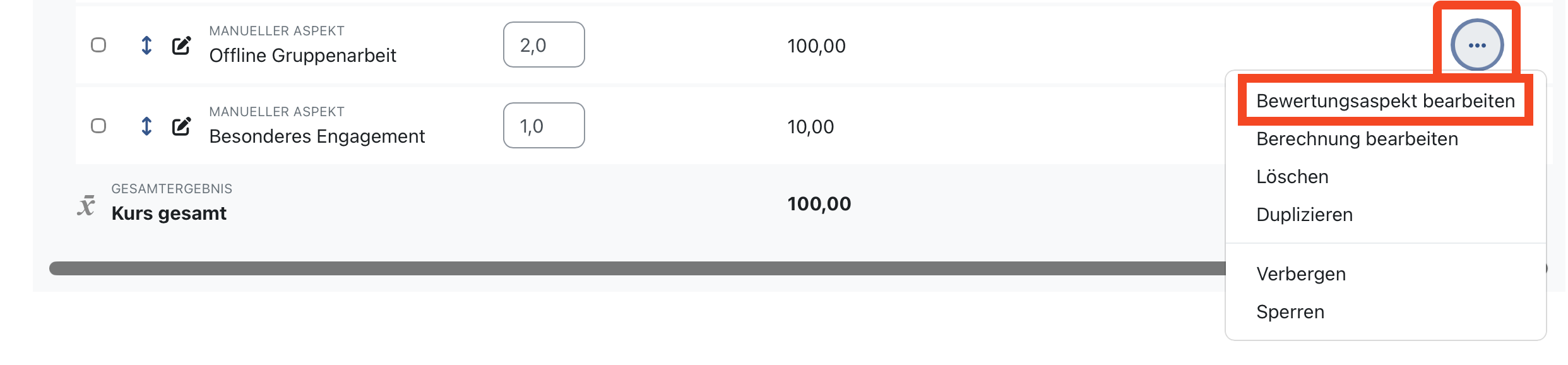
  1. Selecting your rating aspect on the “Setup for ratings” page
  2. Clicking on the three-dot menu to the right of the rating aspect
  3. Clicking on “Edit rating aspect”
  4. Scrolling down and clicking on “Show more” at the bottom

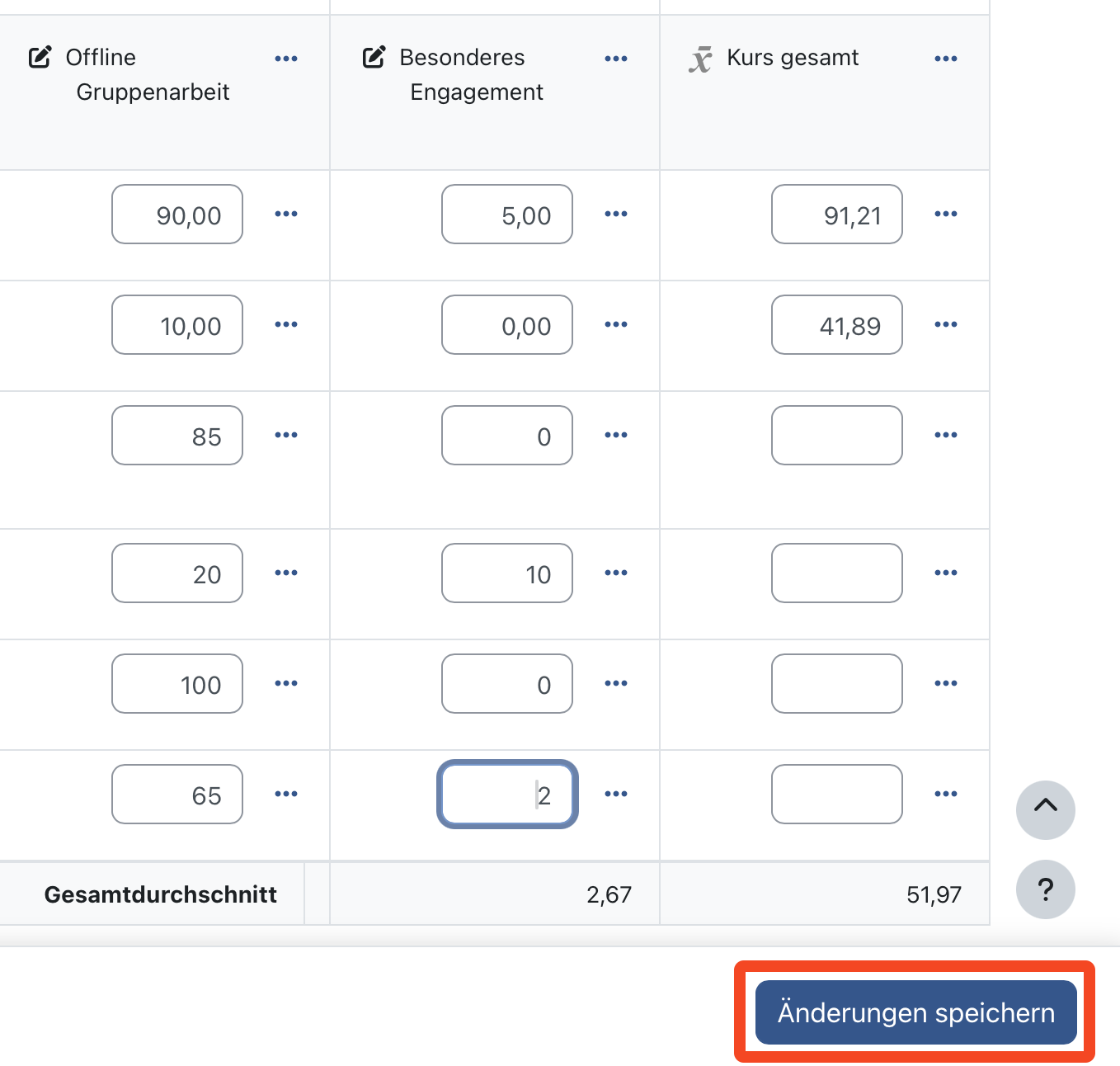
Rate rating aspect

Once one or more rating aspects have been created, you can rate them. To do this, proceed as follows:

  1. As the course administrator, click on the “Ratings” tab in the course
  2. Activate edit mode at the top right next to your profile picture
  3. Select the assessment aspect
  4. Enter the assessments in the boxes
  5. Click on “Save changes” at the bottom right

Further instructions


Grading categories help you organize your grades. They can also be used to combine multiple grades into a single, collective grade. For example, only the best grade in a category could be included in the overall course grade.

Adding assessment categories

To create assessment categories, follow these steps:

  1. As the course administrator, click on the “Assessments” tab in the course.
  2. Click on the “Assessment overview” drop-down menu at the top left.
  3. Under Configuration, click on “Setup for assessments.”
  4. Click on the ‘Add’ drop-down menu at the top right.
  5. Click on “Add category.”

Here you can give the assessment category a name, set the calculation of the overall result (aggregation types), remove empty assessments, or set the maximum assessment.

Further setting options

Under “Show more,” you will find more detailed settings options, which you can either click on when creating or by:

  1. Selecting your category on the “Setup for ratings” page
  2. Clicking on the three-dot menu to the right of the category
  3. Clicking on “Edit category”
  4. Scrolling down and clicking on “Show more” at the bottom

Aggregation types

The most important setting option for the category is the setting for calculating the overall result, also known as aggregation types. These can also be used to set weightings (more on this topic in the accordion tab “Weighting of ratings”). “Simple weighted average” is selected as the default. Otherwise, “weighted average” and “sum” are available as options for weightings.

The aggregation types are differentiated as follows:


Weighting in Moodle assessments can be used to set different priorities in the calculation of the overall result. For example, specific assignments can be weighted twice.

Creating weightings (course level)

You can activate weighting at the course level by:

  1. Clicking on the “Assessments” tab in the course as the course administrator
  2. Clicking on the “Assessment overview” drop-down menu at the top left
  3. Clicking on “Setup for assessments” under Configuration
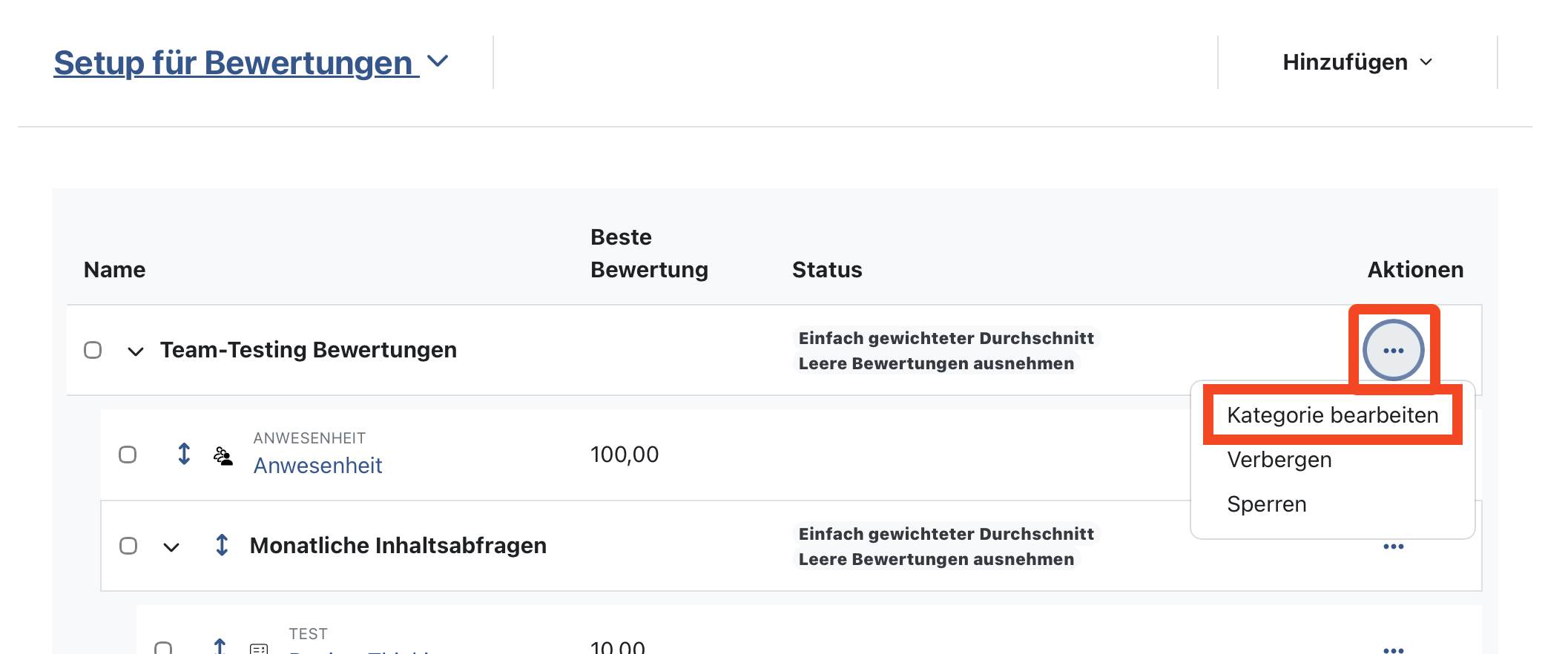
  4. Clicking on the three-dot menu next to the course name in the setup table on the right
  5. Clicking on “Edit category”
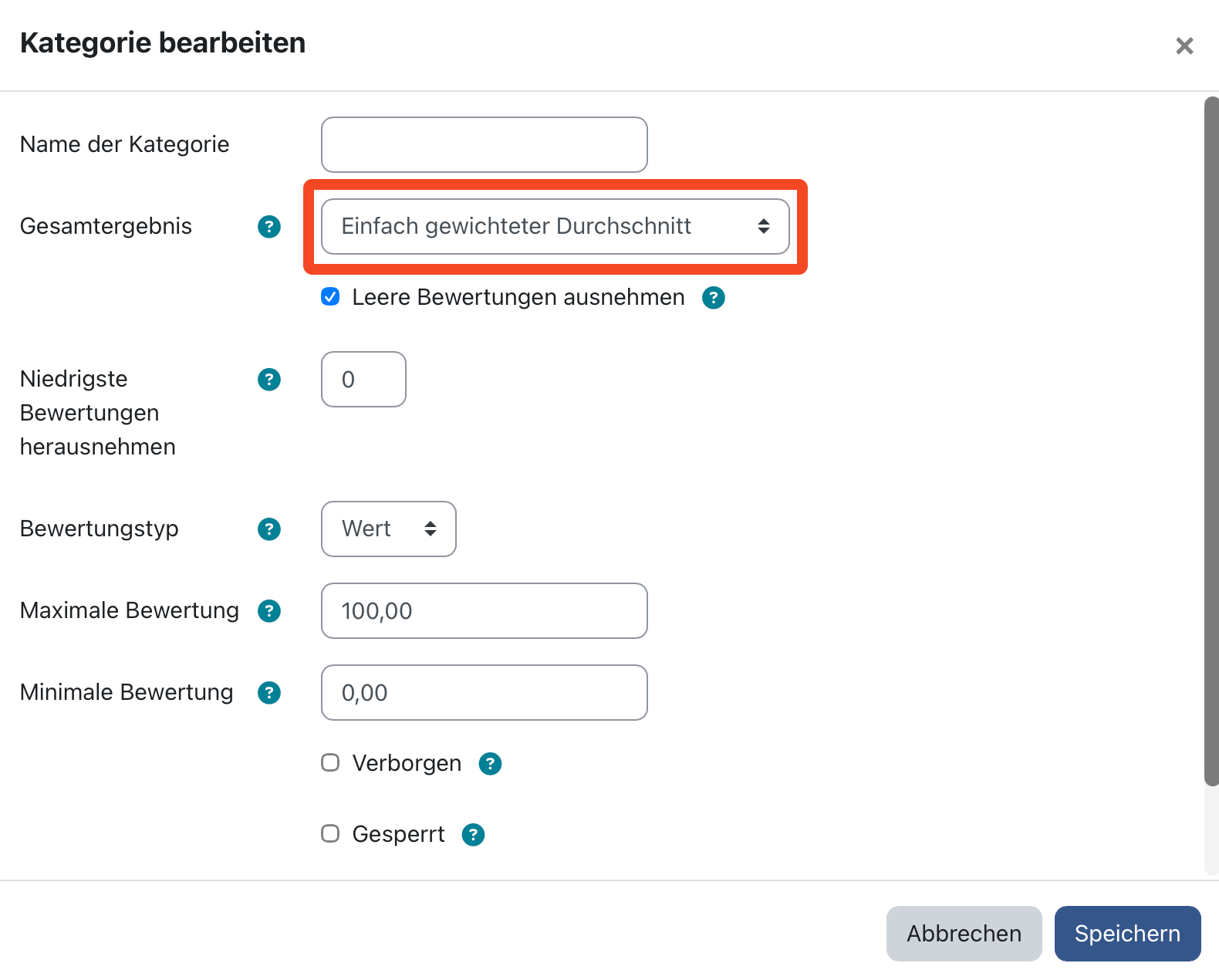
  6. Clicking on the drop-down menu next to “Overall result”
  7. Select the aggregation type “Weighted average” or “Sum.”
  8. Click on “Save” at the bottom right.

The Weighting tab should now appear in the setup table, where you can set the weighting either multiplicatively (weighted average) or as a percentage (sum).

When weighting using the “Weighted Average” aggregation type, the number is multiplied. By default, each rating has a weighting of 1. If you want to double the weighting of a task, set the number to 2.

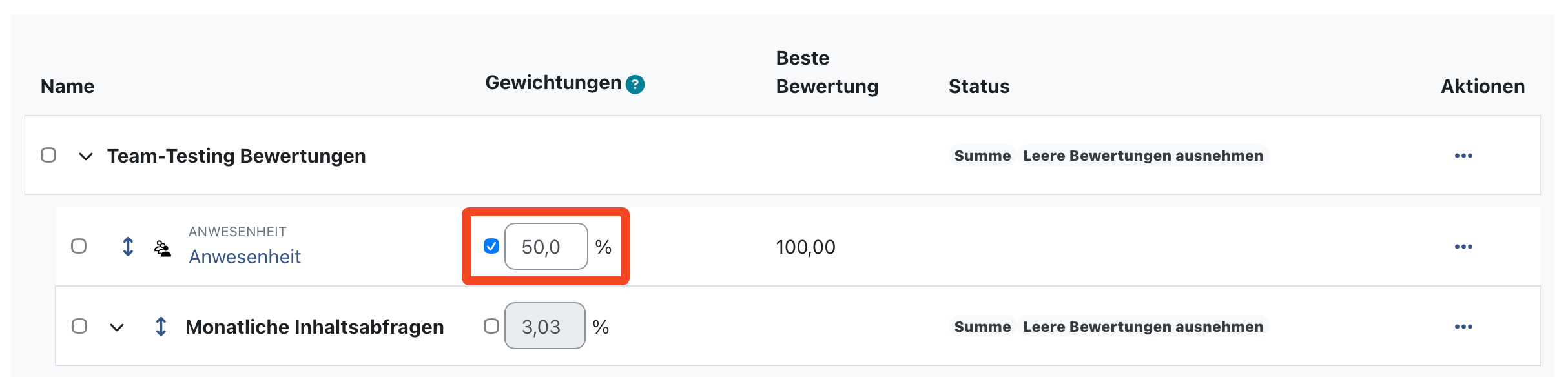
When weighting using the “Sum” aggregation type, you must first activate the fields to be edited. To do this, click on the box to the left of the percentage weighting. The sum of all weightings adds up to 100%.

(For more information on aggregation types, see the “Assessment categories” accordion tab.)

Creating weightings (category level)

If you only want to weight the assessments within your categories, or want to do so in addition, proceed as follows:

  1. As the course administrator, click on the “Assessments” tab in the course.
  2. Click on the “Assessment overview” drop-down menu at the top left.
  3. Under Configuration, click on “Setup for assessments.”
  4. In the setup table on the right, click on the three-dot menu next to the desired category.
  5. Click on “Edit category.”
  6. Click on the drop-down menu next to “Overall result.”
  7. Select the aggregation type “Weighted average” or “Sum.”
  8. Click on “Save” at the bottom right.

Further instructions

Contact and services

Centre for Teaching and Learning (ZESL)

The student e-learning team offers support for the HelpDesk wiki for lecturers in the departments:

digitale-lehre@fh-potsdam.de

Central IT Services – Moodle Admin

Administration of all Moodle platforms:

moodleadmin@fh-potsdam.de

Contact decentralised Moodle supervisors

Regular Moodle support for teaching staff in the departments is provided by the decentralised Moodle supervisors. However, these may be organised differently depending on the department. You will receive more detailed information on the process and the requirements in your own department on a decentralised basis.

Credits, OER material, editorial notes

With the exception of proper names and trademarks, the text on this page can be used as OER material under your own responsibility under foglender licence:

Content: Julia Lee (overall concept, almost all texts and videos), with the exception of Charlotte Warkentin (enrolment methods), student e-learning team of the Digital Teaching department (ongoing updates), University of Applied Sciences Potsdam, licence: CC BY-SA 4.0.
Updates by the ZESL student e-learning team if necessary.

Moodle software (e.g. screenshots, screencasts): Copyright Martin Dougiamas, with contributions from various developers, licence GNU General Public License, version 3.

Moodle Documentation (if cited): Copyright of the authors, i.e. history of the wiki articles, licence: GNU General Public License, version 3.

The University of Applied Sciences Potsdam does not guarantee the legal, technical and organisational conditions of the materials. Any further use is at your own risk. Most of the images, graphics and videos can also be used and edited as OER material. The licence details can be found directly below the material or embedded in the video.

Editorial notes:

The HelpDesk wiki uses asterisks * to indicate gender. Since Moodle uses the slash / to genderise role designations, this is retained when referring to a Moodle role.